


Install X-GPS Tracker App
After installing, return to this page for the remaining steps.
Installing on another phone? Scan the matching store QR with that phone’s camera. These codes do not activate tracking.



GPSPRO APPS & DEVICES
Your fleet. Your phone. The right tools for both.
Already set up? Sign in ↗Run your operation from 1 place
All web features included with your GPSPRO service.
Use your GPSPRO email and password. No download needed. Employees use X-GPS Tracker App for jobs, forms and work-status updates.
Monitor your fleet
All app features included with your GPSPRO service.
View vehicles and phones already on your account.
Stay connected to your team
All app features included with your GPSPRO service.
For employee chat and jobs, employees use X-GPS Tracker App.
Track your people. Back up their work.
Per tracked phone. All app features included.
Opens an email request to support. Service is not activated automatically. Drivers use their own GPSPRO invitation. Phone settings required · GPSPRO invitation needed · Billing terms and any startup charges confirmed before activation.
Know where your trucks go. And when they work.
Per wired vehicle tracker.
See the road. Protect your fleet.
Monthly service per system.
Vehicle Tracker and AI DashCam prices are monthly rates, billed quarterly. At startup, GPSPRO collects activation, shipping, the first quarter and a prepaid final billing period, and confirms the total before you order. Equipment is provided for service use and returned when service ends.
Returning equipment? Include its quantity, description and IMEI. GPSPRO will confirm return instructions and when billing ends.
No email app configured? Call, text or email GPSPRO ↓
After installing, open GPSPRO X-GPS Mobile App. If it asks for a QR code or server address, contact GPSPRO for setup help before signing in.
To use this setup QR, display this page on another screen. On the app’s sign-in screen, select “Set up with QR code” and scan the code shown here. Use only the app’s scanner for this setup QR; the phone’s Camera app opens a download page.
Get Mobile setup help ↓
After installing X-GPS Monitor App, return here to connect it to GPSPRO.
Open X-GPS Monitor App. If it asks for a QR code or server address, contact GPSPRO for your Monitor setup before signing in. A setup QR connects the app to GPSPRO; it does not install the app.
Get Monitor setup help ↓Once Monitor is connected to GPSPRO, sign in with your GPSPRO email and password.
Confirm your expected vehicles appear and check their last-update times. If your fleet is missing or looks unexpectedly out of date, ask GPSPRO for help.
Use the chat section to reach employees using X-GPS Tracker App. Use the tasks section to view or reassign existing jobs.
All phone guides are displayed below. Choose a phone to jump to its guide.
Checks are your confirmations, not automatic phone checks.
After installing, return to this page for the remaining steps.
Installing on another phone? Scan the matching store QR with that phone’s camera. These codes do not activate tracking.
Open your own setup link from GPSPRO. If asked, enter the Personal ID from that invitation in X-GPS Tracker App.
A GPSPRO tracking service and an invitation are required. Need yours? Contact GPSPRO below.
Image unavailable. Follow the written steps above or contact GPSPRO.
In X-GPS Tracker App, open Settings → General and turn Tracker on. Keep Location and your internet connection on.
Use the phone being tracked. Keep Airplane Mode off while testing. Menu names may differ by app version.
Screens are examples; menus and app labels vary by phone model and software version. Follow the written steps for your phone.
Choose Always when offered. Turn on Precise Location for better accuracy.
Settings → Privacy & Security → Location Services → X-GPS Tracker App
iOS may offer Always only after the app requests background access. Precise Location improves accuracy.
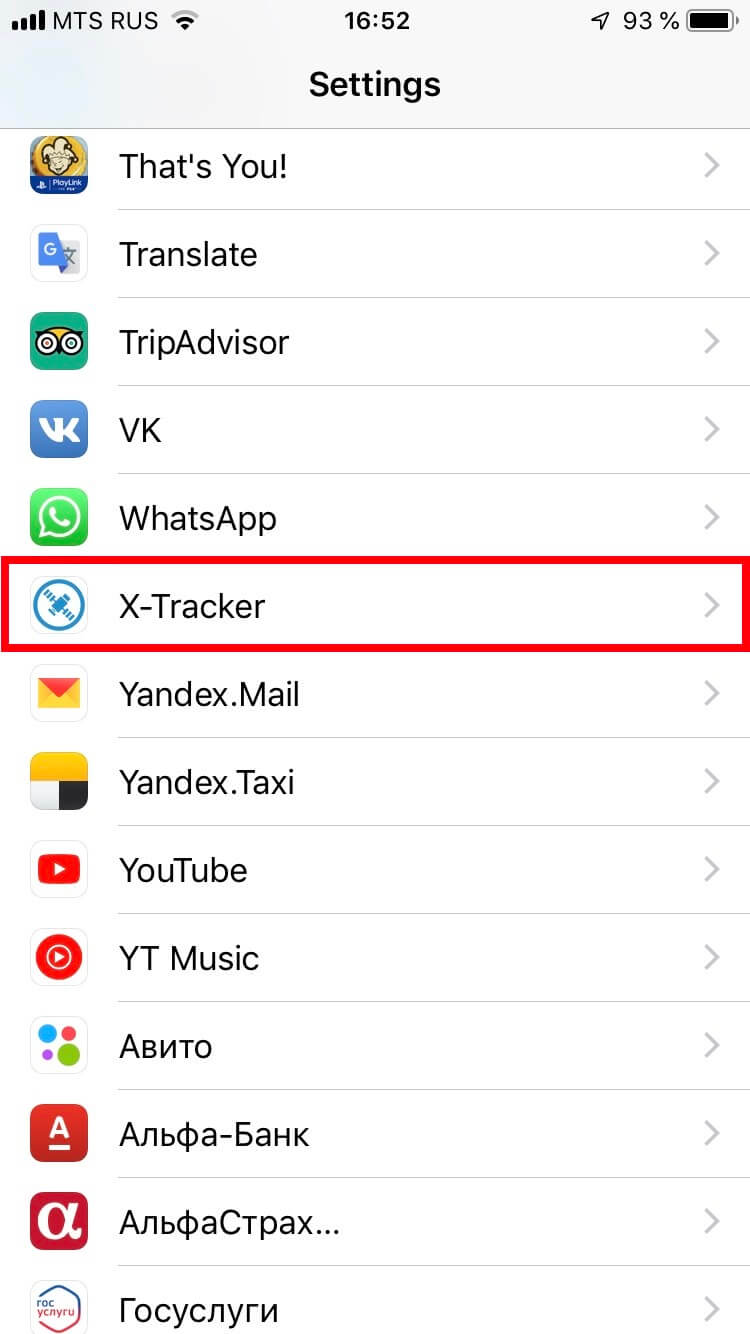
Image unavailable. Follow the written steps above or contact GPSPRO.
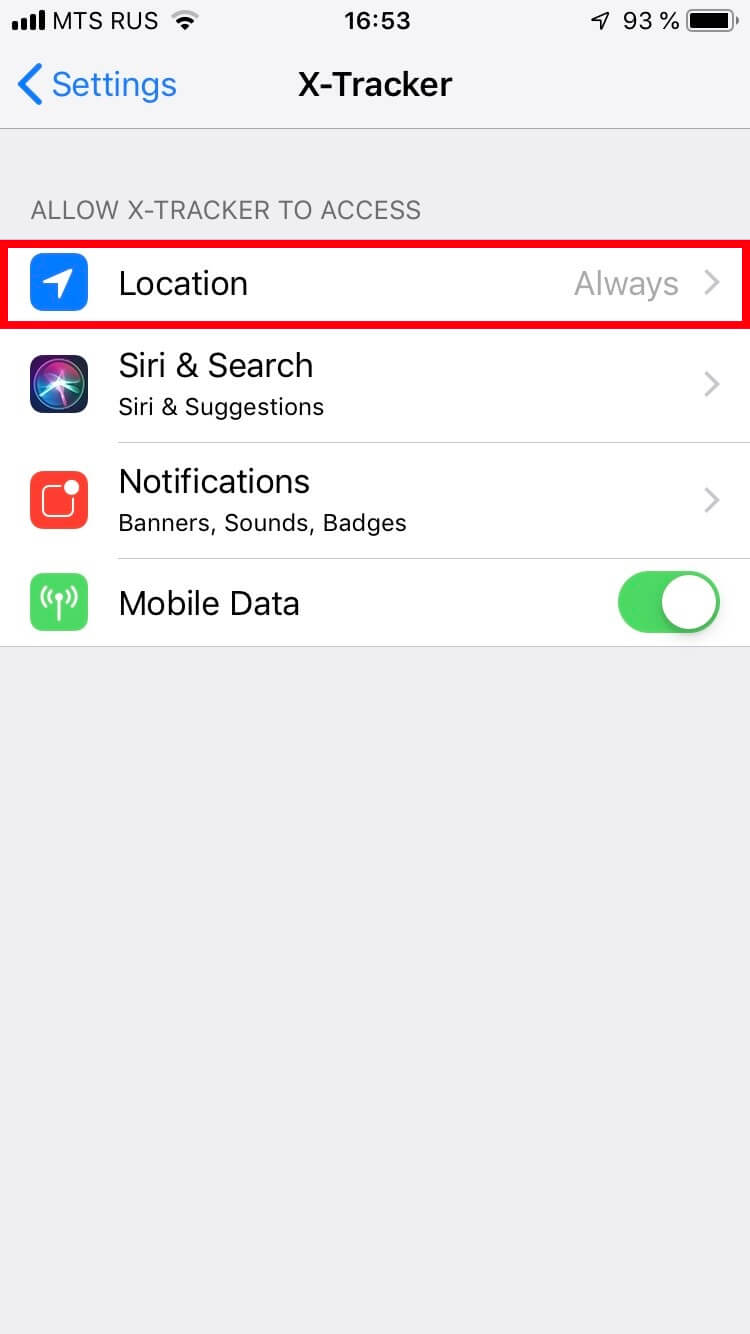
Image unavailable. Follow the written steps above or contact GPSPRO.
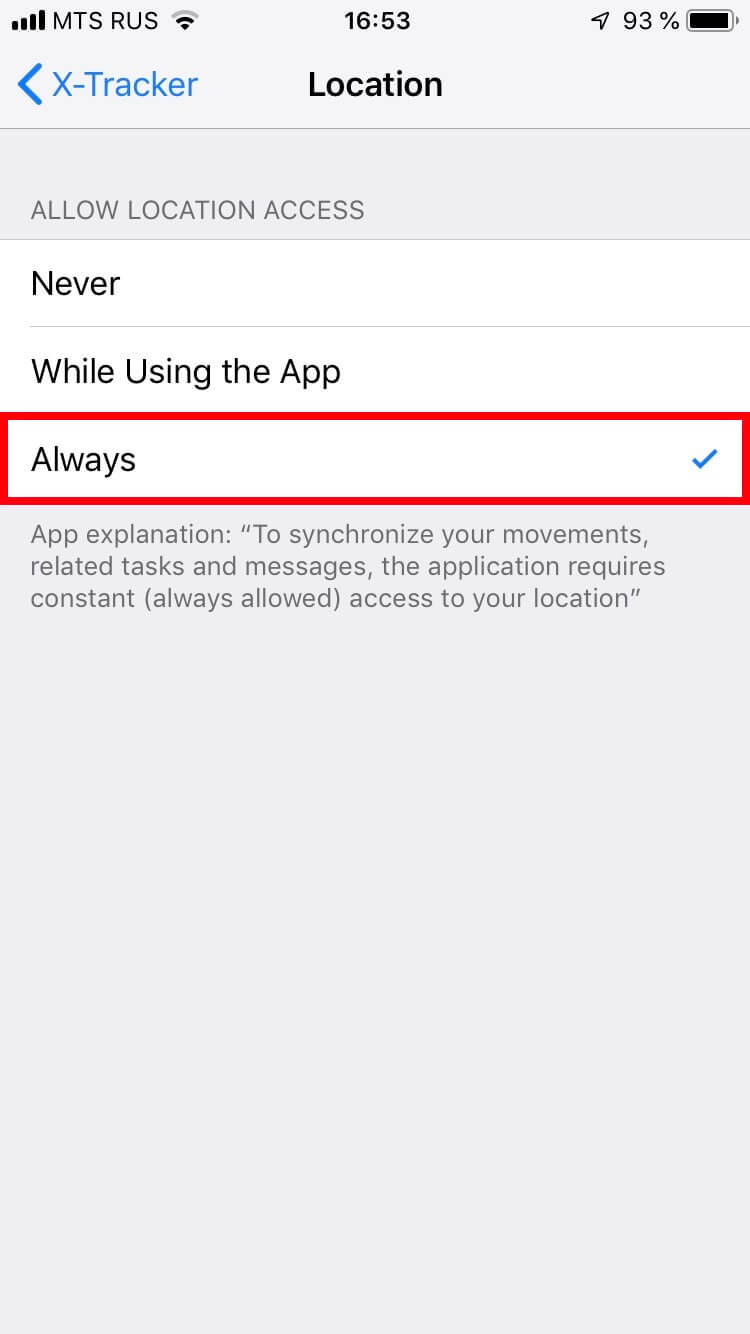
Image unavailable. Follow the written steps above or contact GPSPRO.
Turn on Mobile Data for X-GPS Tracker App.
X-GPS Tracker App settings → Mobile Data
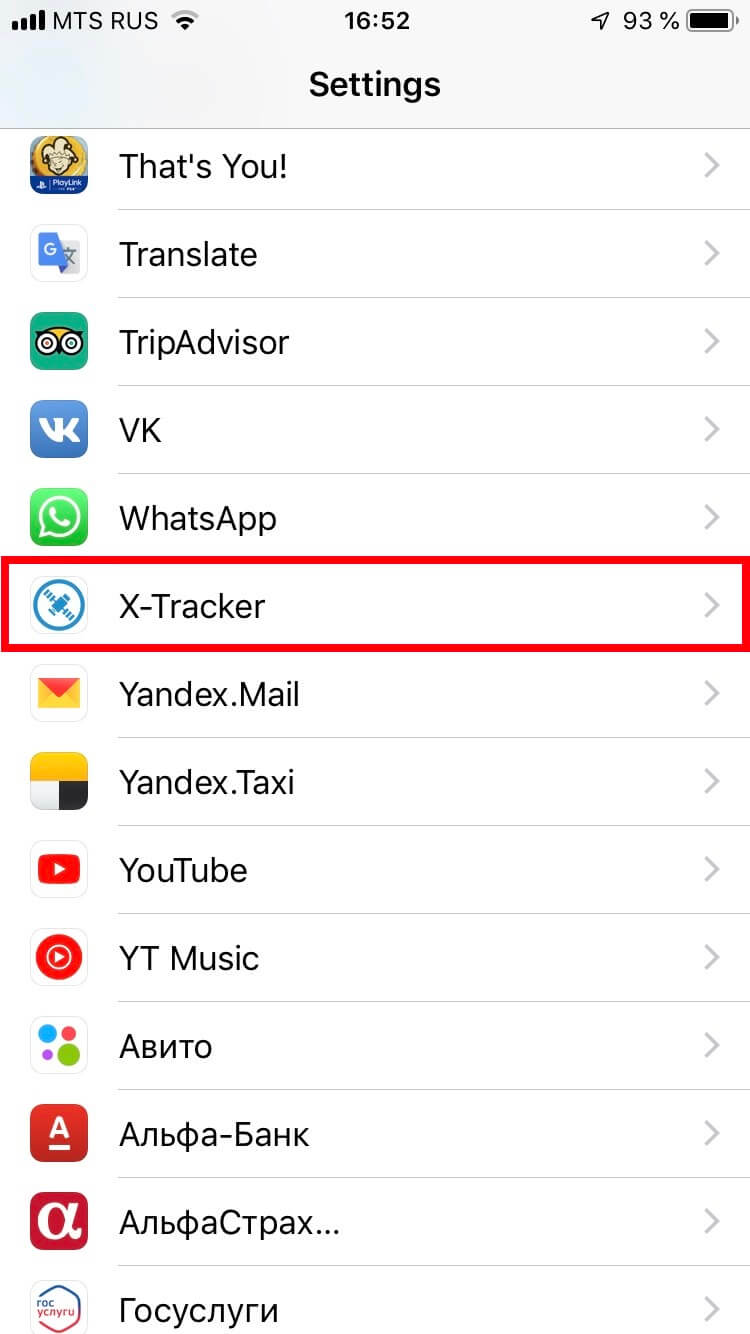
Image unavailable. Follow the written steps above or contact GPSPRO.
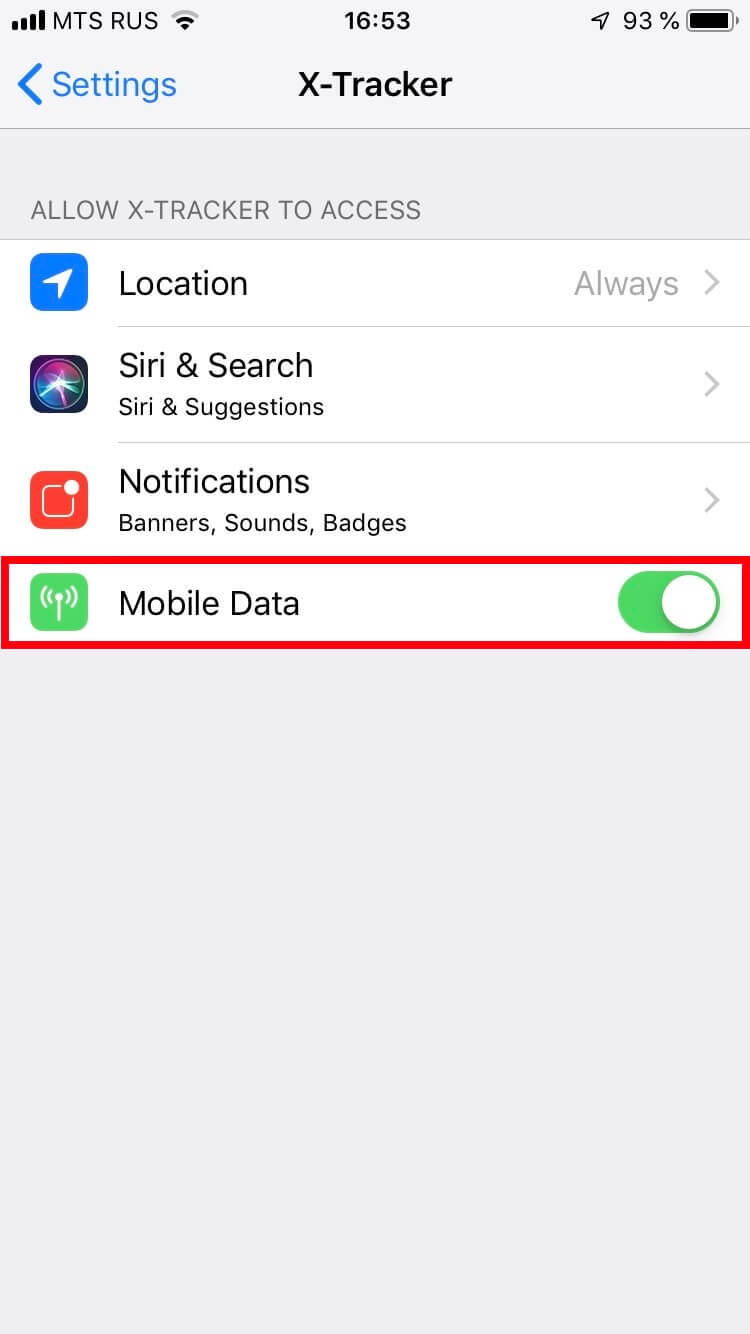
Image unavailable. Follow the written steps above or contact GPSPRO.
Allow notifications for app status, assigned tasks and chat messages when those features are in use.
X-GPS Tracker App settings → Notifications
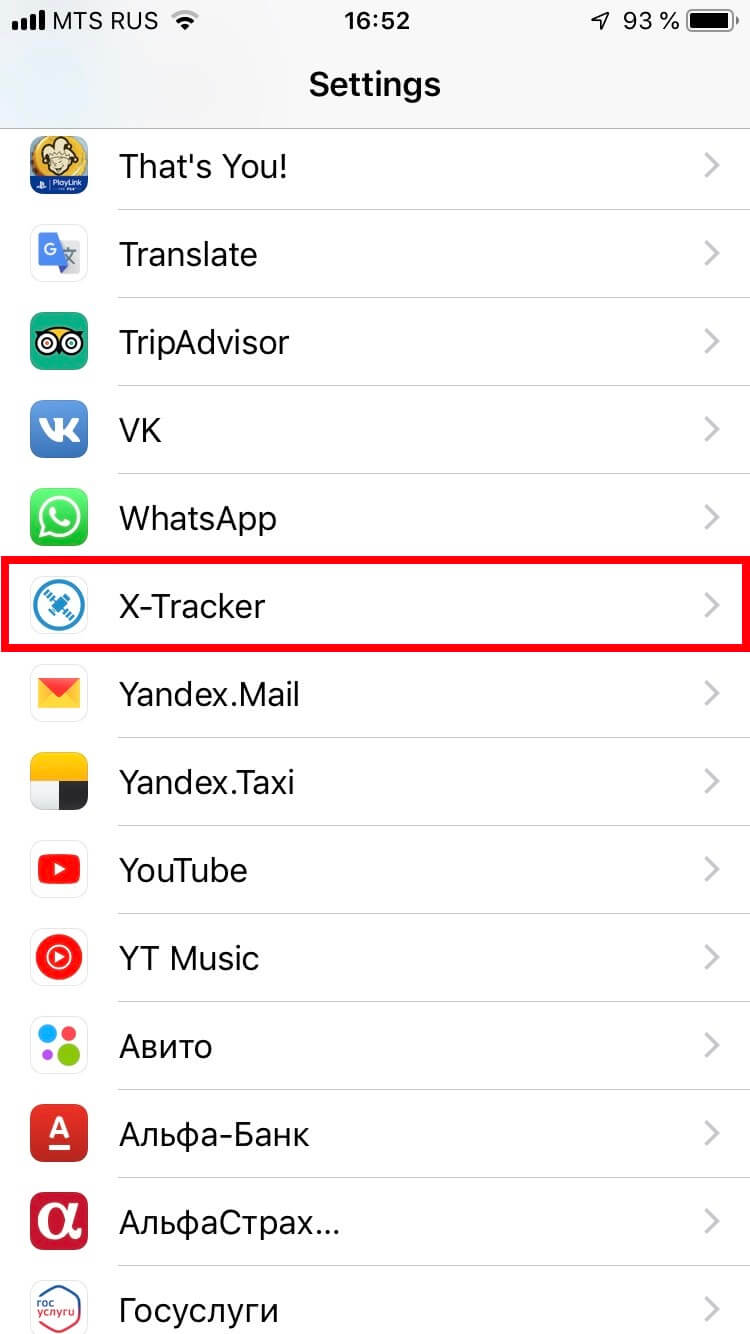
Image unavailable. Follow the written steps above or contact GPSPRO.
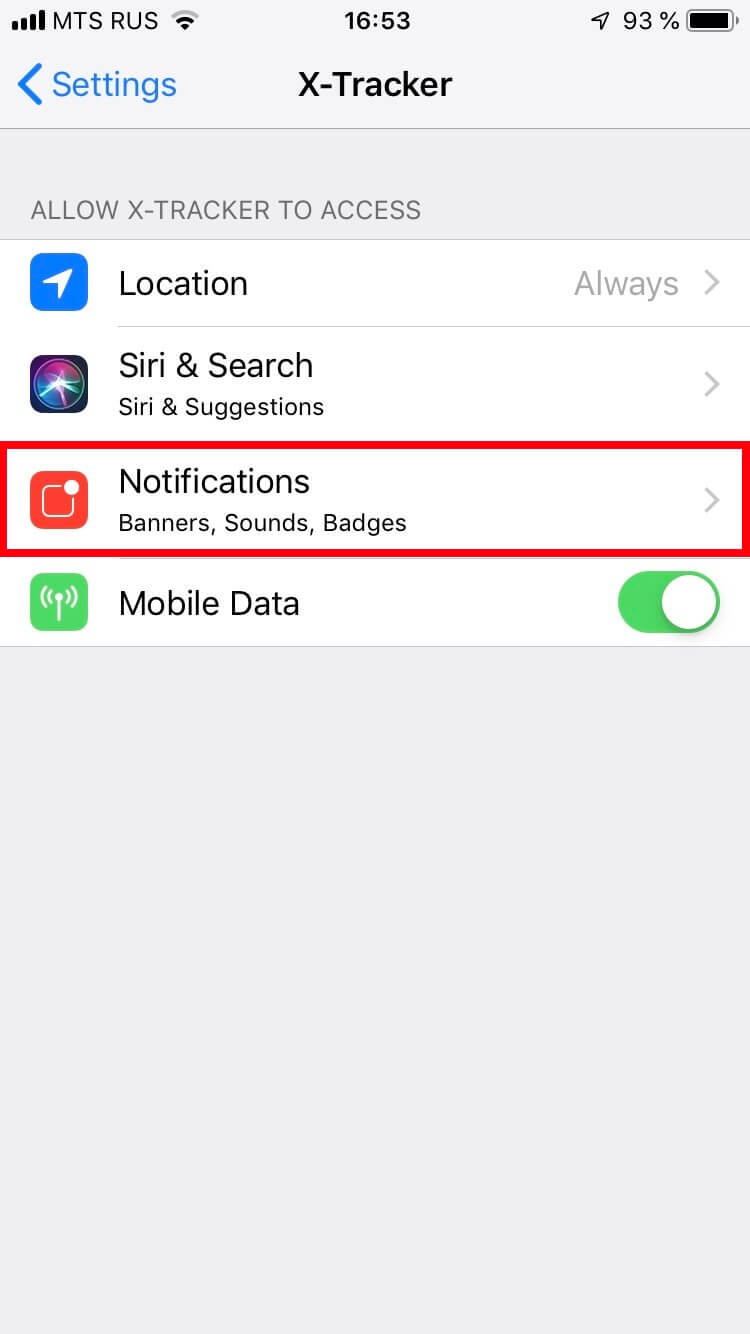
Image unavailable. Follow the written steps above or contact GPSPRO.
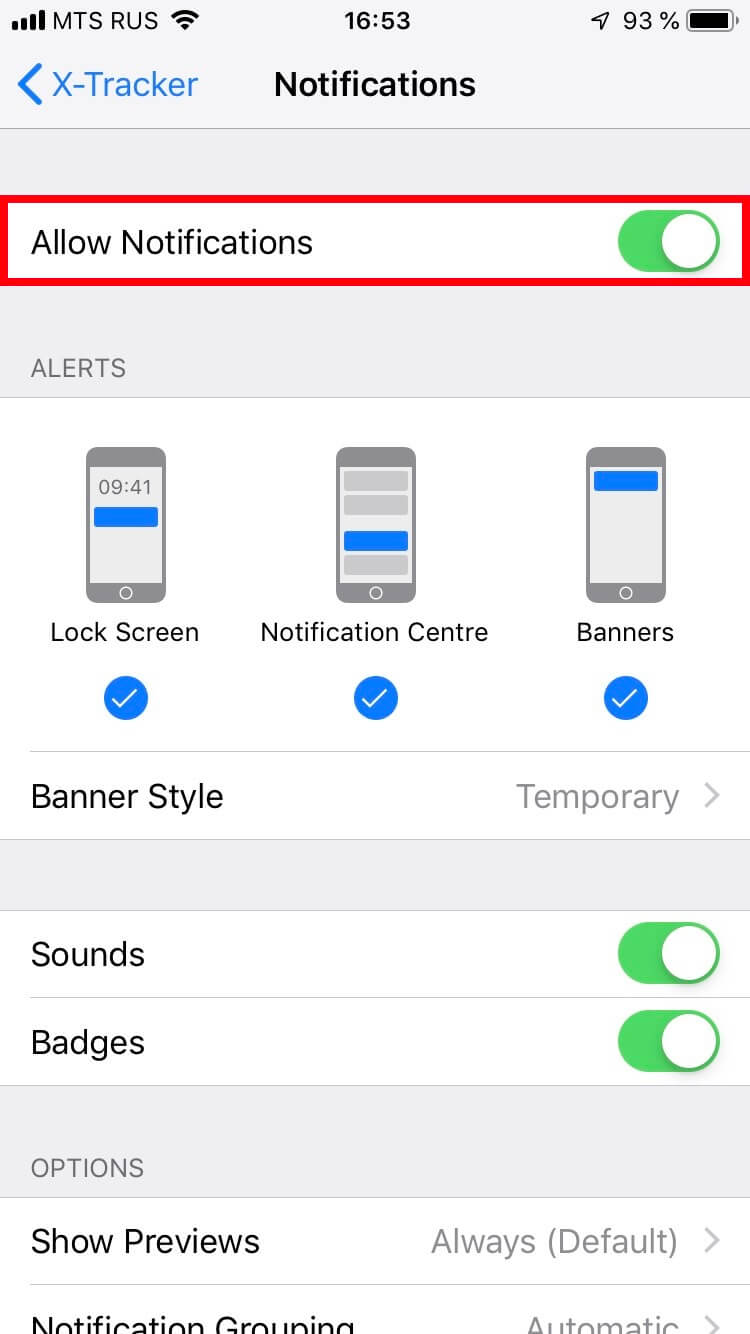
Image unavailable. Follow the written steps above or contact GPSPRO.
Swipe to open Control Center; the gesture depends on your iPhone or iPad.
Check these controls before tracking.

Needed to send updates over a cellular connection. Online syncing needs internet access.

Leave it off while tracking; it can restrict internet and location services.

Helps with faster, more efficient location in cities and indoors.

Can also help location accuracy and efficiency in cities and indoors.
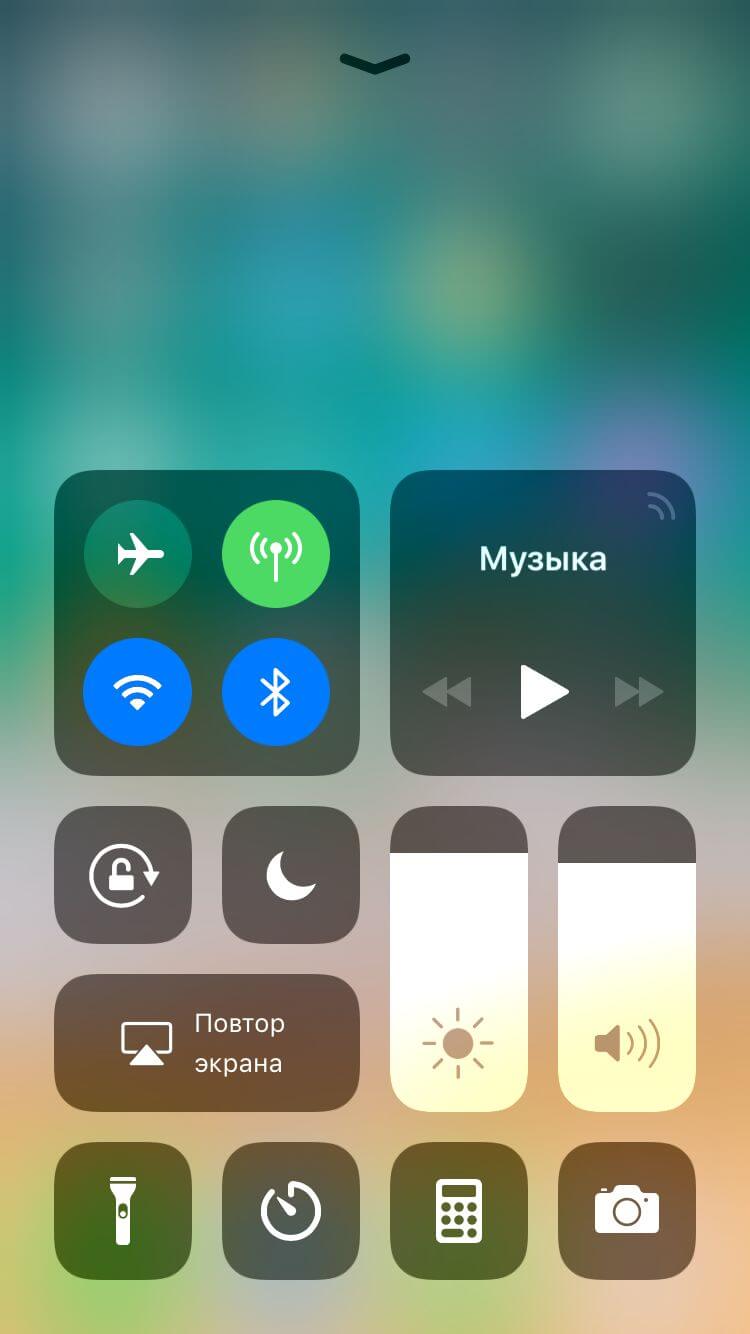
Image unavailable. Follow the written steps above or contact GPSPRO.
Keep Location Services on for the phone, then allow X-GPS Tracker App to use it.
Settings → Privacy & Security → Location Services → On
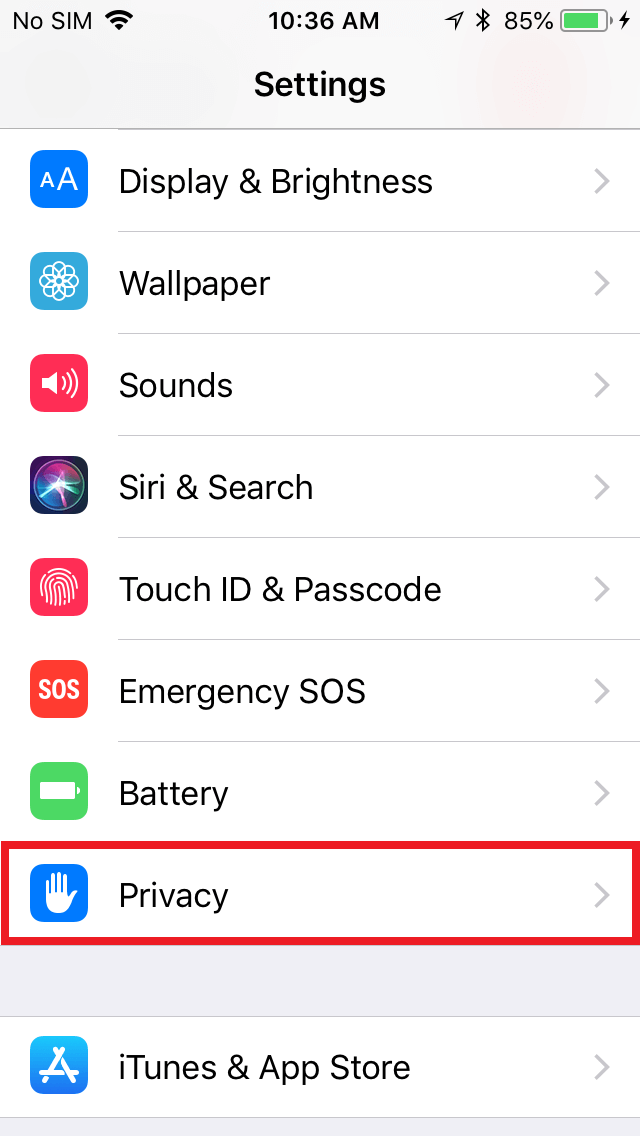
Image unavailable. Follow the written steps above or contact GPSPRO.
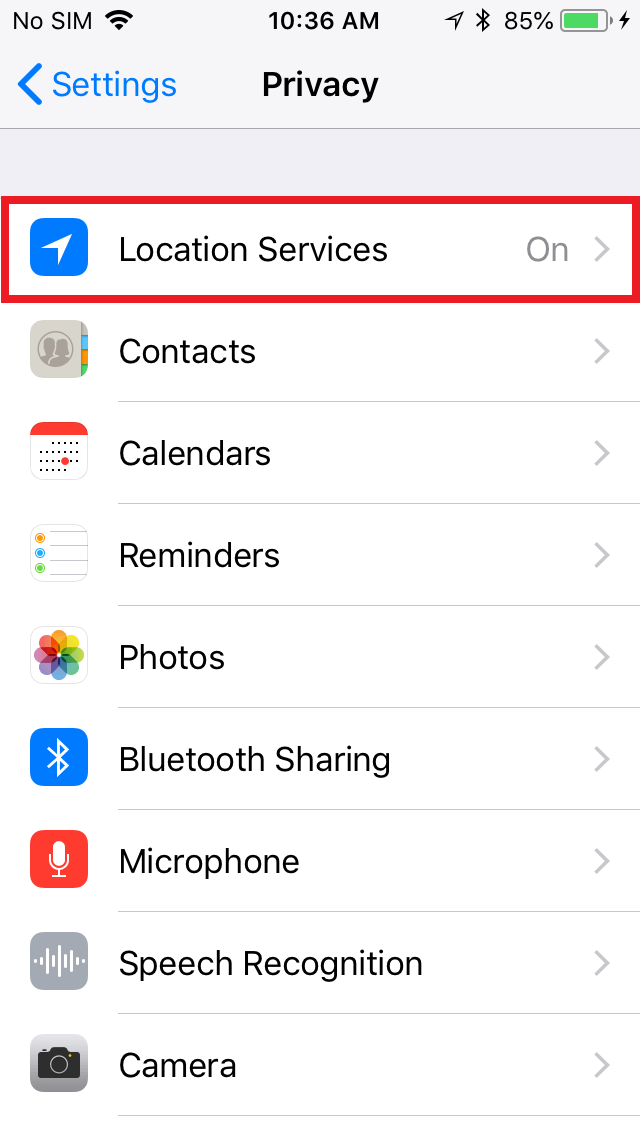
Image unavailable. Follow the written steps above or contact GPSPRO.
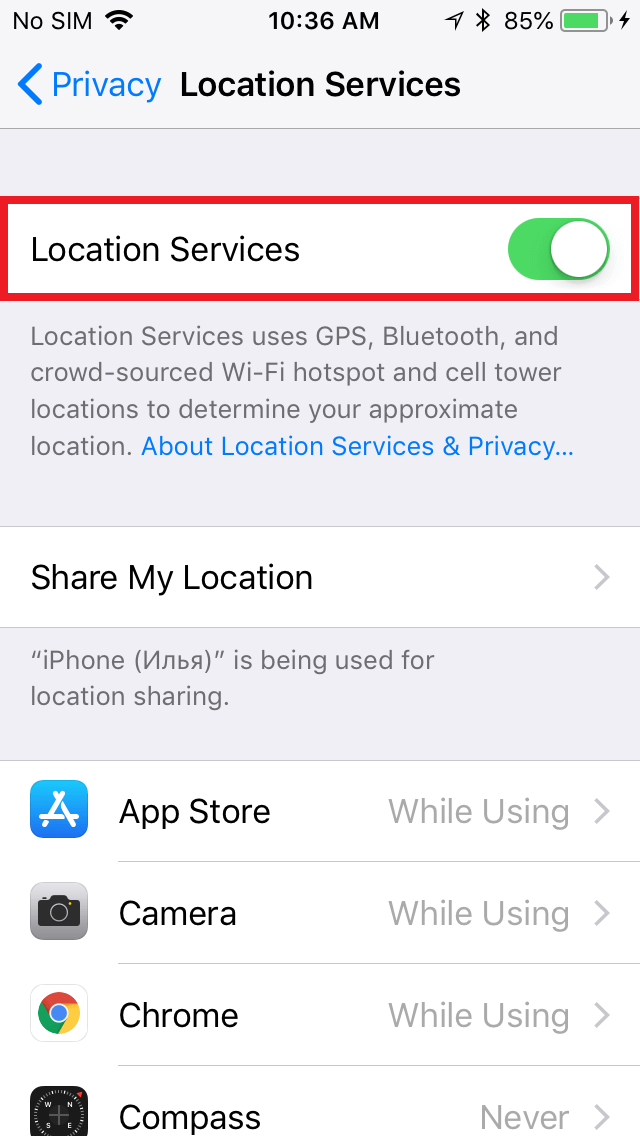
Image unavailable. Follow the written steps above or contact GPSPRO.
X-GPS Tracker App uses satellite location such as GPS/GLONASS, plus cell towers and Wi-Fi. Its tracking settings balance accuracy and battery use while walking or driving.
Available tracking modes depend on your GPSPRO setup.
After restarting, reopen X-GPS Tracker App and check that a fresh location arrives. Automatic tracking resumption depends on the iOS version, app state and location activity, so do not rely on it without checking.
No. X-GPS Tracker App is visible in the app list and uses visible notifications. It is not designed for hidden monitoring.
No. X-GPS Tracker App does not offer that restriction; the phone and operating system keep the user in control.
Screens are examples; menus and app labels vary by phone model and software version. Follow the written steps for your phone.
Allow location for X-GPS Tracker App. Choose Allow all the time when offered.
Settings → Apps → X-GPS Tracker App → Permissions → Location
Allow Storage only if X-GPS Tracker App requests that permission on your phone; skip it when absent.
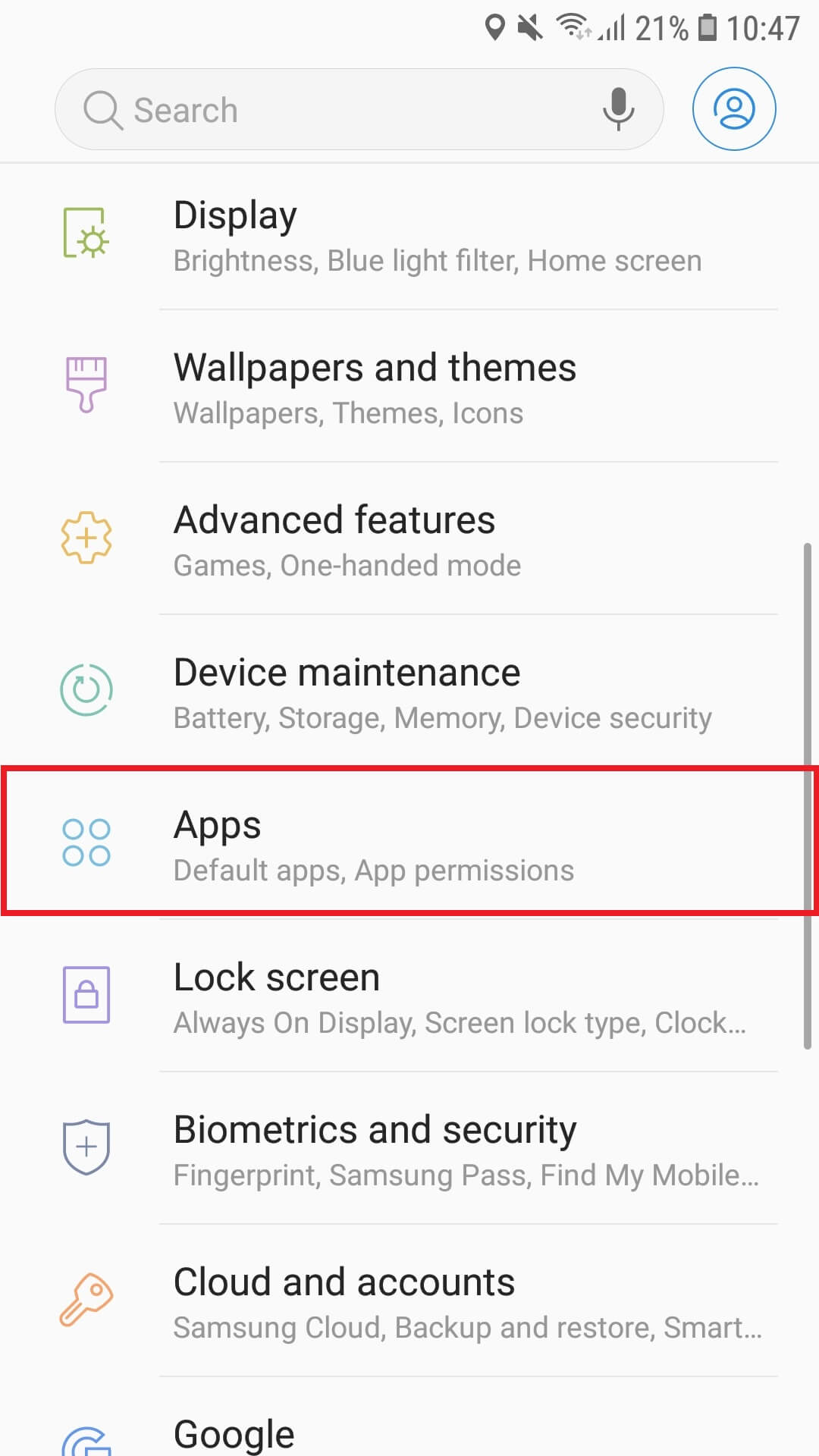
Image unavailable. Follow the written steps above or contact GPSPRO.
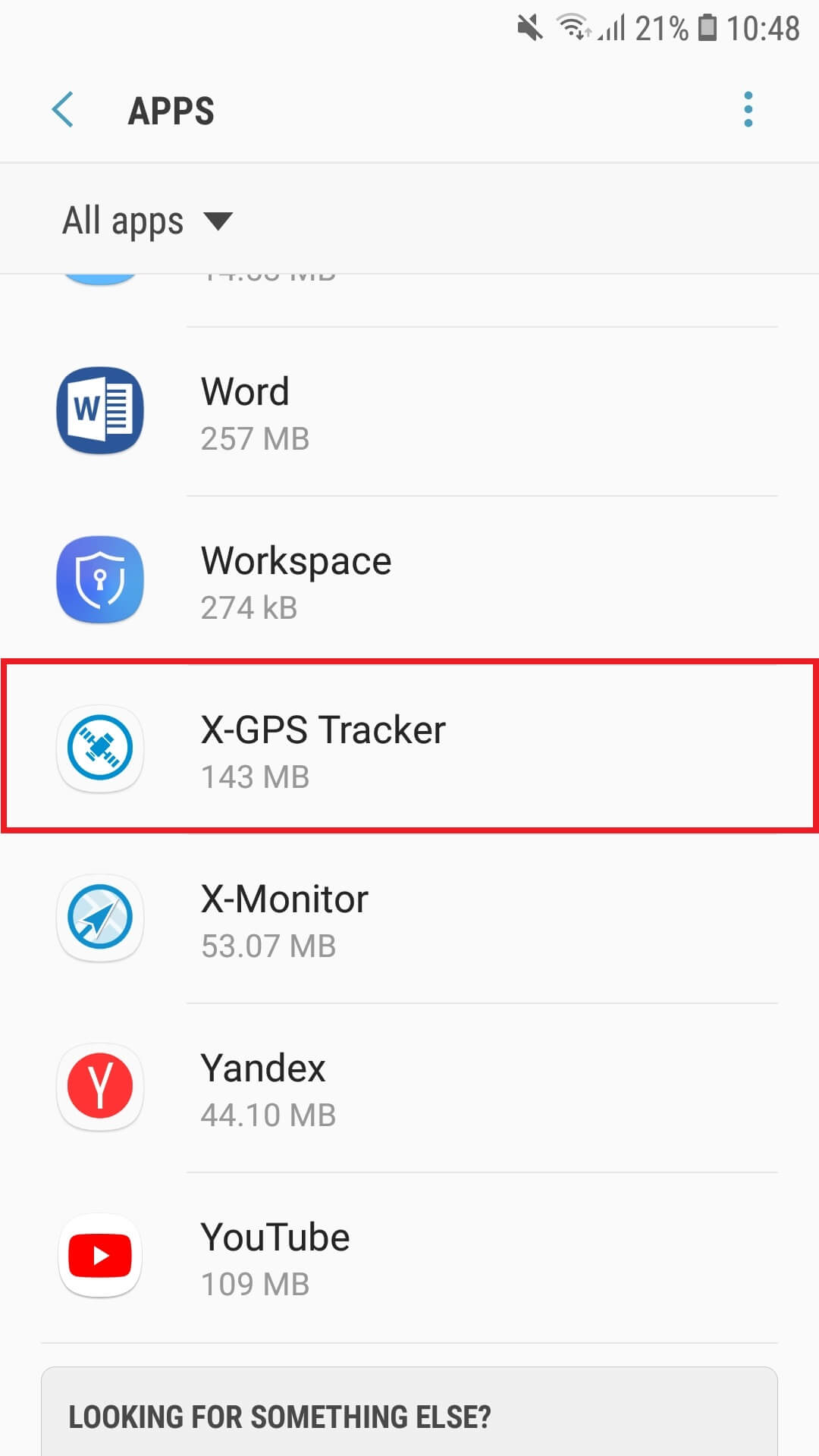
Image unavailable. Follow the written steps above or contact GPSPRO.
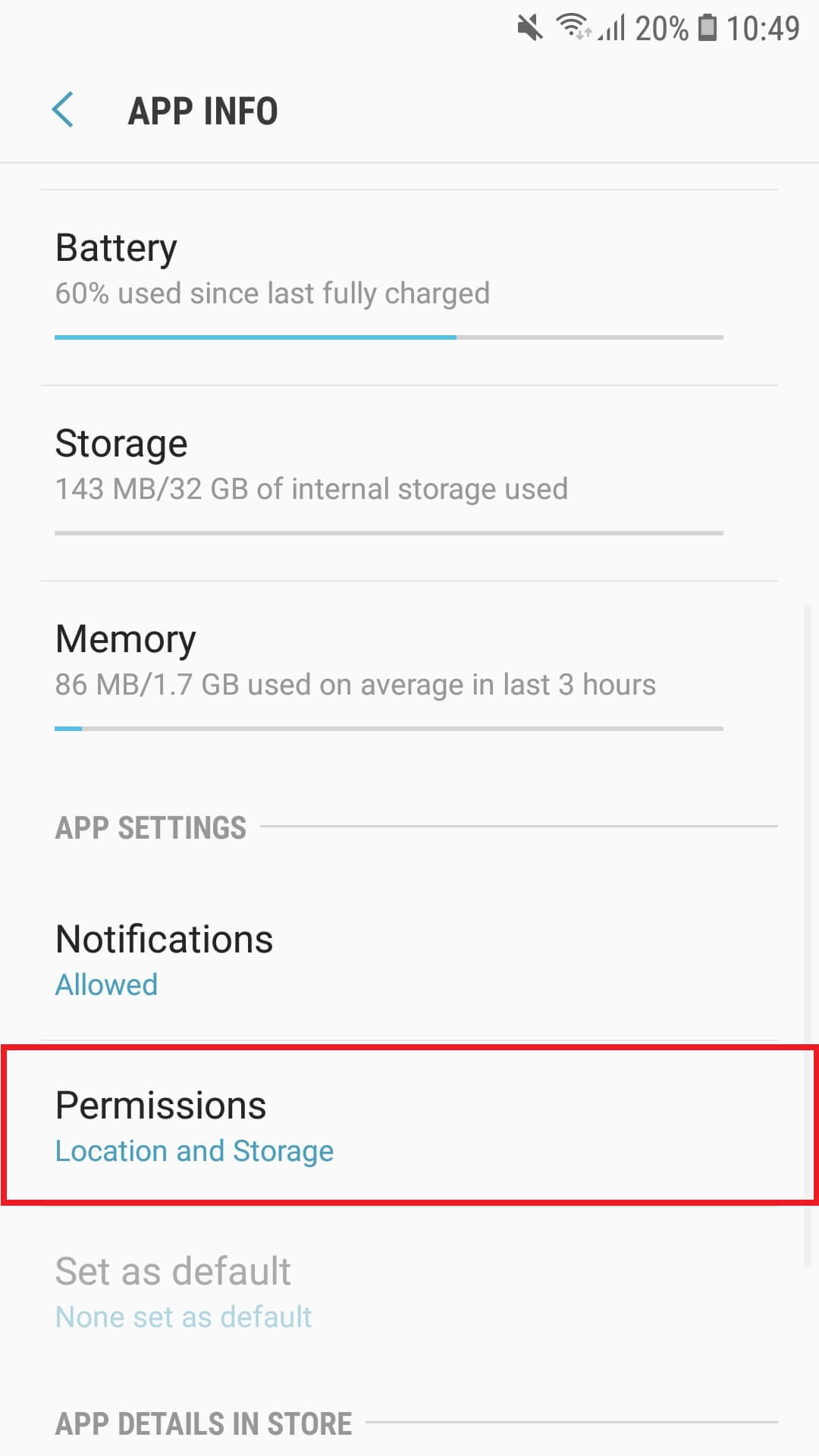
Image unavailable. Follow the written steps above or contact GPSPRO.
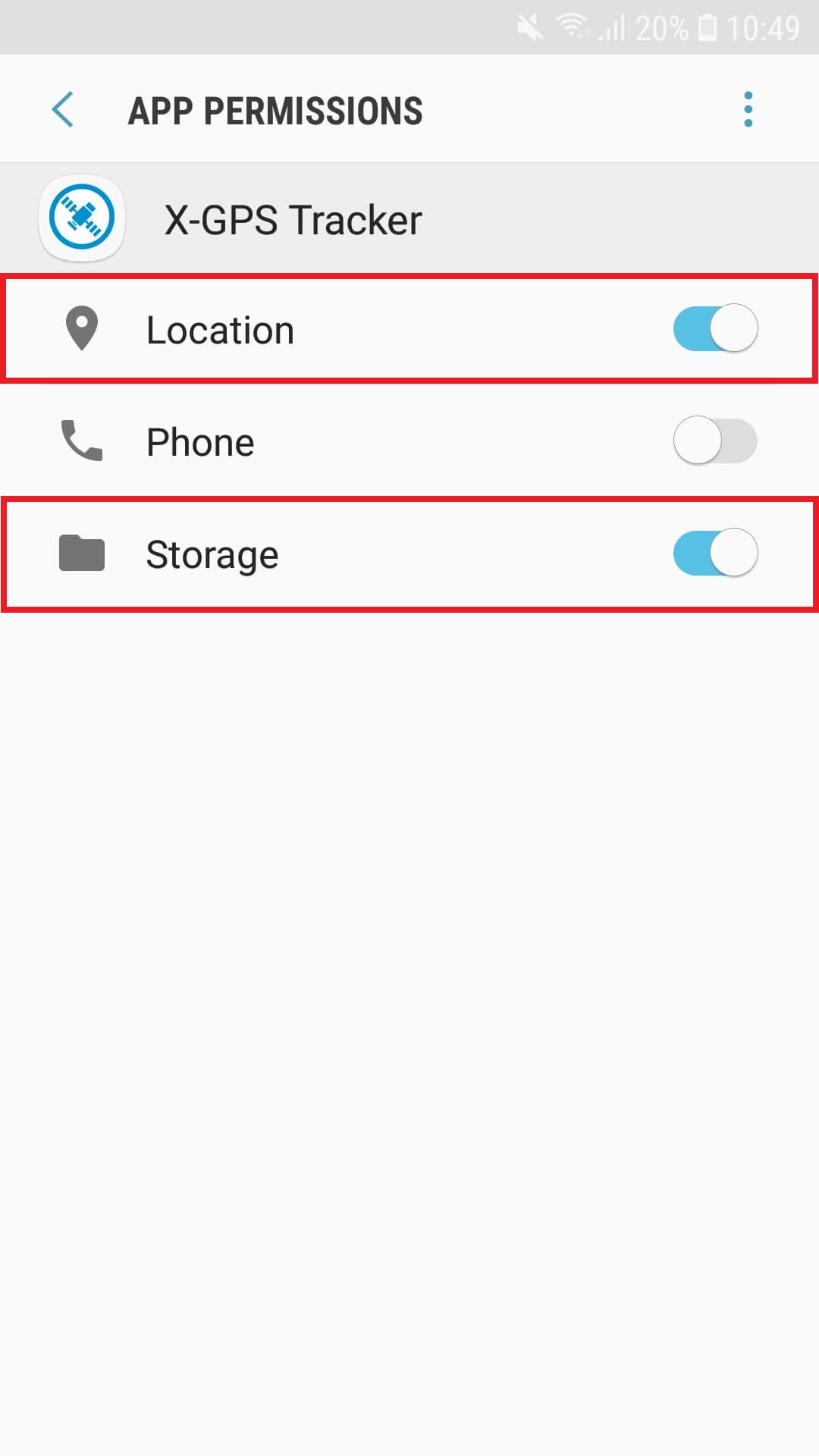
Image unavailable. Follow the written steps above or contact GPSPRO.
Enable background data and allow X-GPS Tracker App while Data saver is on.
Settings → Apps → X-GPS Tracker App → Data usage / Mobile data
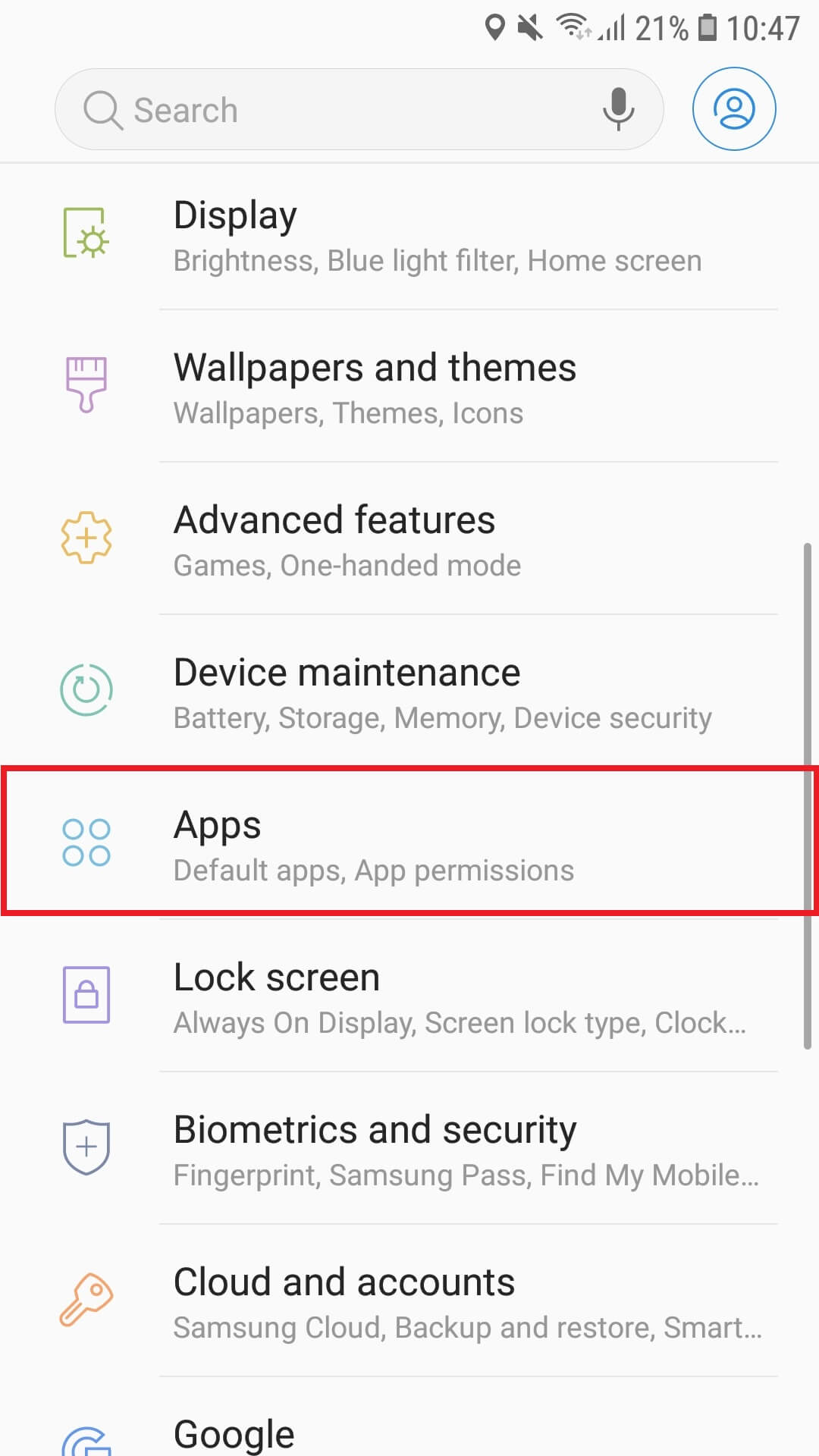
Image unavailable. Follow the written steps above or contact GPSPRO.
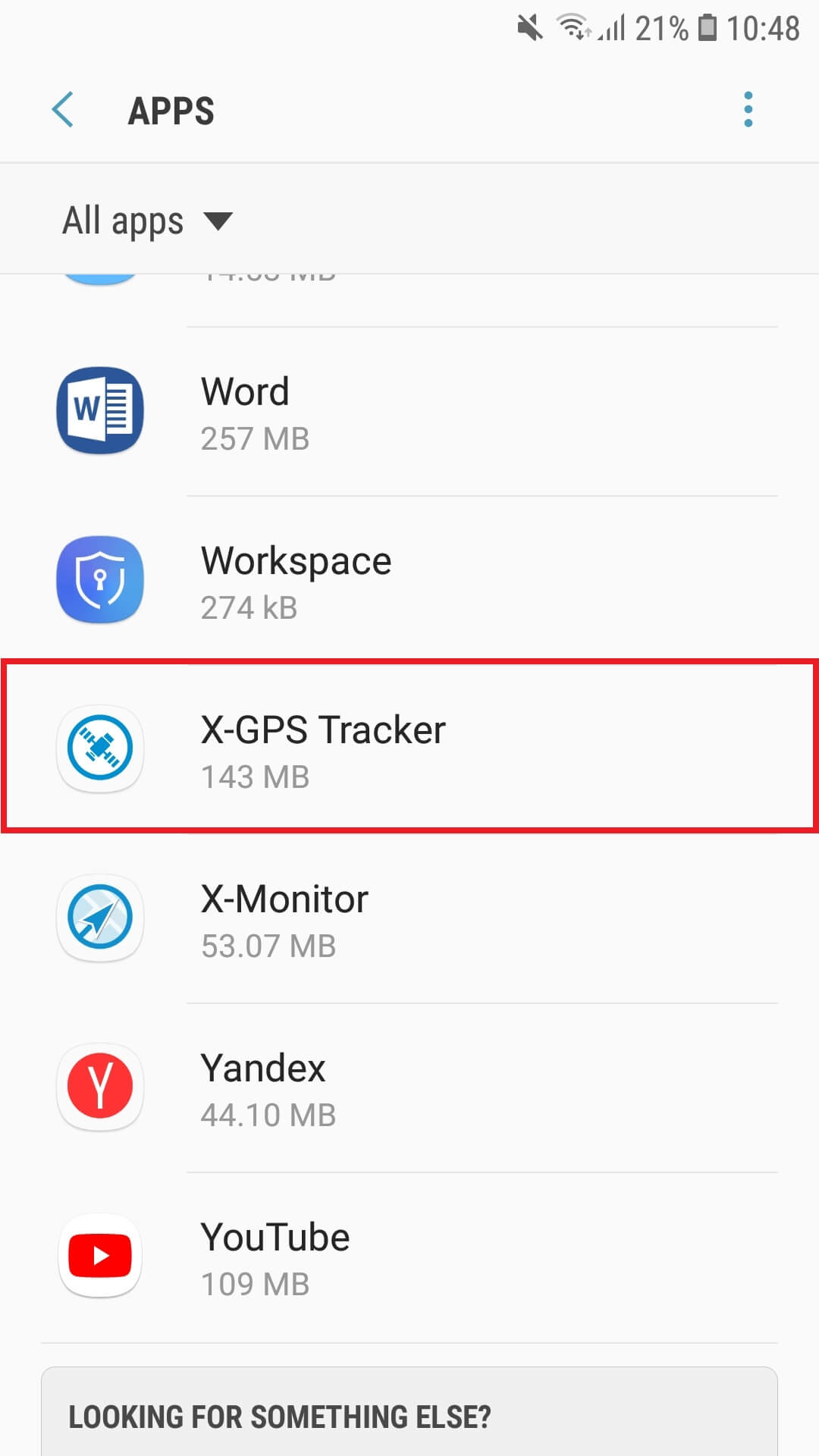
Image unavailable. Follow the written steps above or contact GPSPRO.
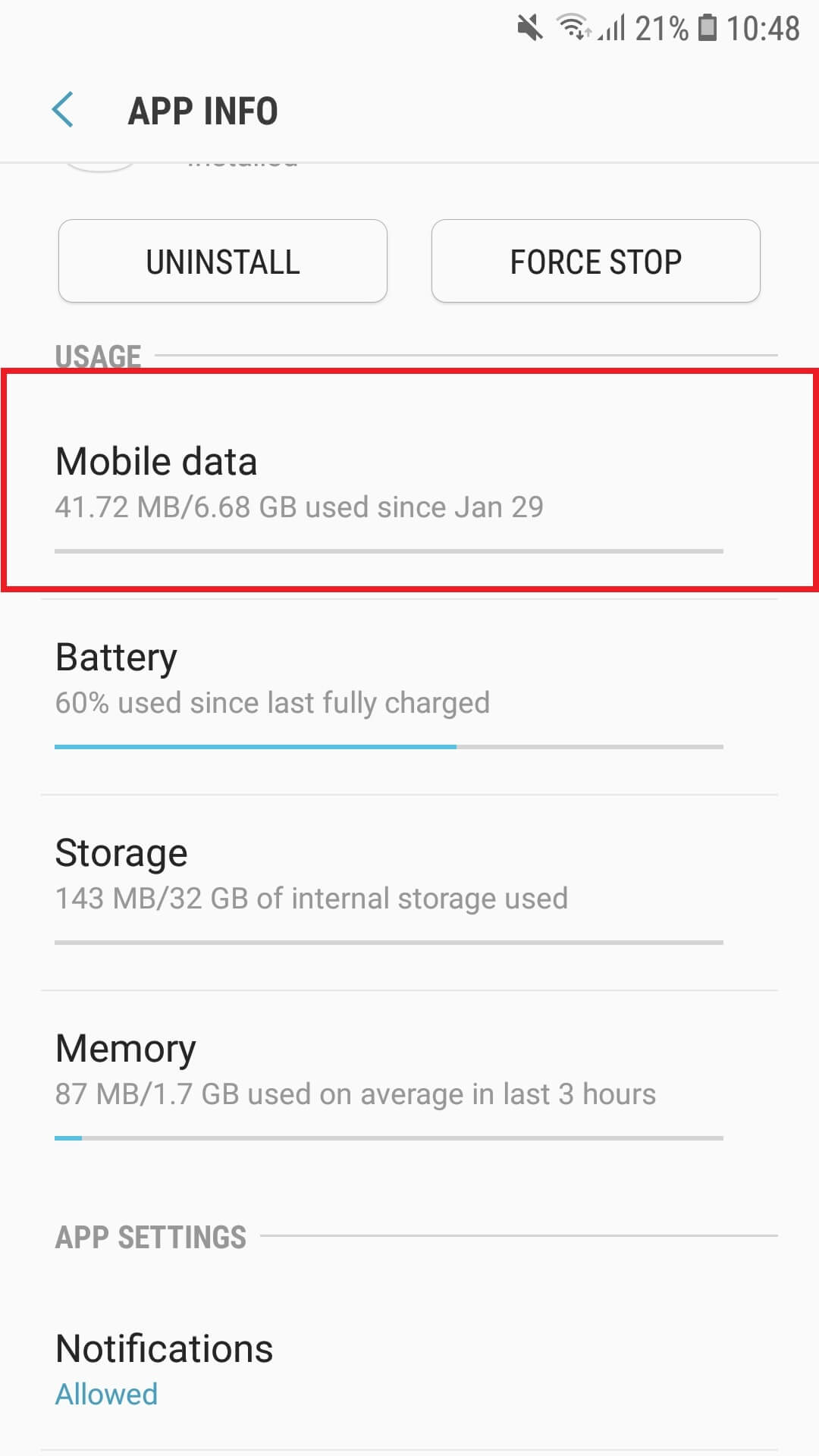
Image unavailable. Follow the written steps above or contact GPSPRO.
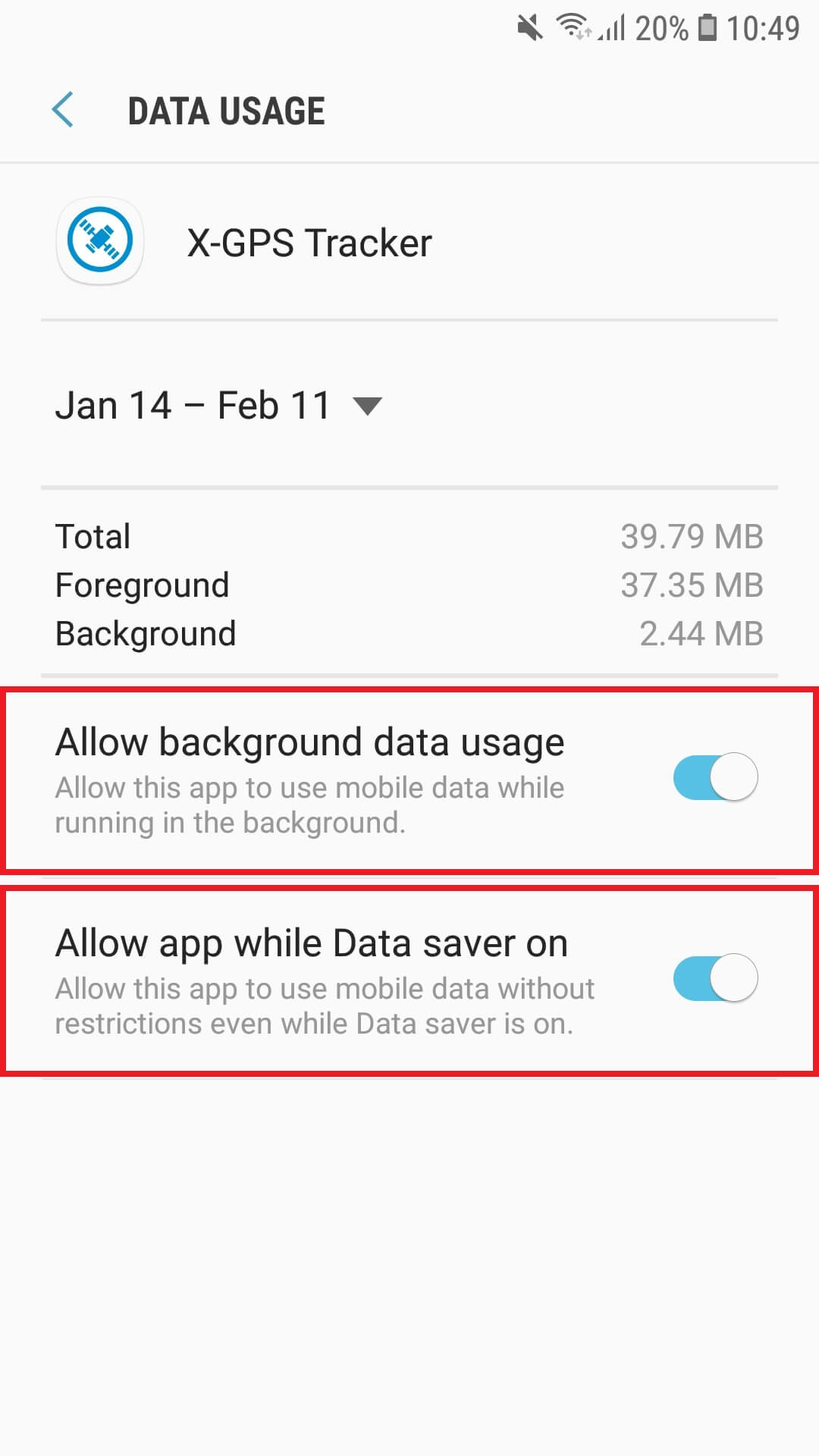
Image unavailable. Follow the written steps above or contact GPSPRO.
Add X-GPS Tracker App to Never sleeping apps. Remove it from Sleeping or Deep sleeping apps if listed.
Device care → Battery → Background usage limits → Never sleeping apps
One UI may call this Never auto sleeping apps. The pictured Samsung Experience route uses Device maintenance → Battery → Unmonitored apps → Add apps → select X-GPS Tracker App → Done.
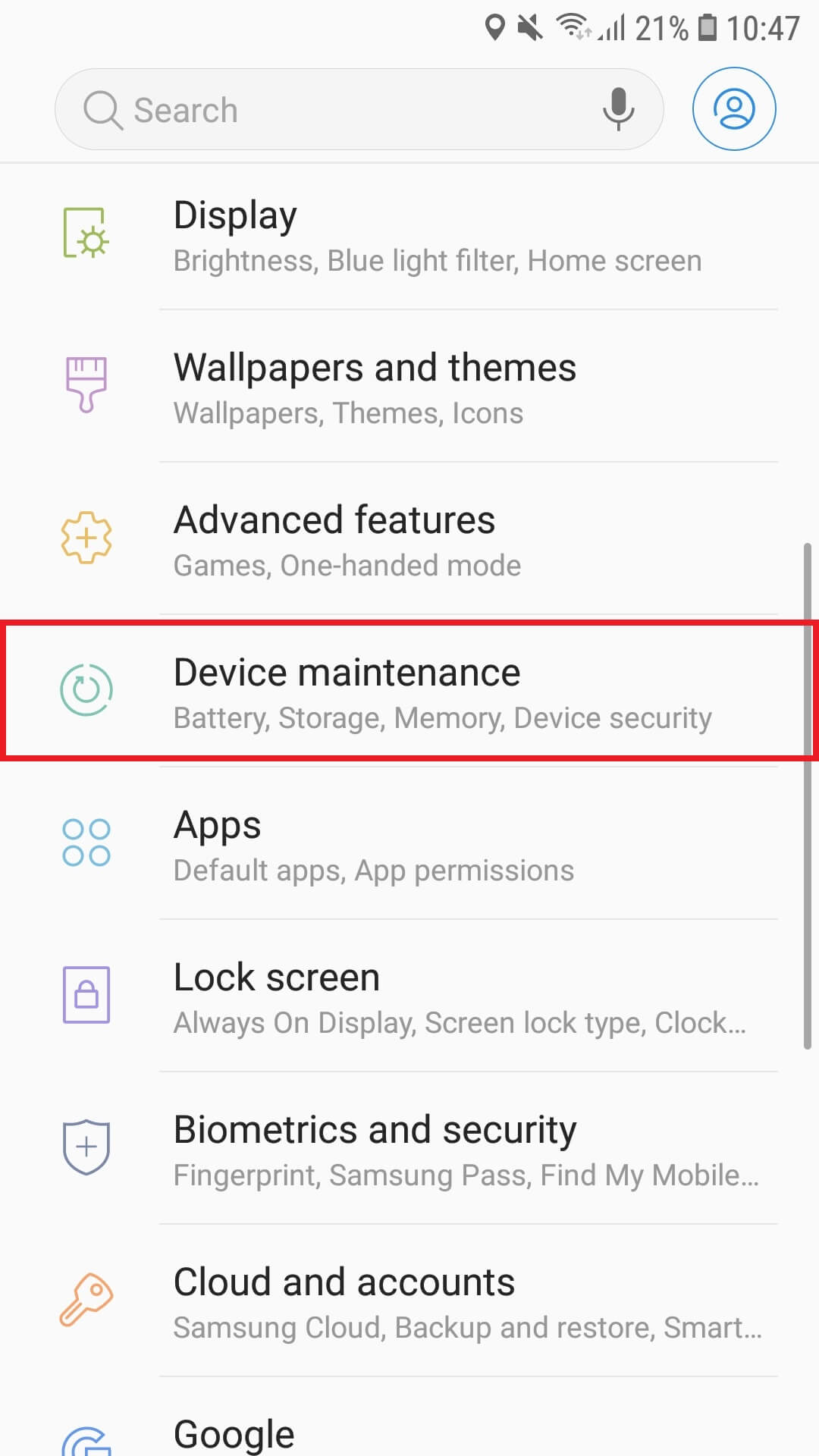
Image unavailable. Follow the written steps above or contact GPSPRO.
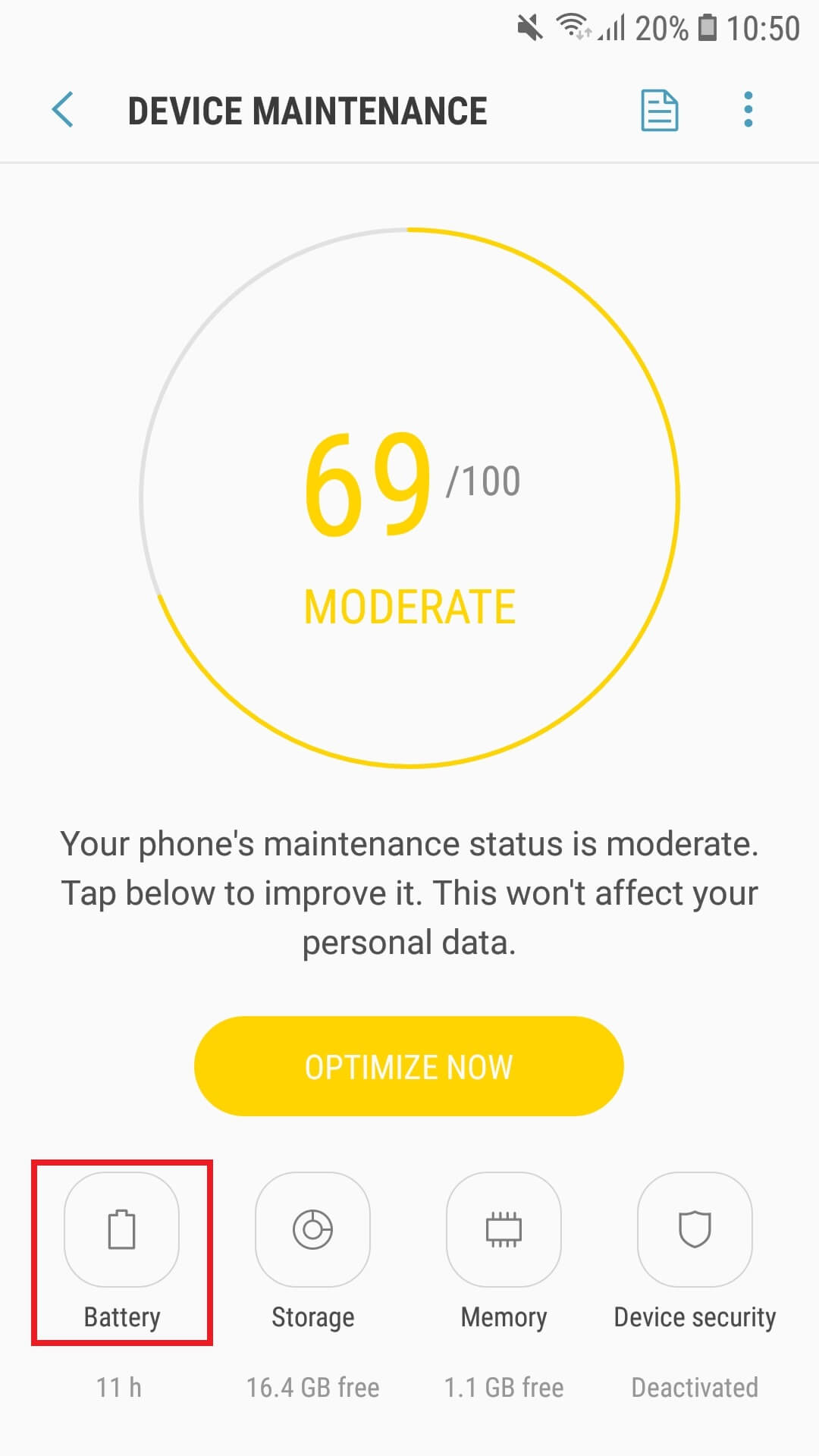
Image unavailable. Follow the written steps above or contact GPSPRO.
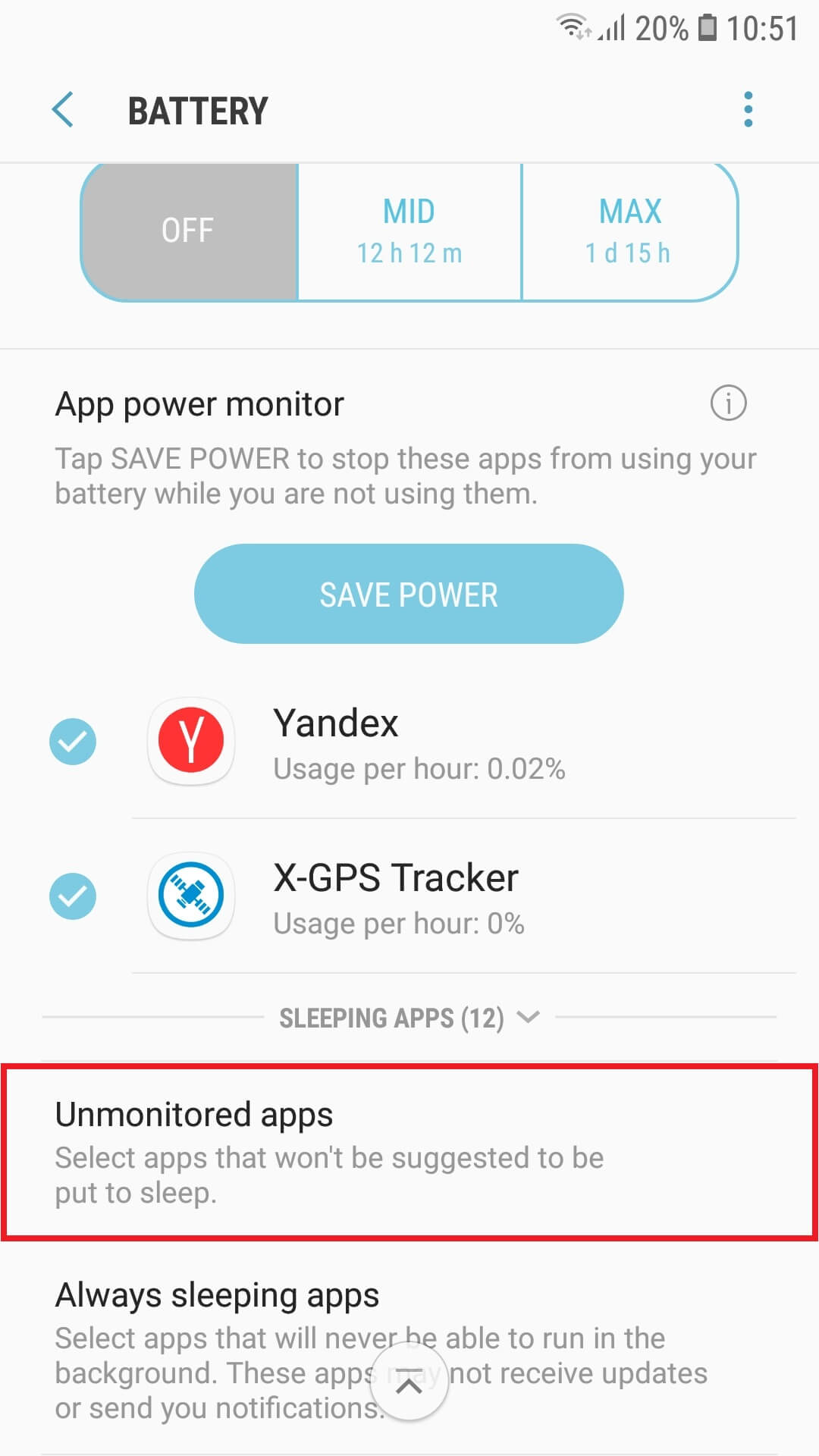
Image unavailable. Follow the written steps above or contact GPSPRO.
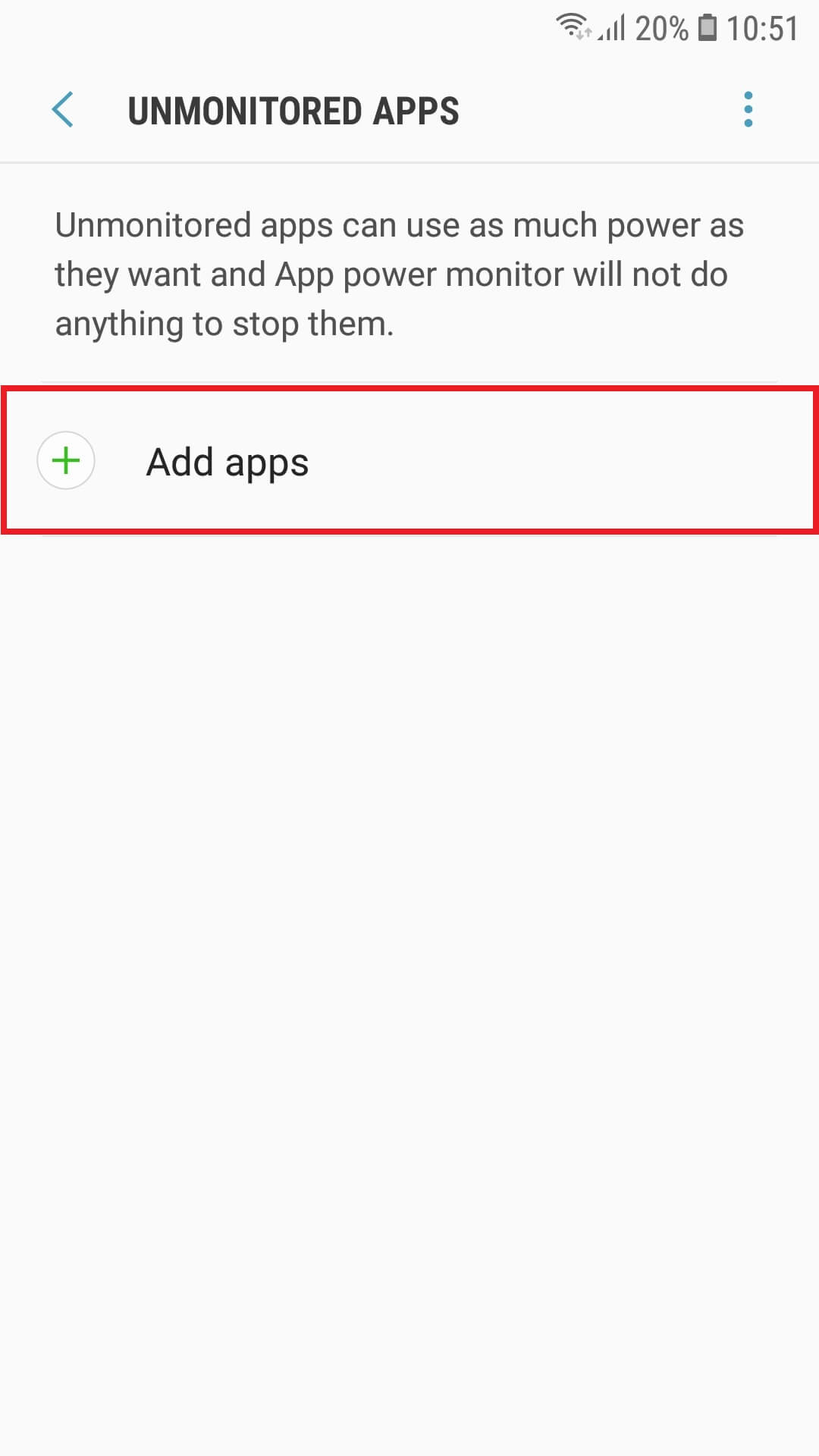
Image unavailable. Follow the written steps above or contact GPSPRO.
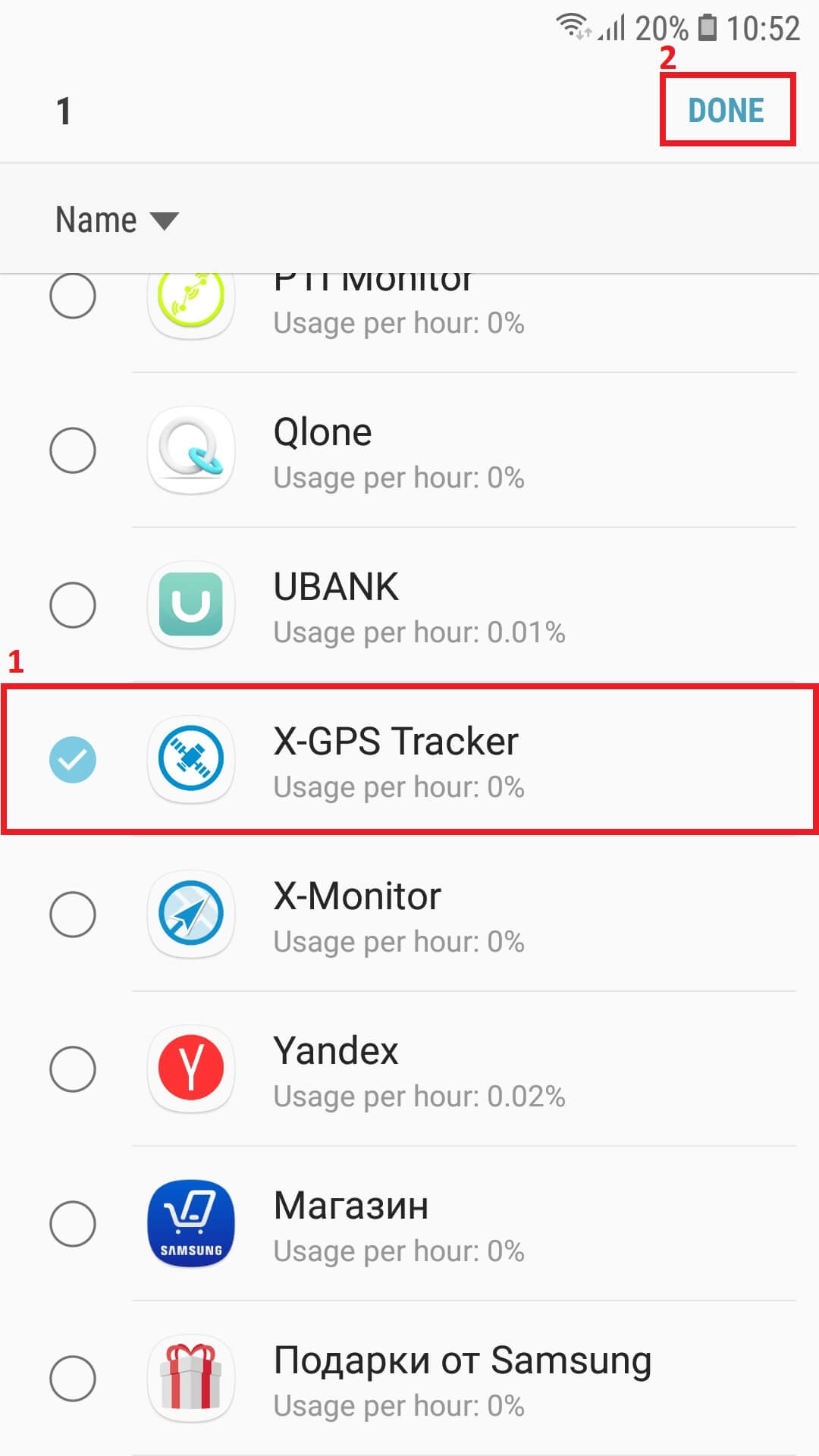
Image unavailable. Follow the written steps above or contact GPSPRO.
Swipe down from the top of the screen to open the quick settings panel.
Check these controls before tracking.

Needed to send updates over a cellular connection. Online syncing needs internet access.

Required for the phone to determine its location.

Leave it off while tracking; it can restrict internet and location services.

Helps with faster, more efficient location in cities and indoors.

Can also help location accuracy and efficiency in cities and indoors.
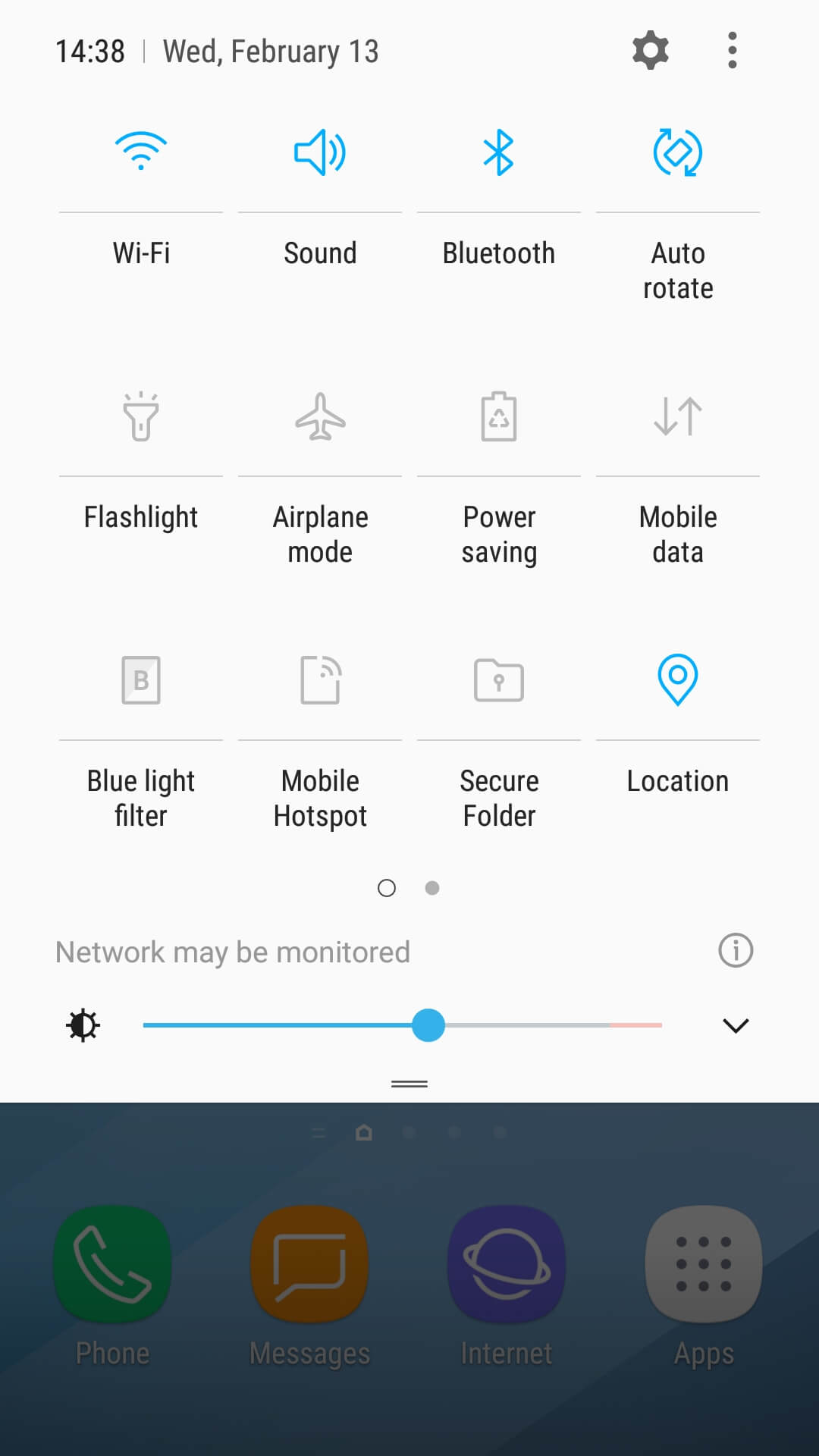
Image unavailable. Follow the written steps above or contact GPSPRO.
Turn on Location, then enable Wi-Fi and Bluetooth scanning when offered.
Samsung Experience example: Settings → Biometrics and security → Location → Improve accuracy
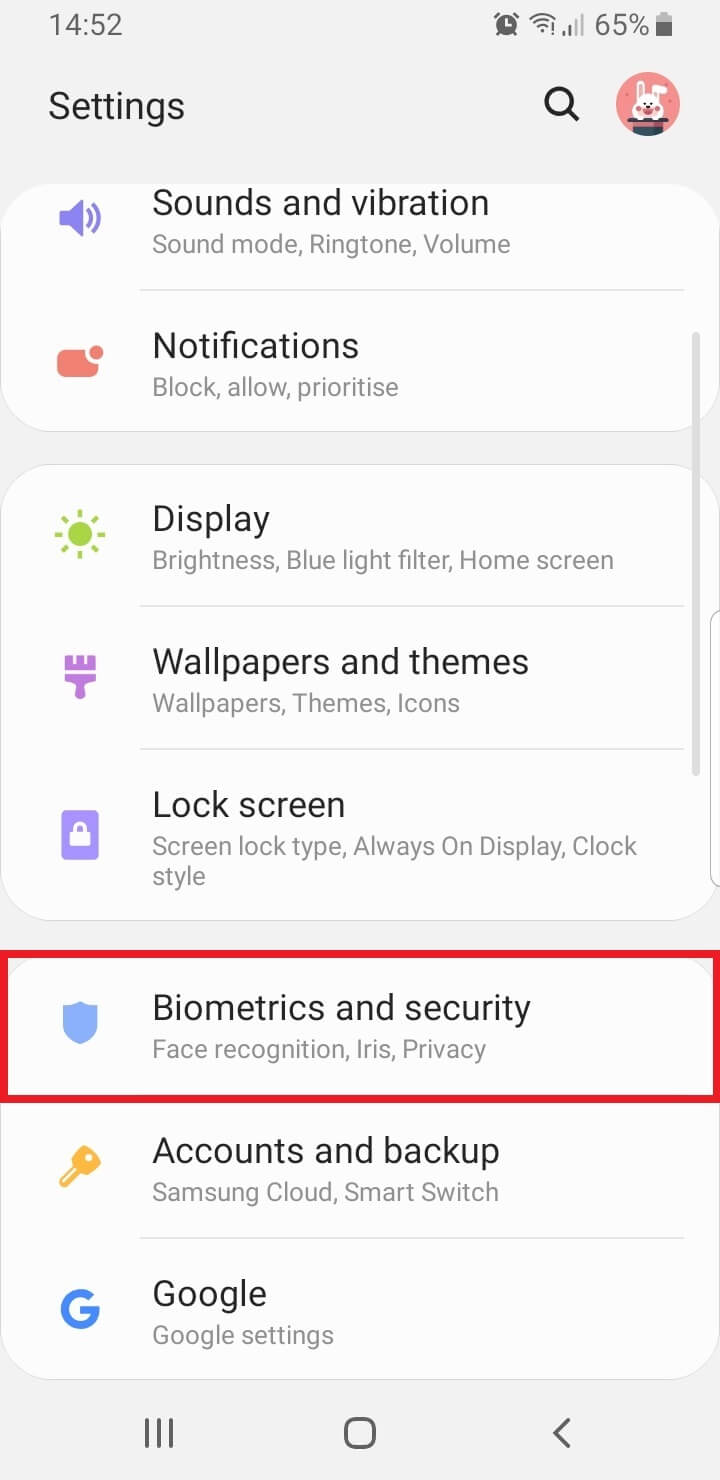
Image unavailable. Follow the written steps above or contact GPSPRO.
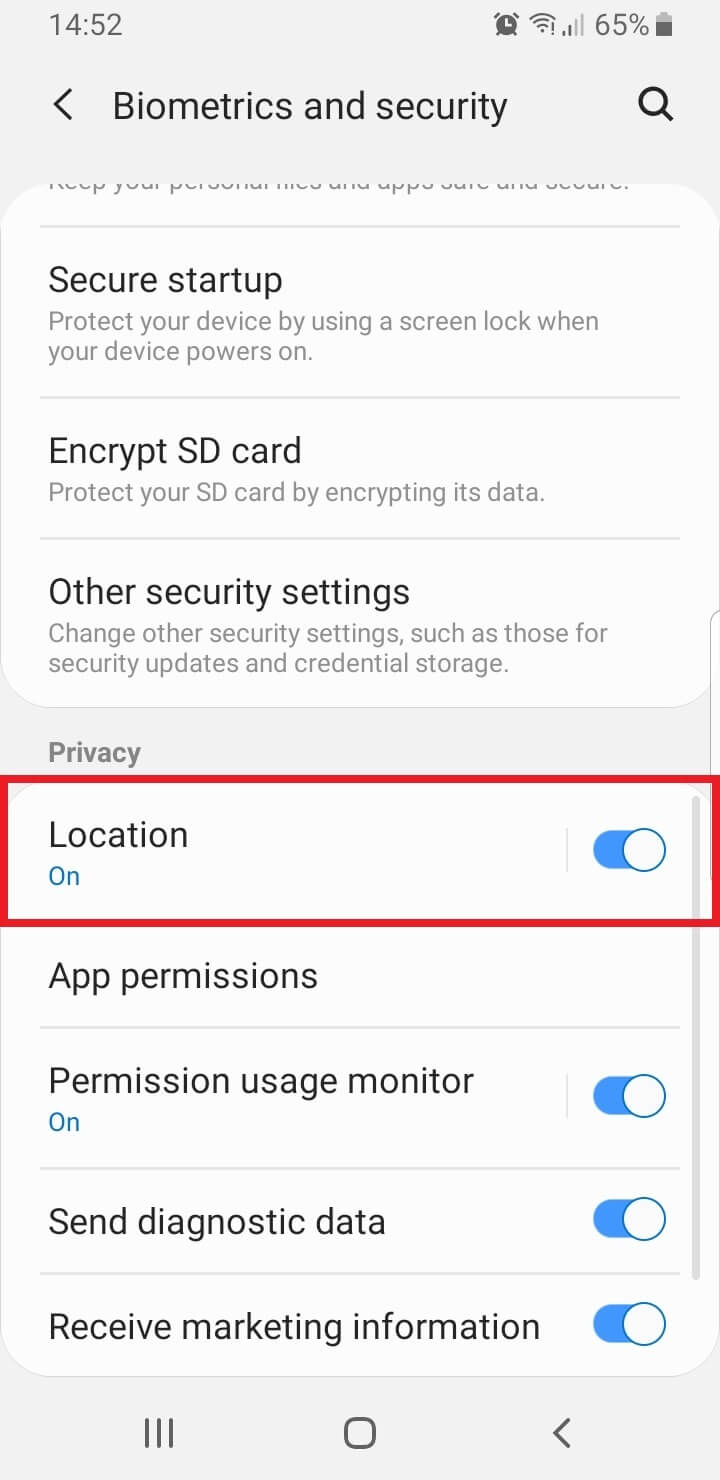
Image unavailable. Follow the written steps above or contact GPSPRO.
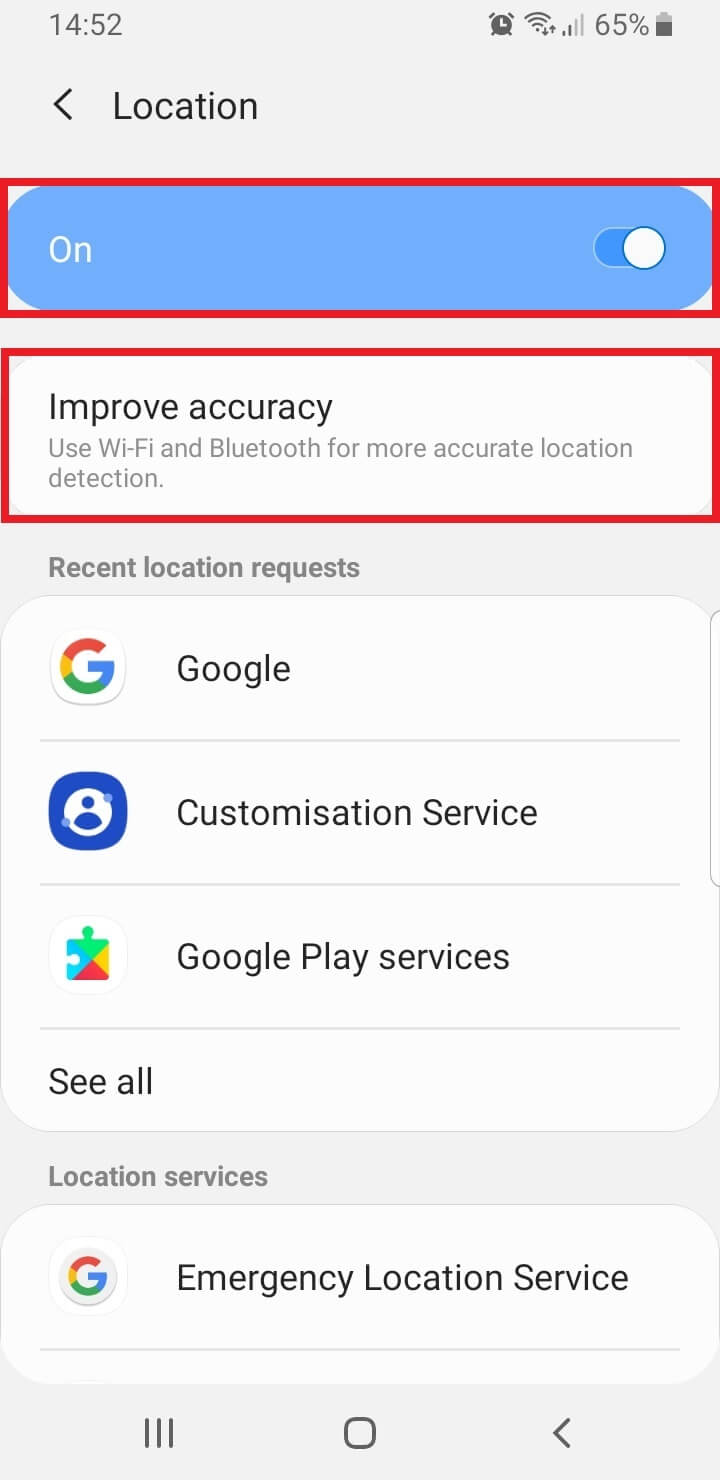
Image unavailable. Follow the written steps above or contact GPSPRO.
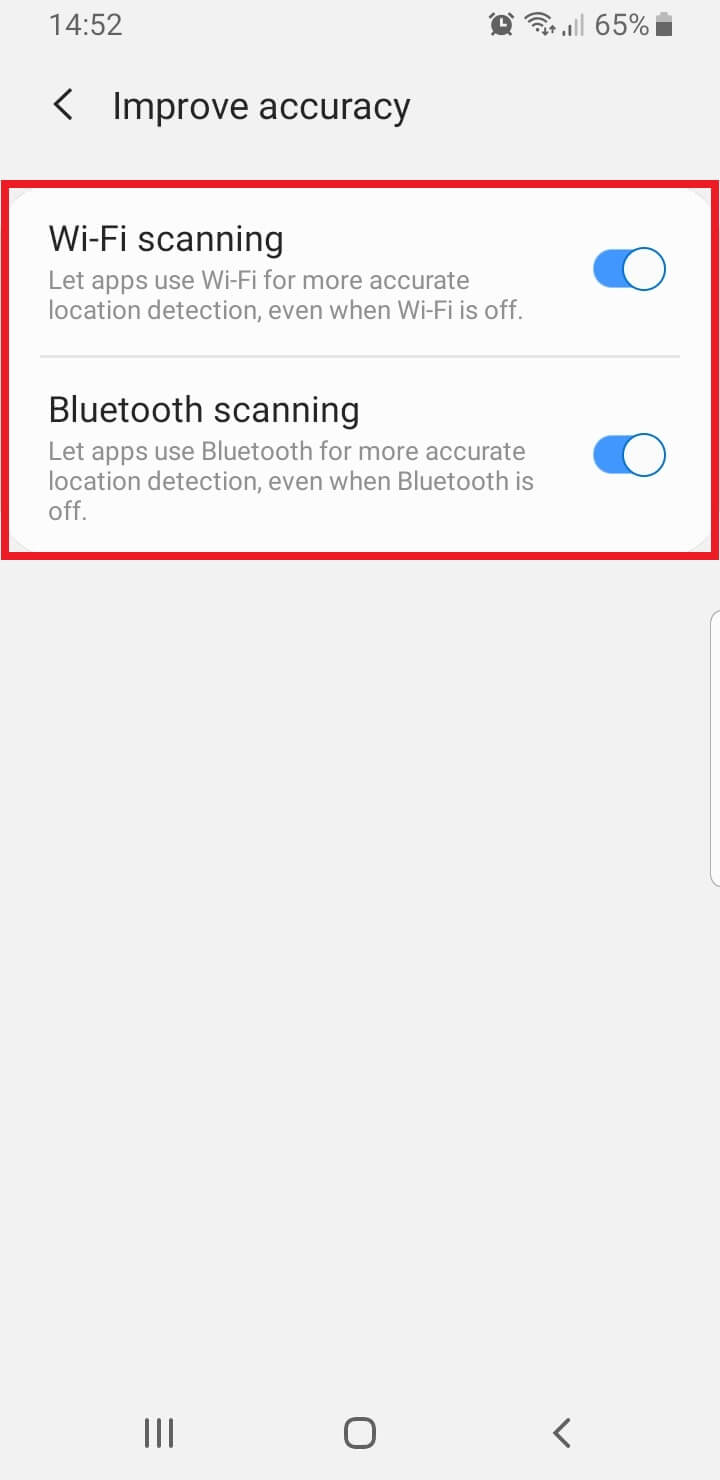
Image unavailable. Follow the written steps above or contact GPSPRO.
X-GPS Tracker App uses satellite location such as GPS/GLONASS, plus cell towers and Wi-Fi. Its tracking settings balance accuracy and battery use while walking or driving.
Available tracking modes depend on your GPSPRO setup.
Yes, if the required location, background and battery settings above allow X-GPS Tracker App to keep running.
No. X-GPS Tracker App does not offer that restriction; the phone and operating system keep the user in control.
On supported phones, it can resume if tracking was active before shutdown and background operation is allowed. Behavior varies by phone. Reopen X-GPS Tracker App and check for a fresh location if updates do not resume.
No. X-GPS Tracker App is visible in the app list and uses visible notifications. It is not designed for hidden monitoring.
The app can keep GPS routes and supported task notes or photos on the phone, then sync them when internet returns. Live updates need a connection. Allow Storage only if X-GPS Tracker App requests it; skip absent permissions.
Screens are examples; menus and app labels vary by phone model and software version. Follow the written steps for your phone.
Allow location for X-GPS Tracker App. Choose Allow all the time when offered.
Settings → Apps / Installed apps → X-GPS Tracker App → Permissions → Location
Allow Storage only if X-GPS Tracker App requests that permission on your phone; skip it when absent.
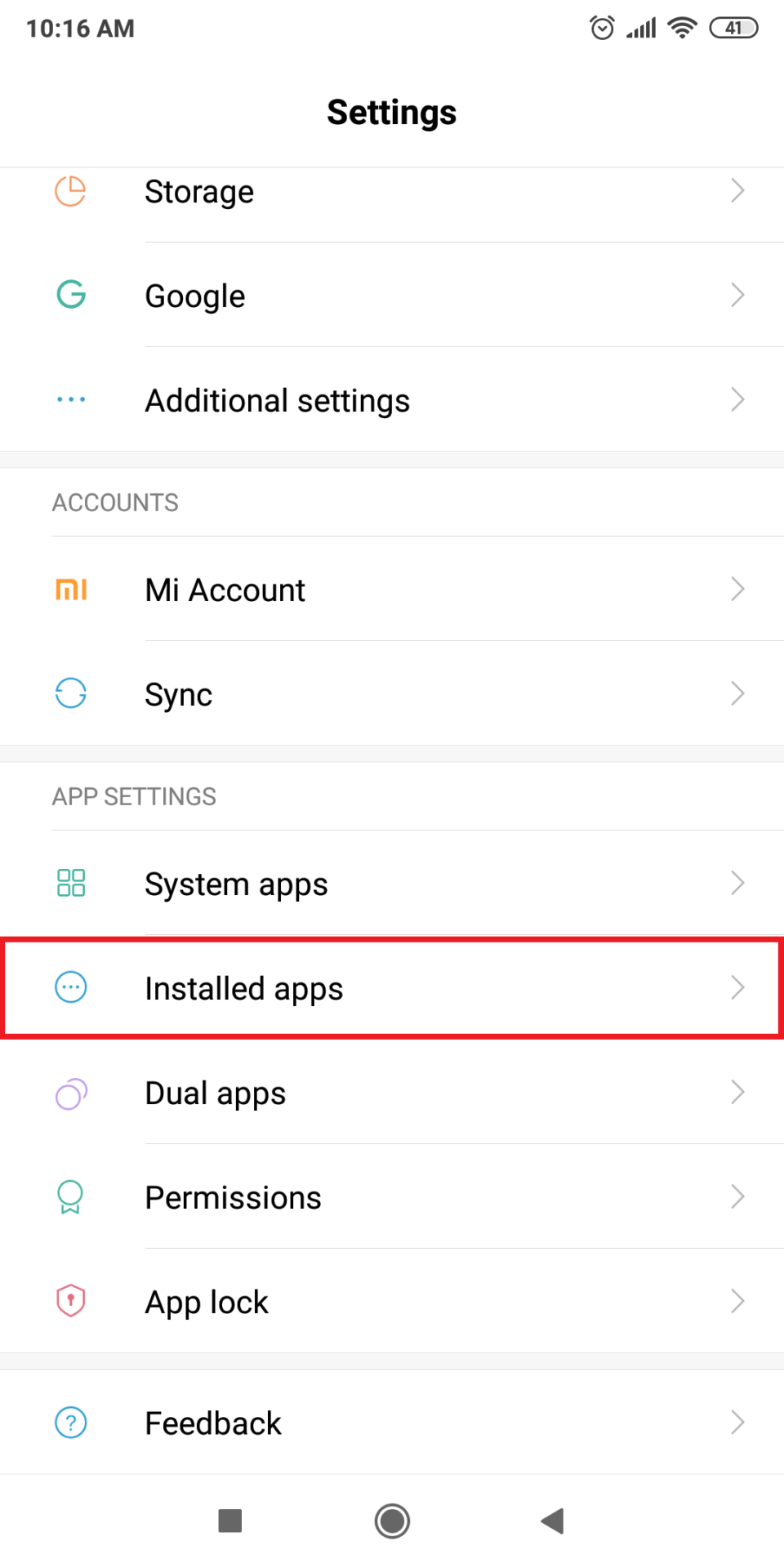
Image unavailable. Follow the written steps above or contact GPSPRO.
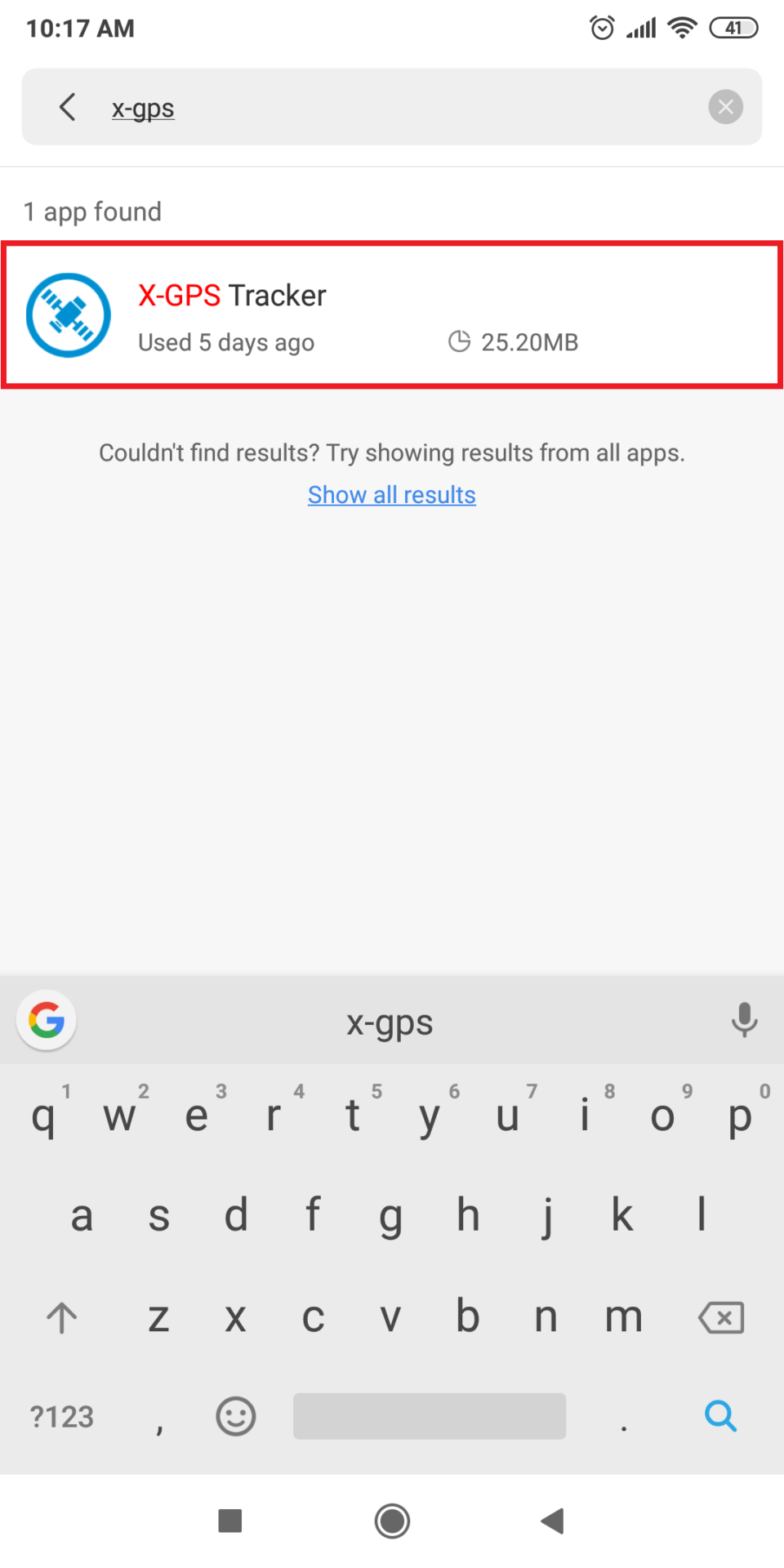
Image unavailable. Follow the written steps above or contact GPSPRO.
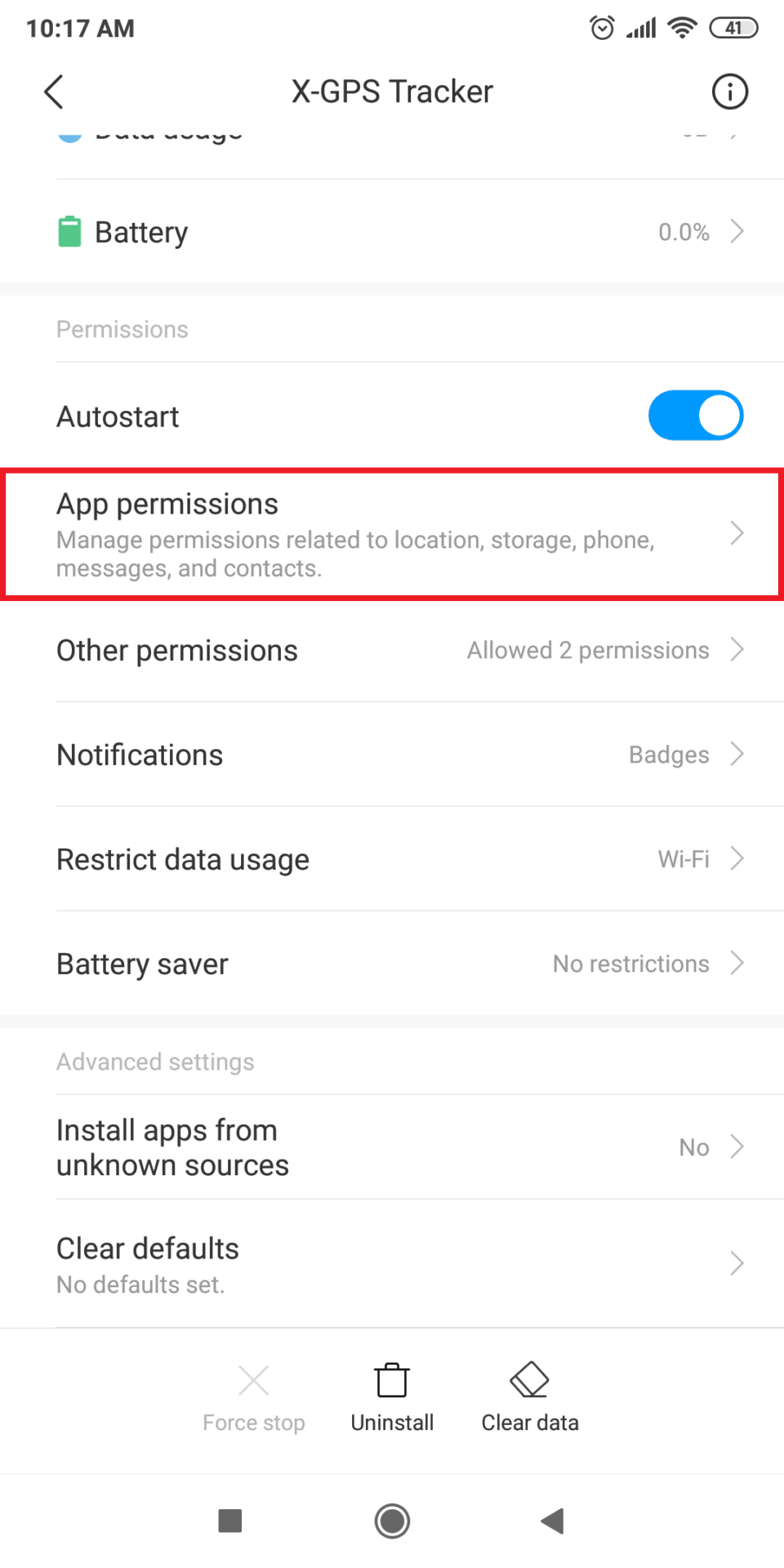
Image unavailable. Follow the written steps above or contact GPSPRO.
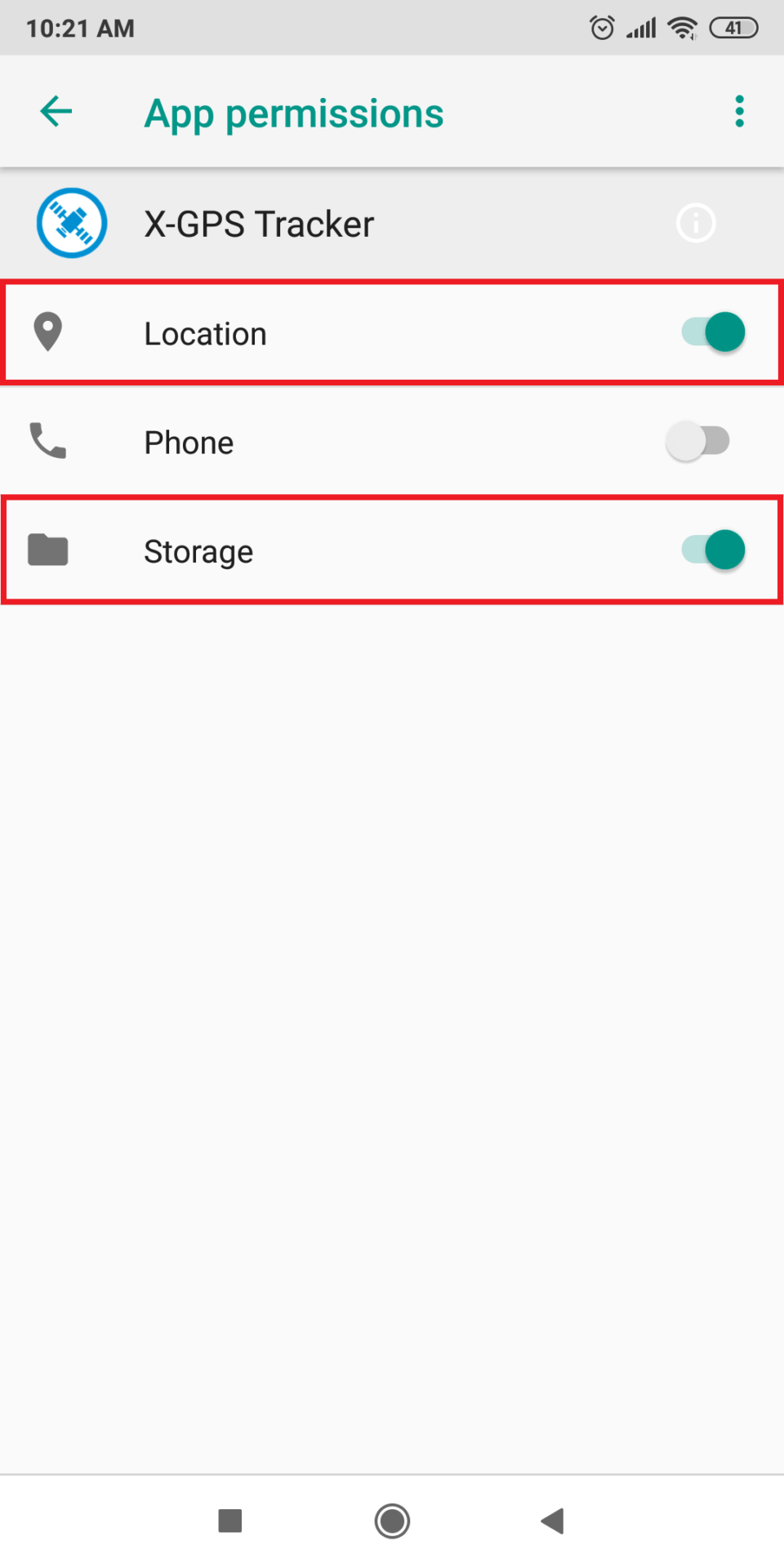
Image unavailable. Follow the written steps above or contact GPSPRO.
Turn on background autostart for X-GPS Tracker App.
Xiaomi 14T: Settings → Apps → Permissions → Background autostart
Some models omit Permissions from this path. The pictured MIUI route is Installed apps → X-GPS Tracker App → Autostart.
Image unavailable. Follow the written steps above or contact GPSPRO.
Image unavailable. Follow the written steps above or contact GPSPRO.
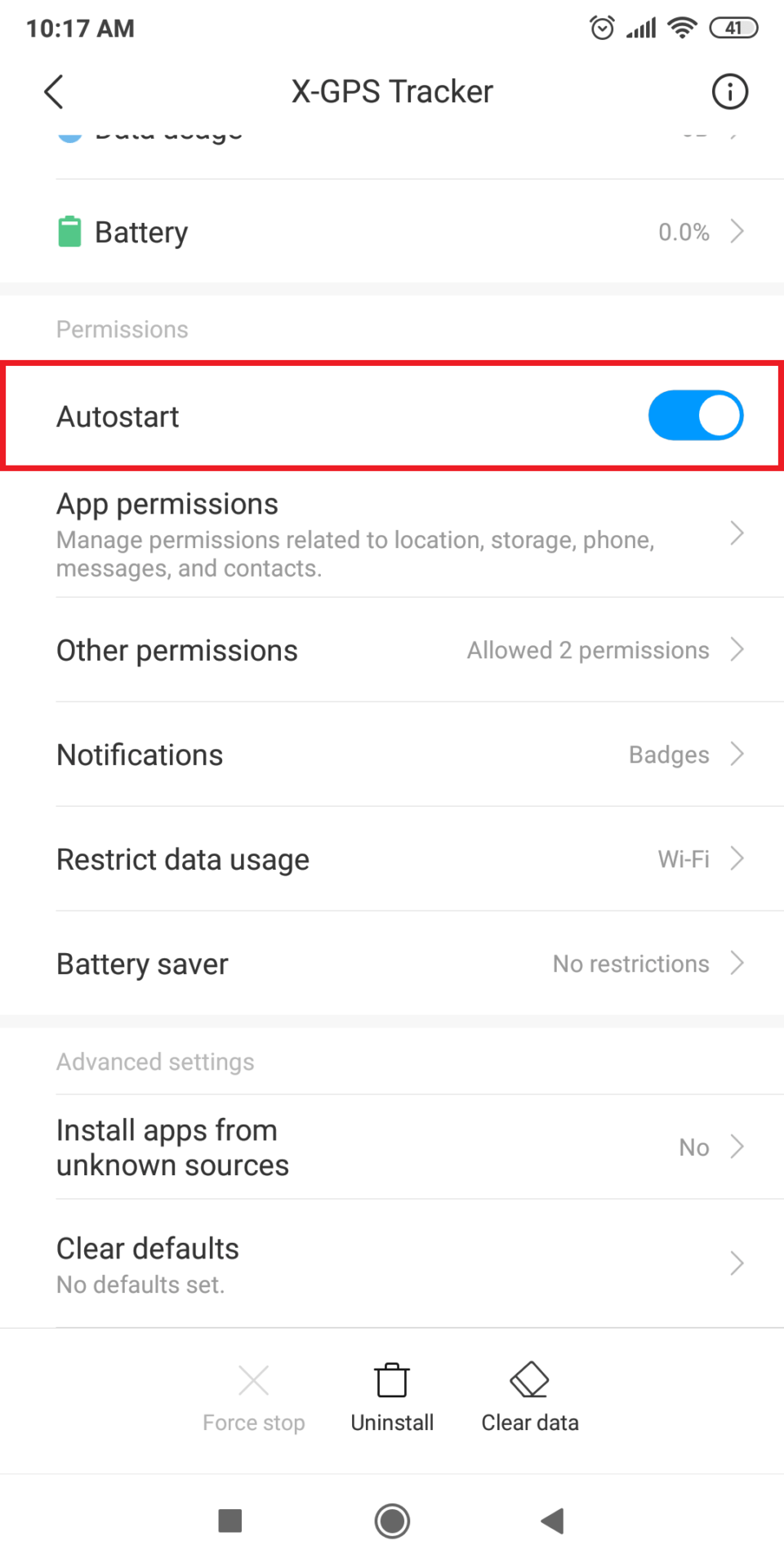
Image unavailable. Follow the written steps above or contact GPSPRO.
If these MIUI controls appear, allow Start in background and Show on the Lock screen.
MIUI example: Installed apps → X-GPS Tracker App → Other permissions
Skip controls that do not appear on your phone.
Image unavailable. Follow the written steps above or contact GPSPRO.
Image unavailable. Follow the written steps above or contact GPSPRO.
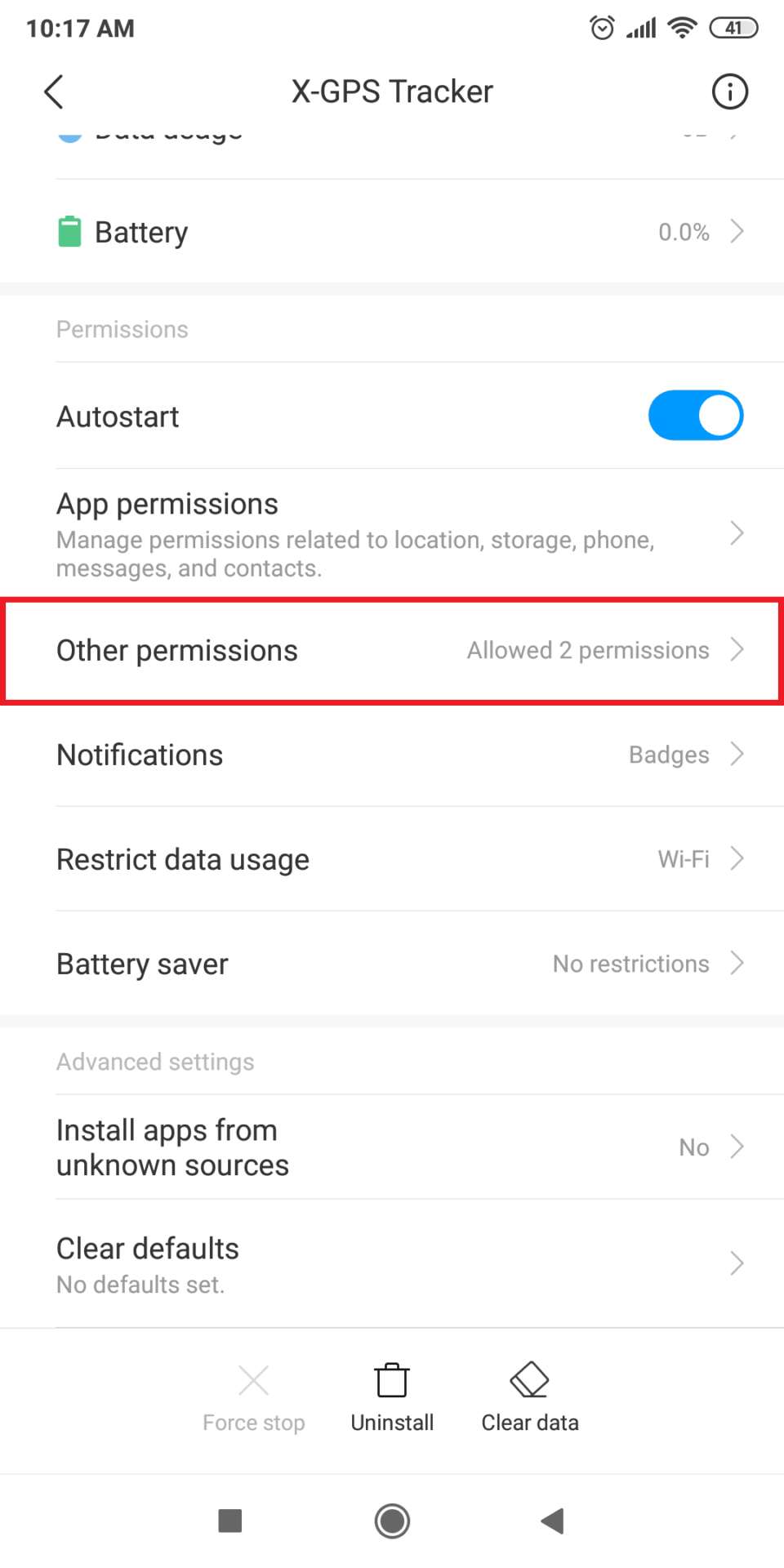
Image unavailable. Follow the written steps above or contact GPSPRO.
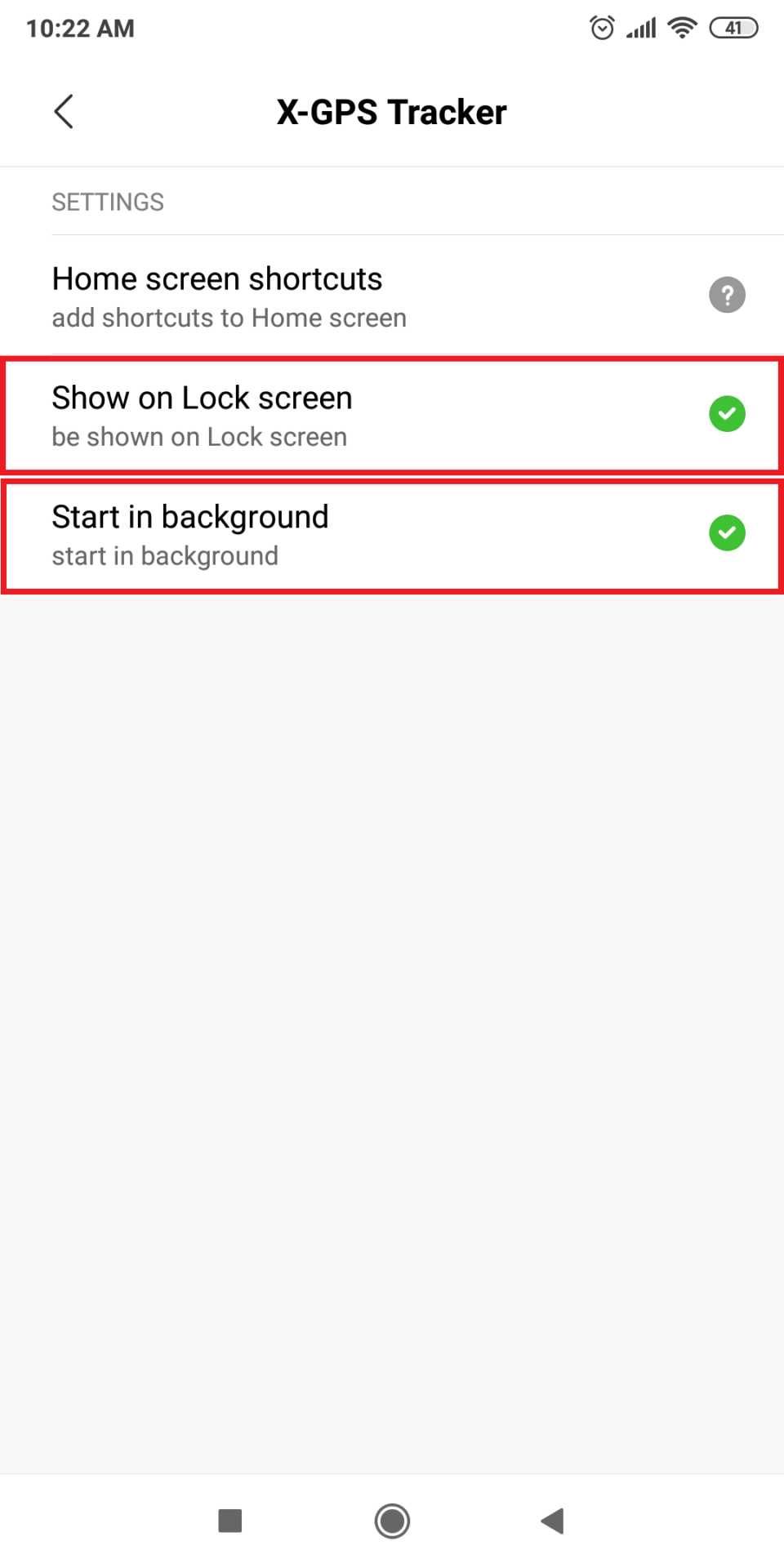
Image unavailable. Follow the written steps above or contact GPSPRO.
Allow both Wi-Fi and mobile data for X-GPS Tracker App.
Apps → X-GPS Tracker App → Restrict data usage
Wi-Fi can keep updates flowing indoors when the cellular signal is weak.
Image unavailable. Follow the written steps above or contact GPSPRO.
Image unavailable. Follow the written steps above or contact GPSPRO.
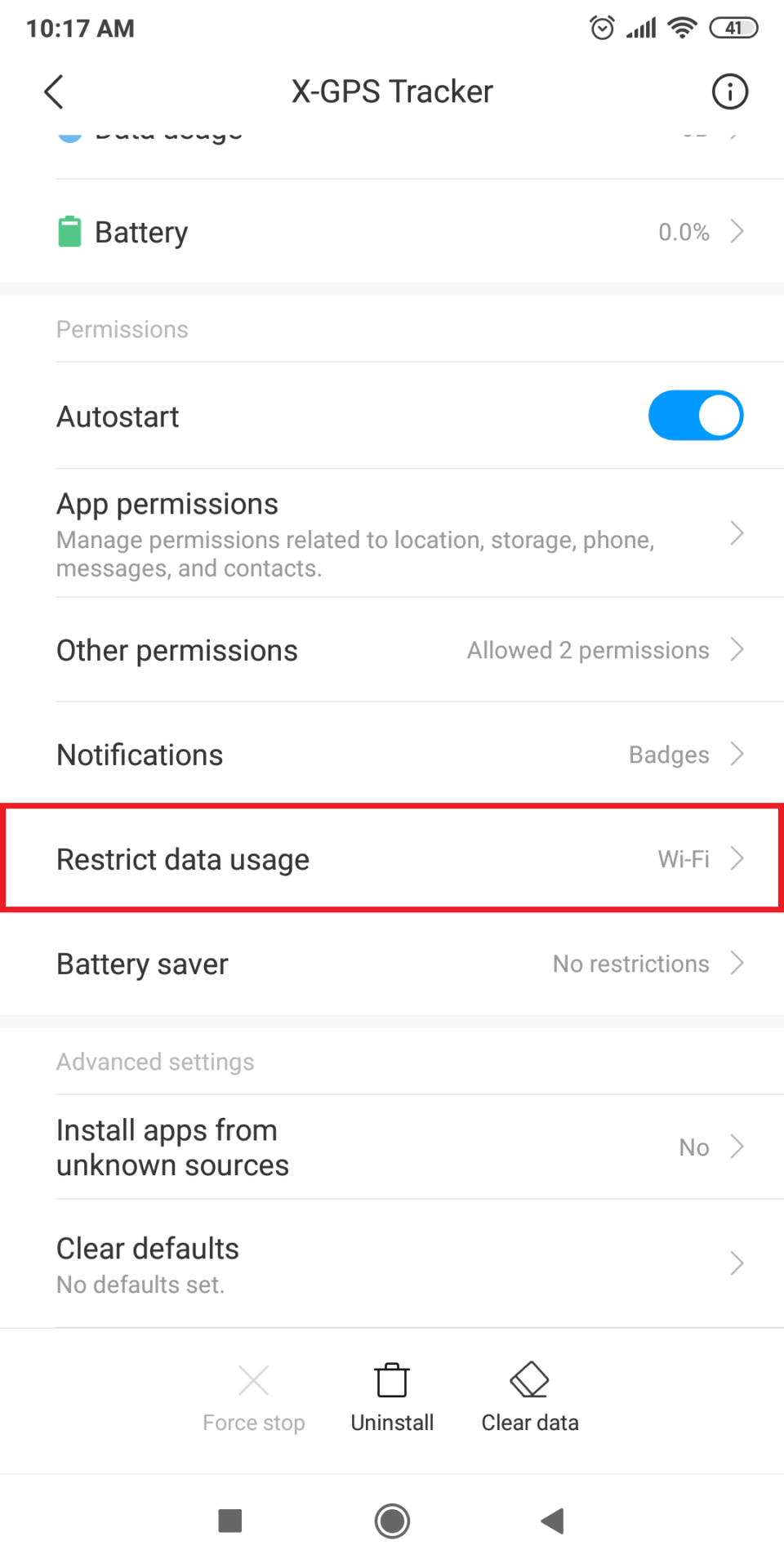
Image unavailable. Follow the written steps above or contact GPSPRO.
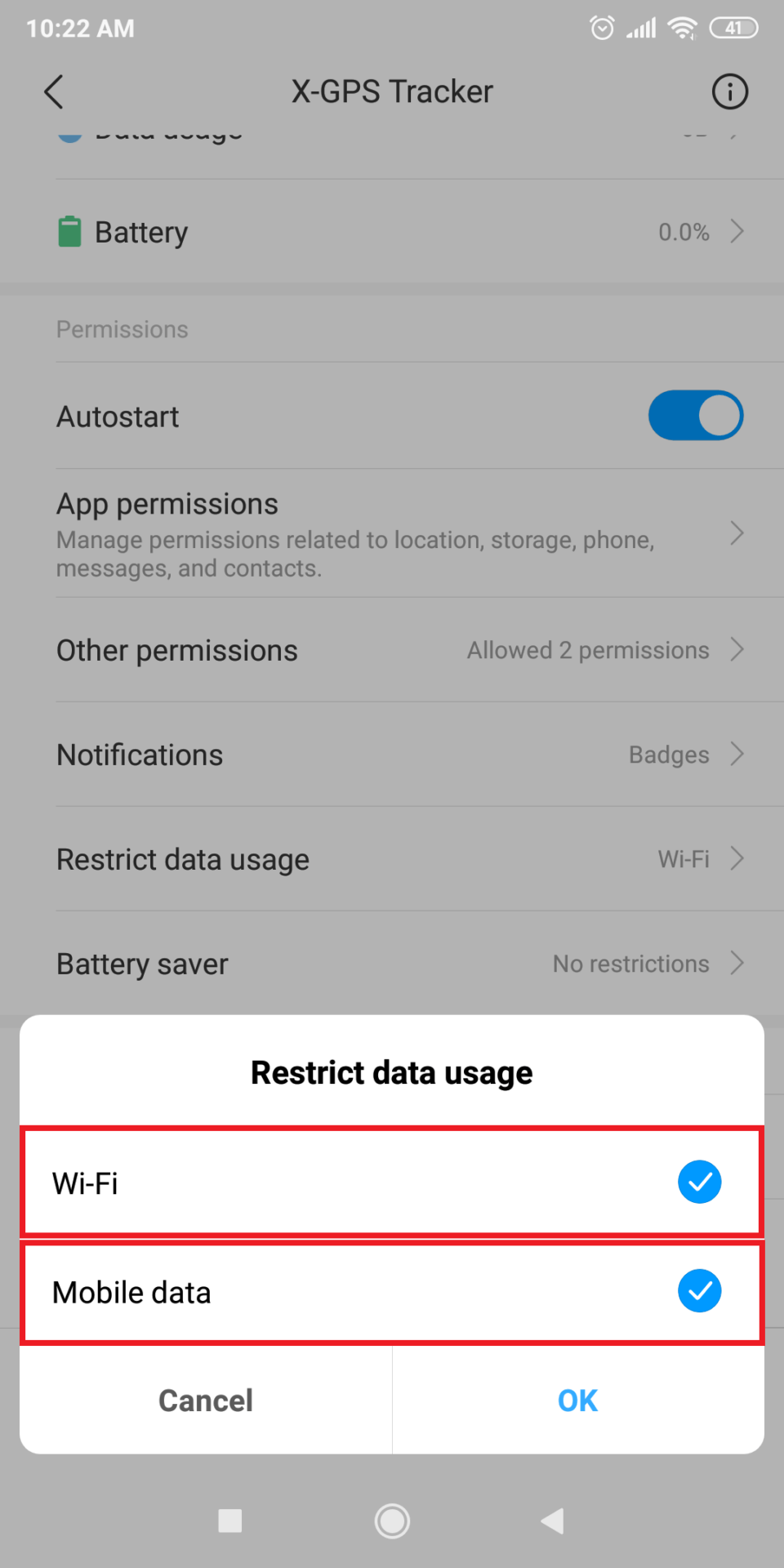
Image unavailable. Follow the written steps above or contact GPSPRO.
Select No restrictions for X-GPS Tracker App.
Apps → X-GPS Tracker App → Battery Saver / Power → No restrictions
Battery saving can stop the app after inactivity.
Image unavailable. Follow the written steps above or contact GPSPRO.
Image unavailable. Follow the written steps above or contact GPSPRO.
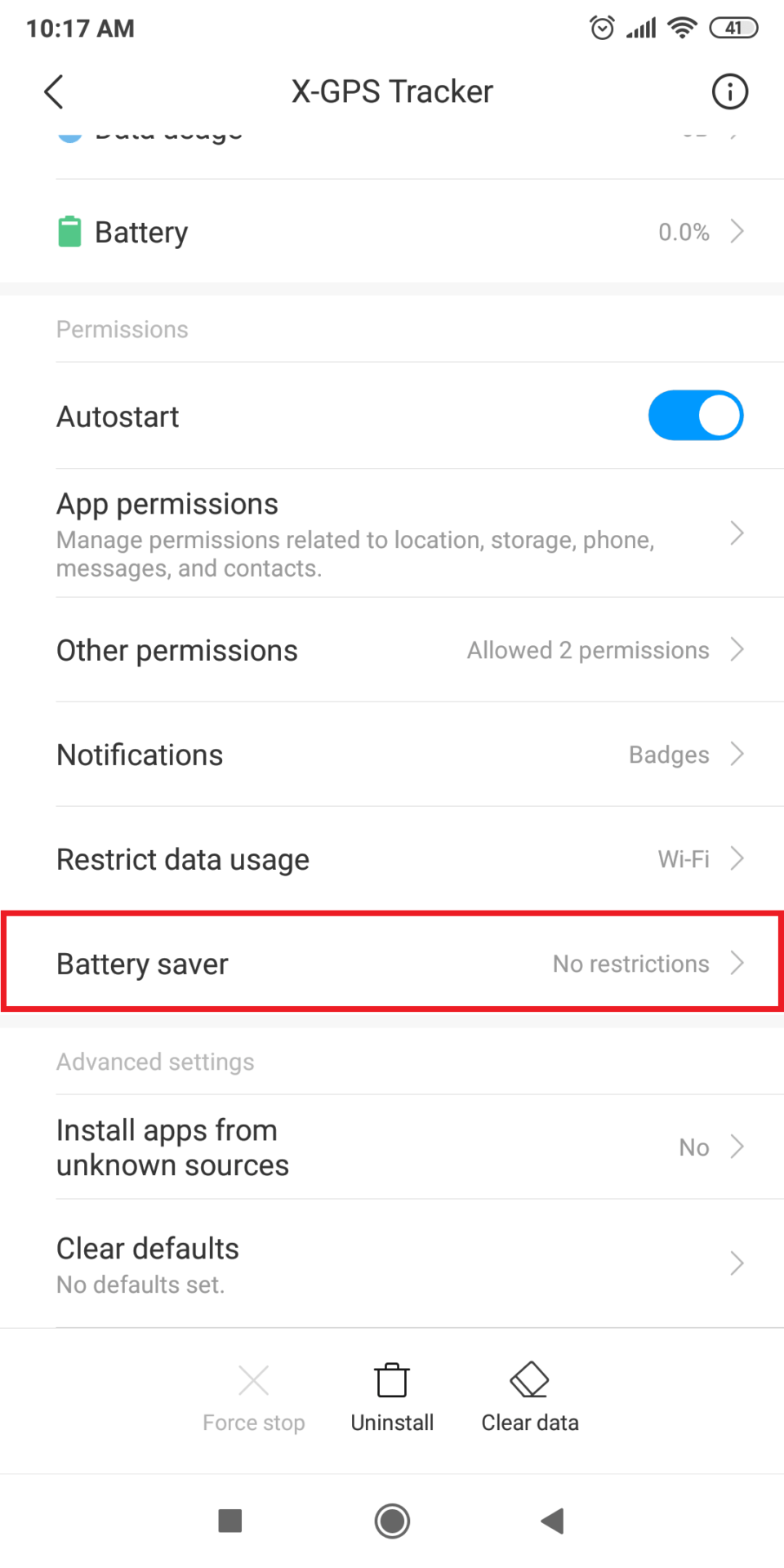
Image unavailable. Follow the written steps above or contact GPSPRO.
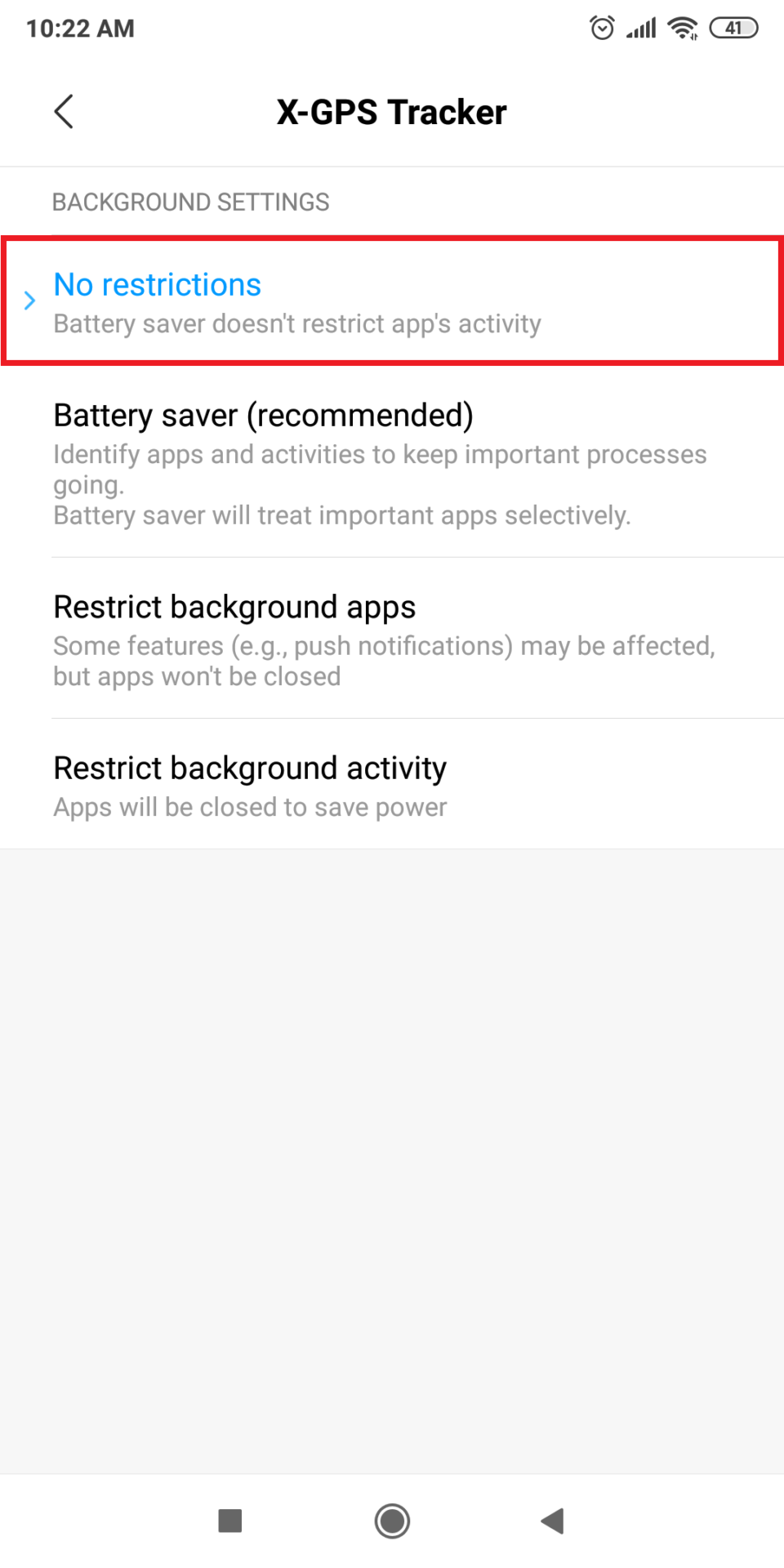
Image unavailable. Follow the written steps above or contact GPSPRO.
Swipe down from the top of the screen to open the quick settings panel.
Check these controls before tracking.

Needed to send updates over a cellular connection. Online syncing needs internet access.

Required for the phone to determine its location.

Leave it off while tracking; it can restrict internet and location services.

Helps with faster, more efficient location in cities and indoors.

Can also help location accuracy and efficiency in cities and indoors.
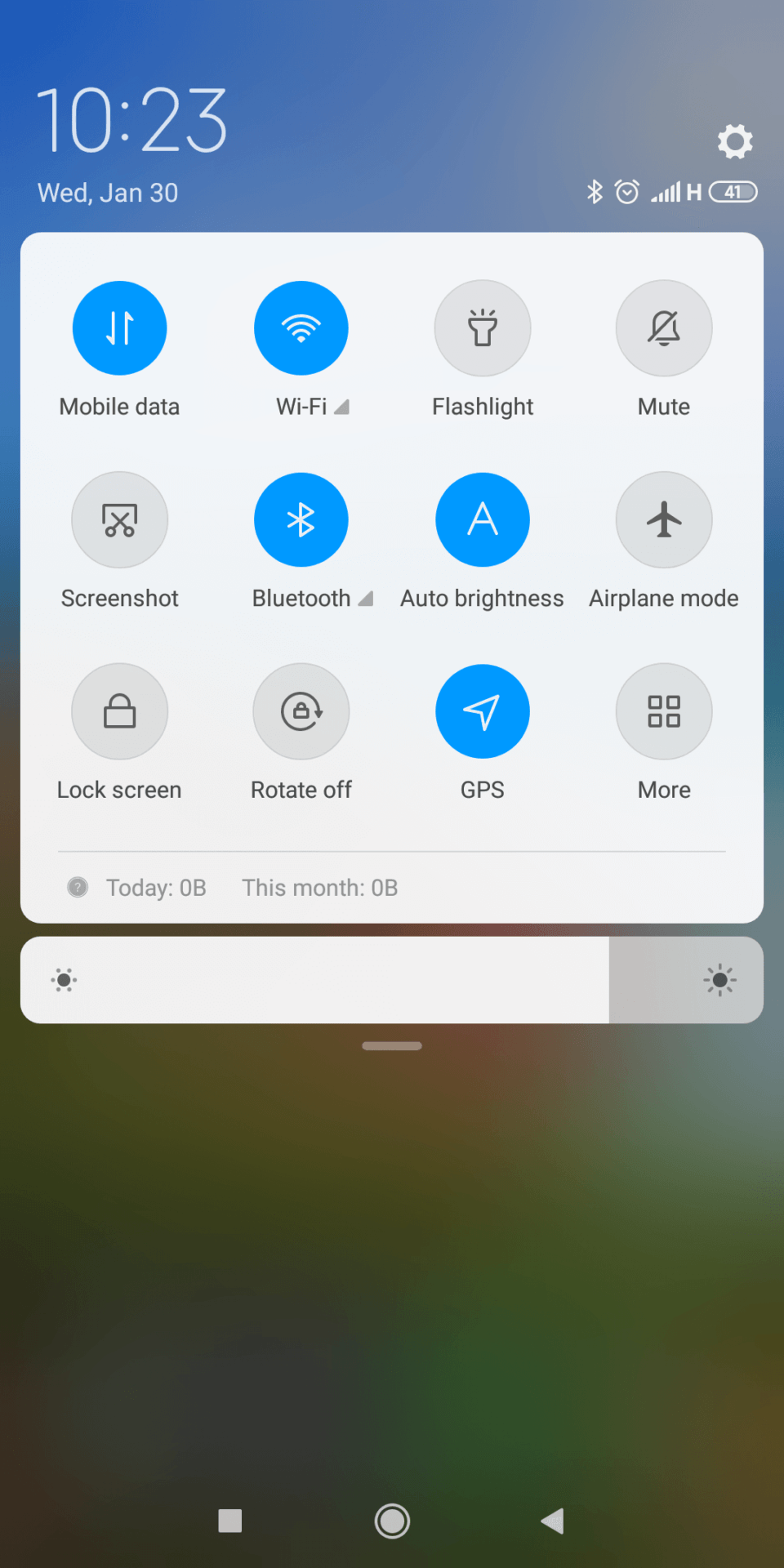
Image unavailable. Follow the written steps above or contact GPSPRO.
Turn on Location and choose High accuracy if your phone offers it.
MIUI example: Settings → Additional settings → Privacy → Location → High accuracy
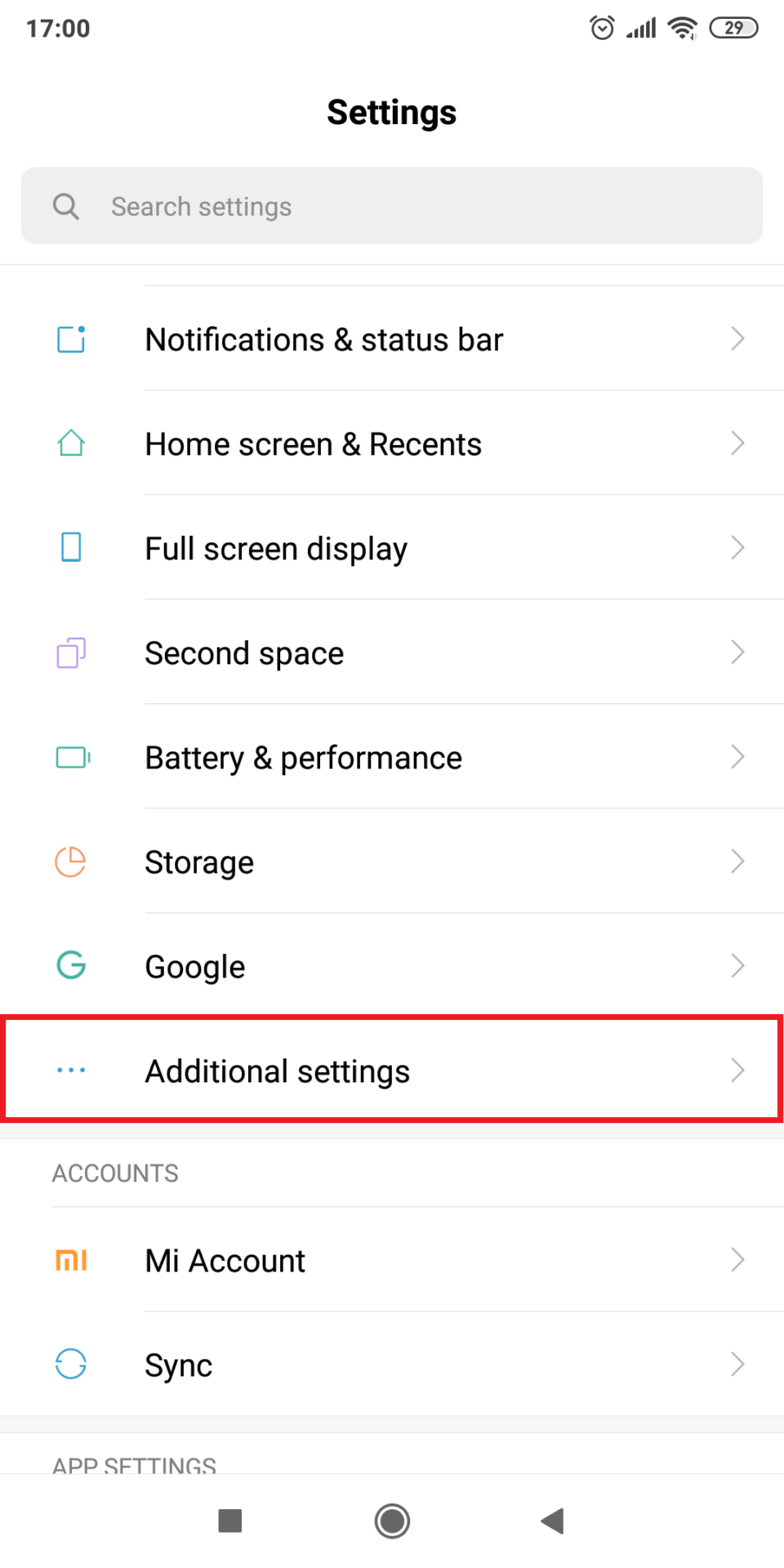
Image unavailable. Follow the written steps above or contact GPSPRO.
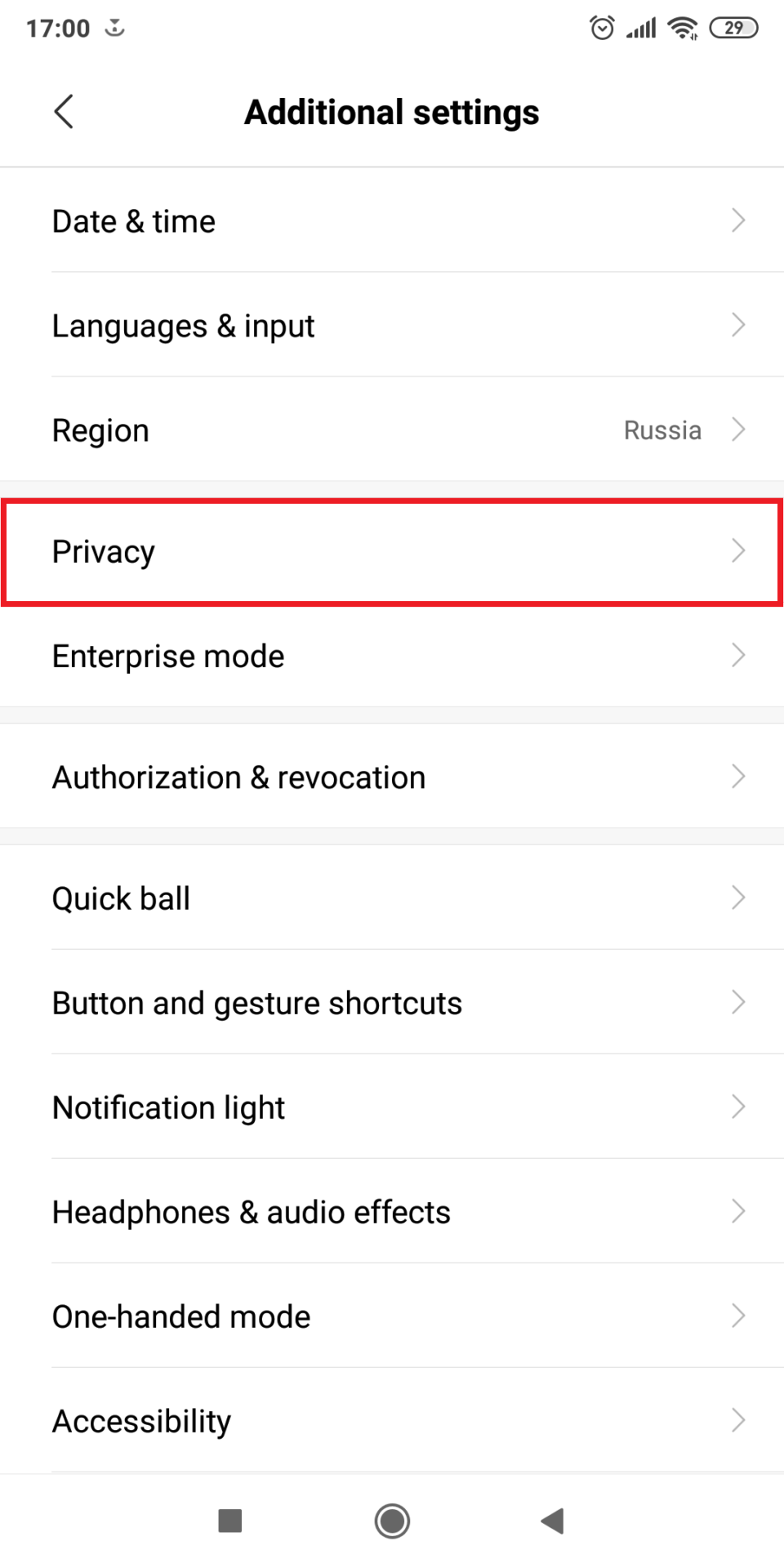
Image unavailable. Follow the written steps above or contact GPSPRO.
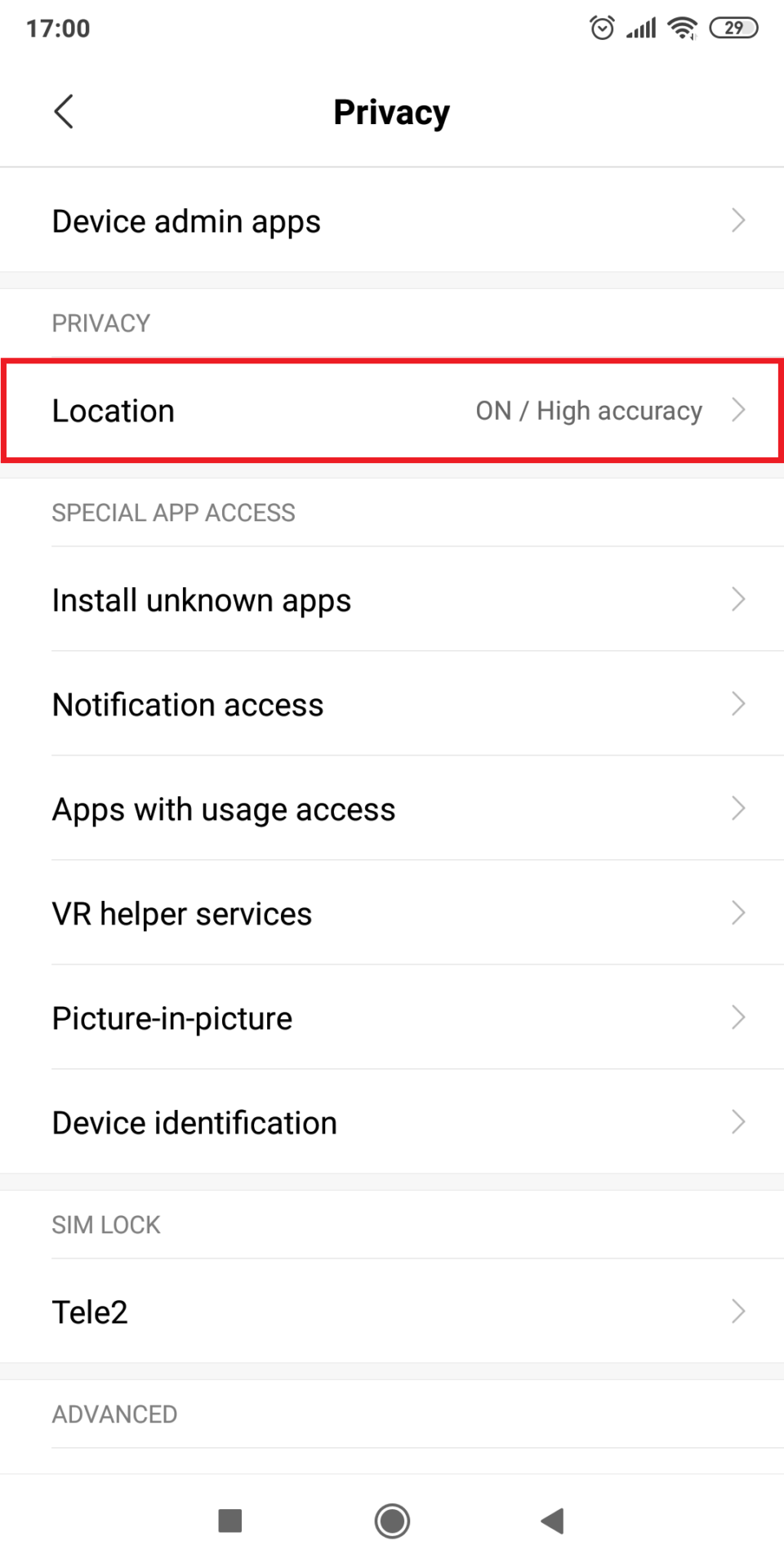
Image unavailable. Follow the written steps above or contact GPSPRO.
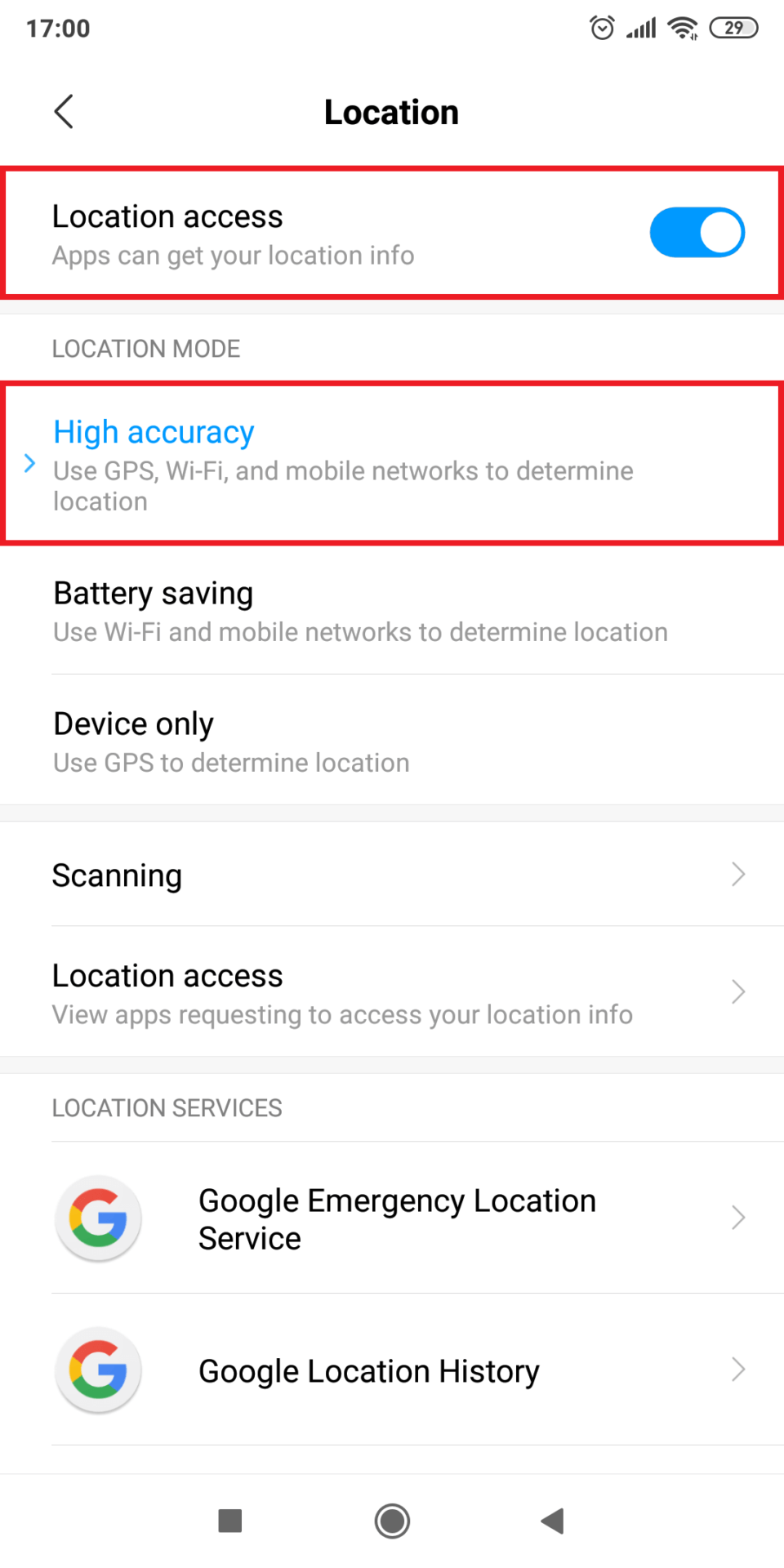
Image unavailable. Follow the written steps above or contact GPSPRO.
X-GPS Tracker App uses satellite location such as GPS/GLONASS, plus cell towers and Wi-Fi. Its tracking settings balance accuracy and battery use while walking or driving.
Available tracking modes depend on your GPSPRO setup.
Yes, if the required location, background and battery settings above allow X-GPS Tracker App to keep running.
No. X-GPS Tracker App does not offer that restriction; the phone and operating system keep the user in control.
On supported phones, it can resume if tracking was active before shutdown and background operation is allowed. Behavior varies by phone. Reopen X-GPS Tracker App and check for a fresh location if updates do not resume.
No. X-GPS Tracker App is visible in the app list and uses visible notifications. It is not designed for hidden monitoring.
The app can keep GPS routes and supported task notes or photos on the phone, then sync them when internet returns. Live updates need a connection. Allow Storage only if X-GPS Tracker App requests it; skip absent permissions.
Screens are examples; menus and app labels vary by phone model and software version. Follow the written steps for your phone.
Allow location for X-GPS Tracker App. Choose Allow all the time when offered.
Settings → Apps → X-GPS Tracker App → Permissions → Location
Allow Storage only if X-GPS Tracker App requests that permission on your phone; skip it when absent.
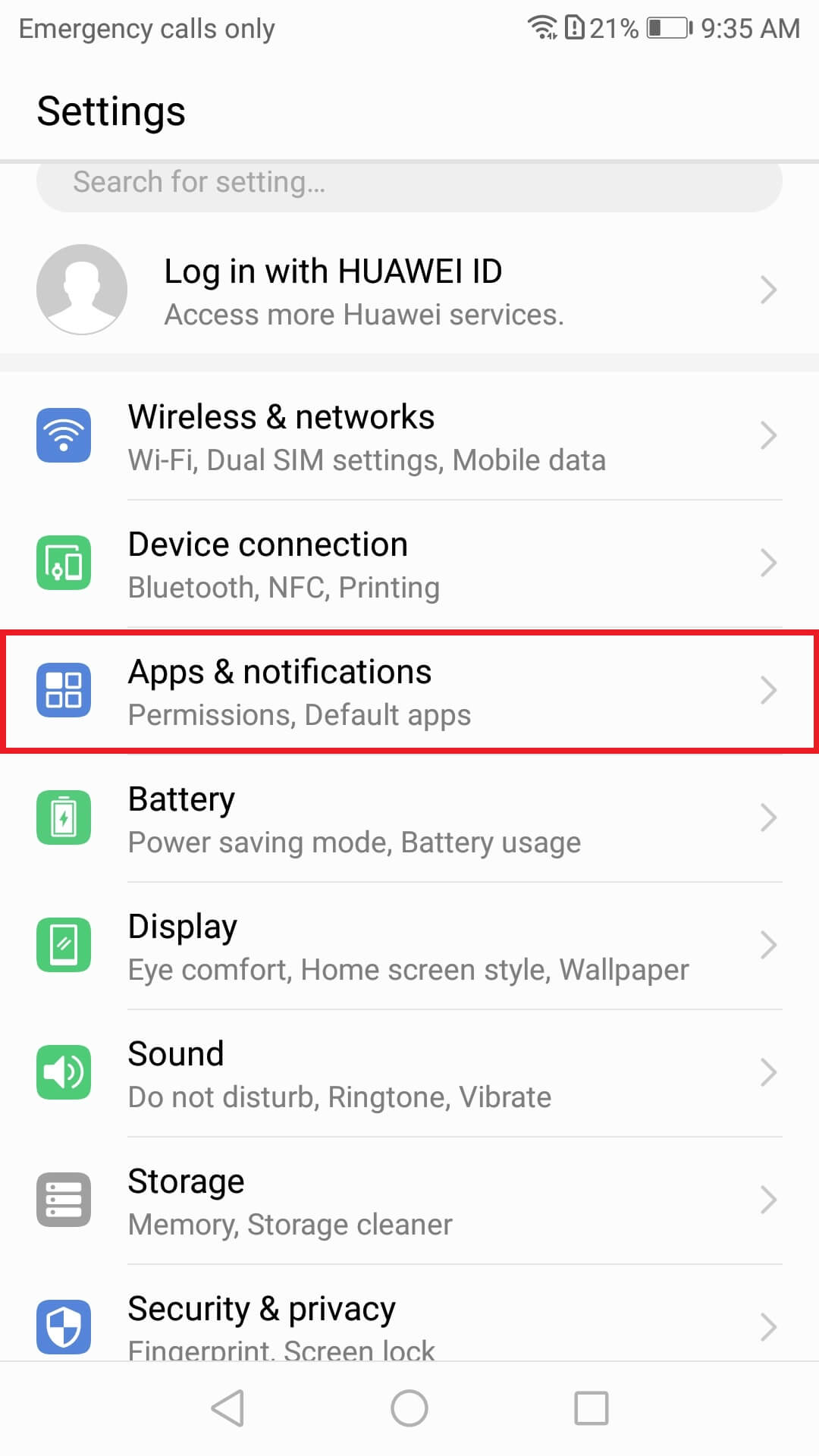
Image unavailable. Follow the written steps above or contact GPSPRO.
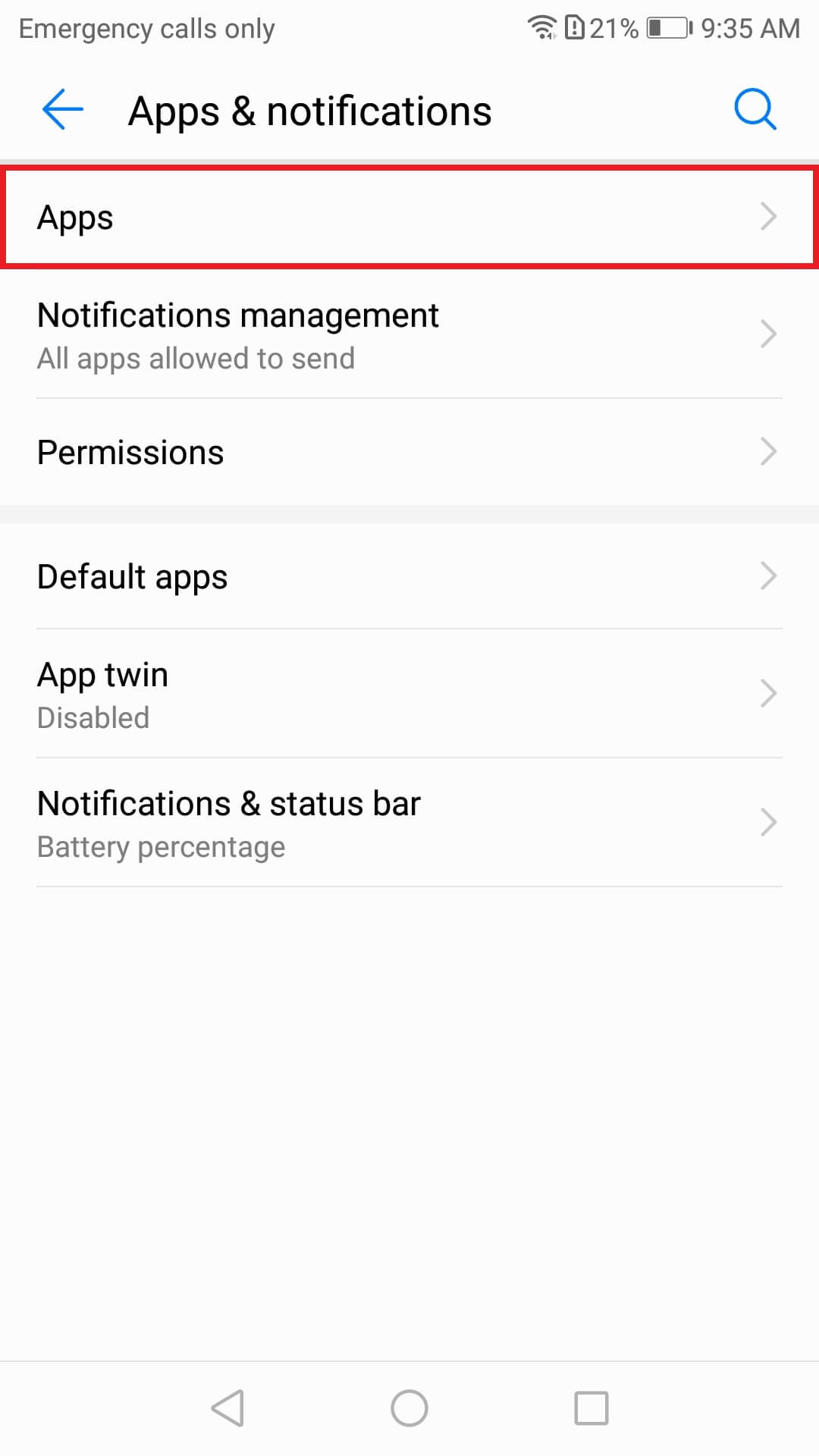
Image unavailable. Follow the written steps above or contact GPSPRO.
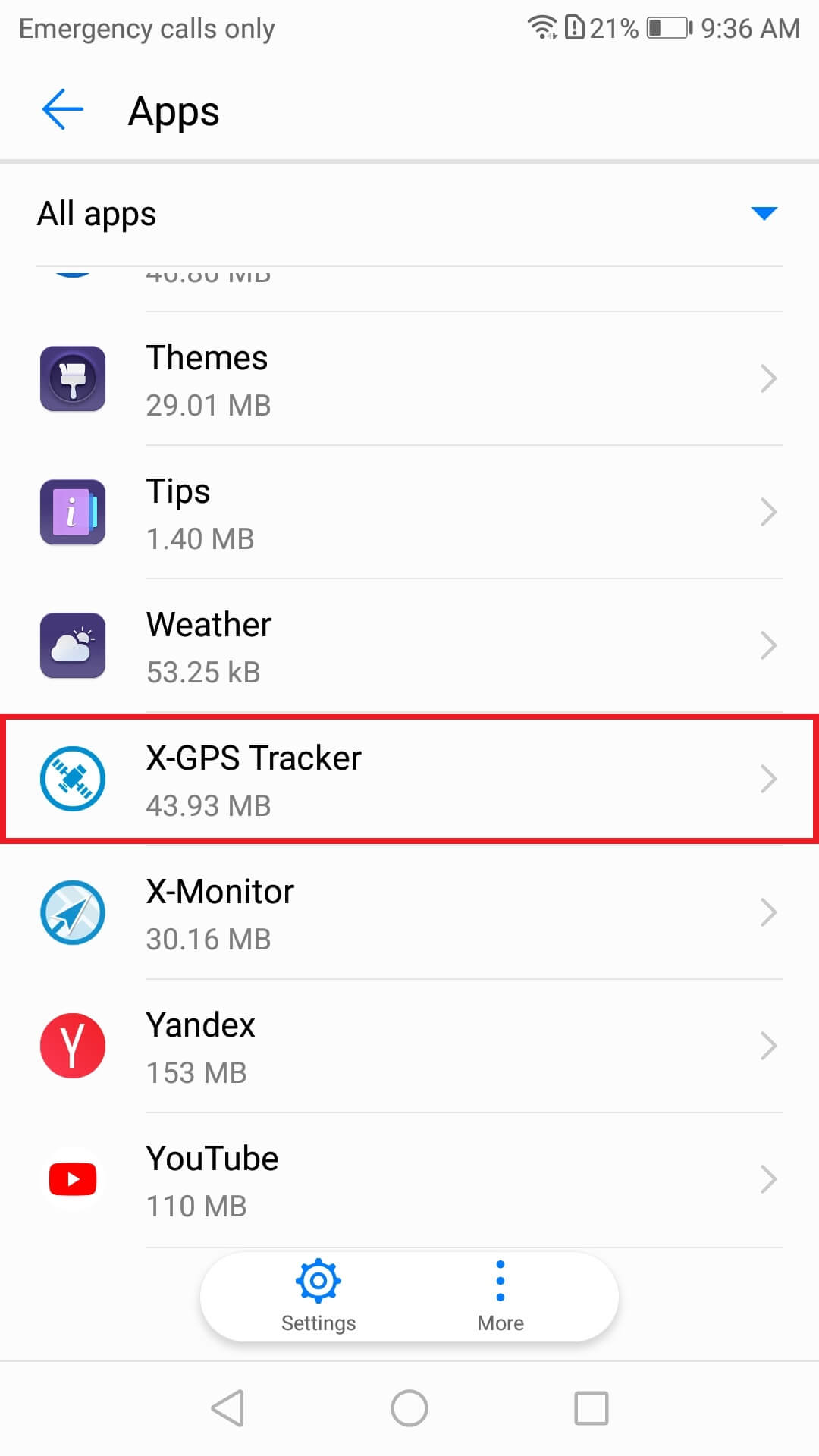
Image unavailable. Follow the written steps above or contact GPSPRO.
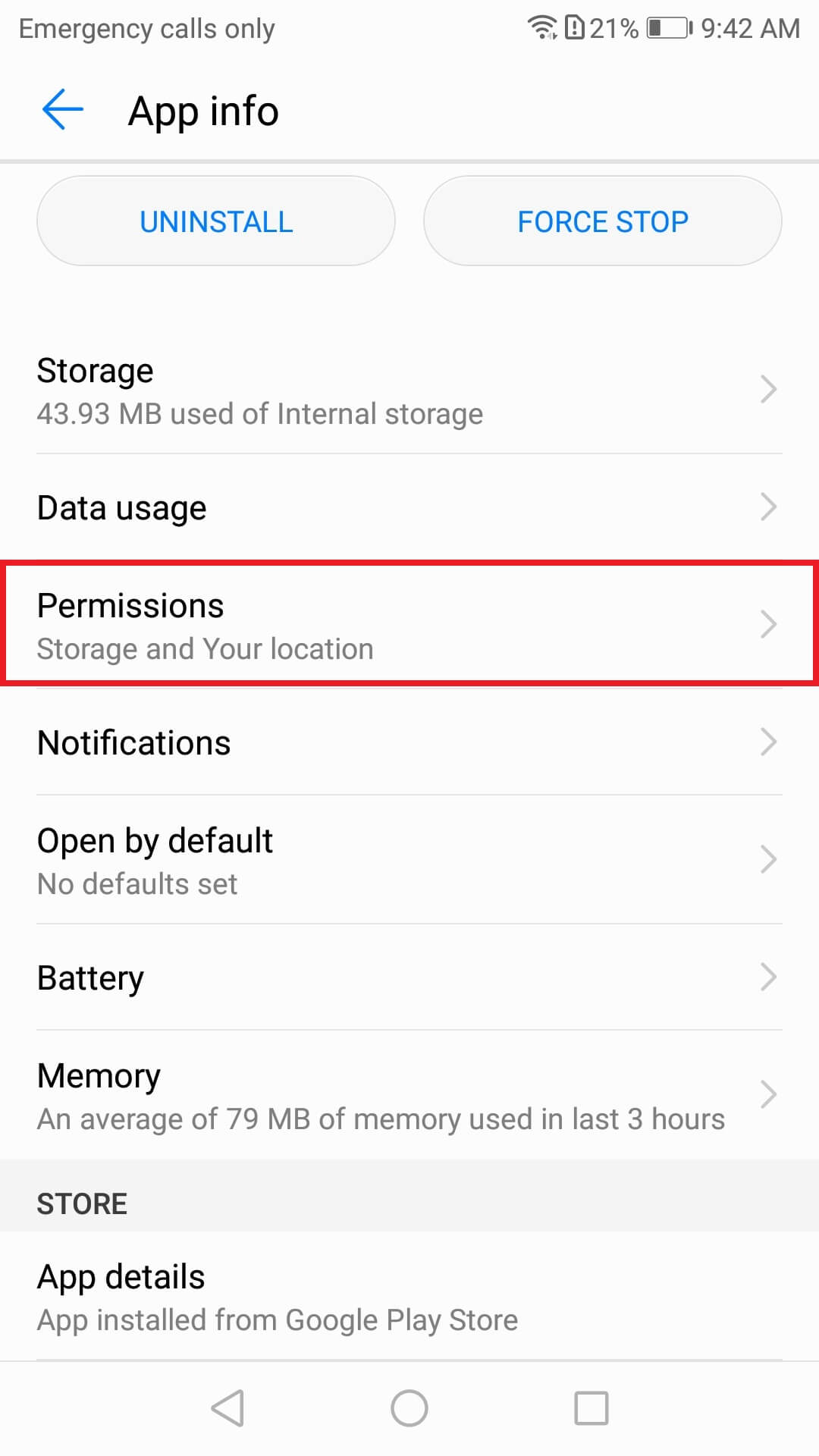
Image unavailable. Follow the written steps above or contact GPSPRO.
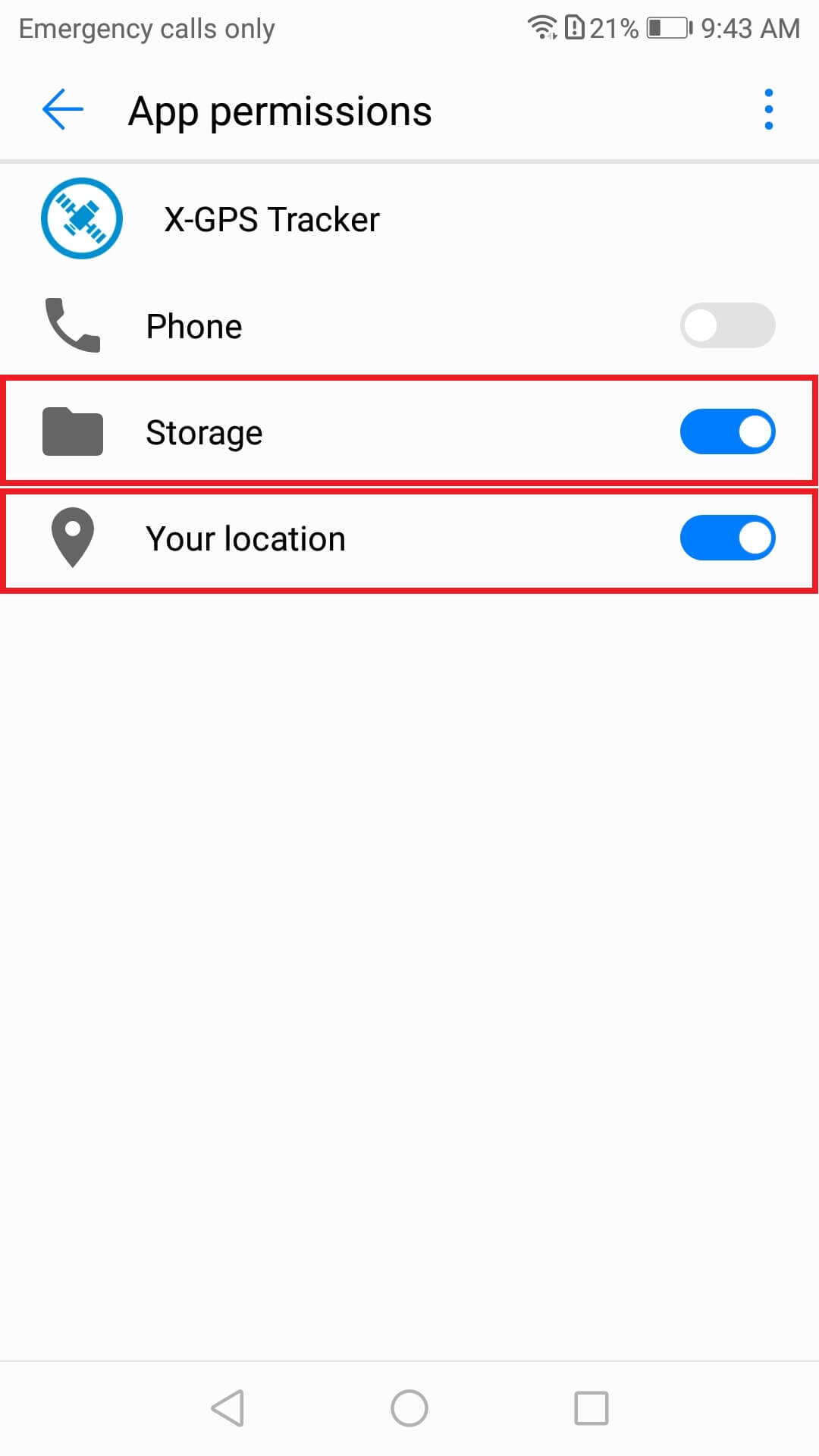
Image unavailable. Follow the written steps above or contact GPSPRO.
Manage X-GPS Tracker App manually. Enable Auto-launch, Secondary launch and Run in background when shown.
Settings → search App launch → X-GPS Tracker App → Manage manually
Some versions open this through Apps → X-GPS Tracker App → Battery → Launch.
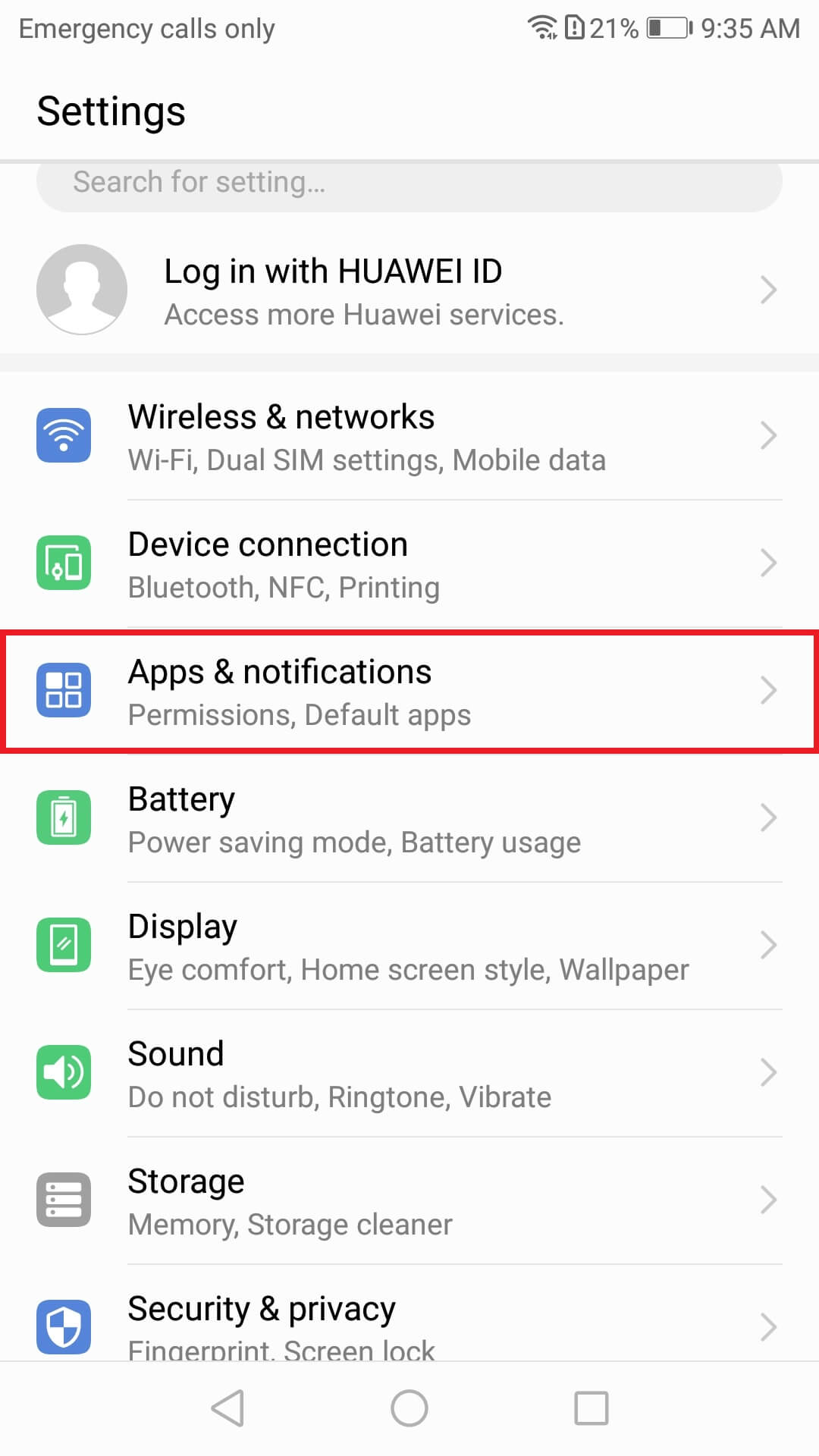
Image unavailable. Follow the written steps above or contact GPSPRO.
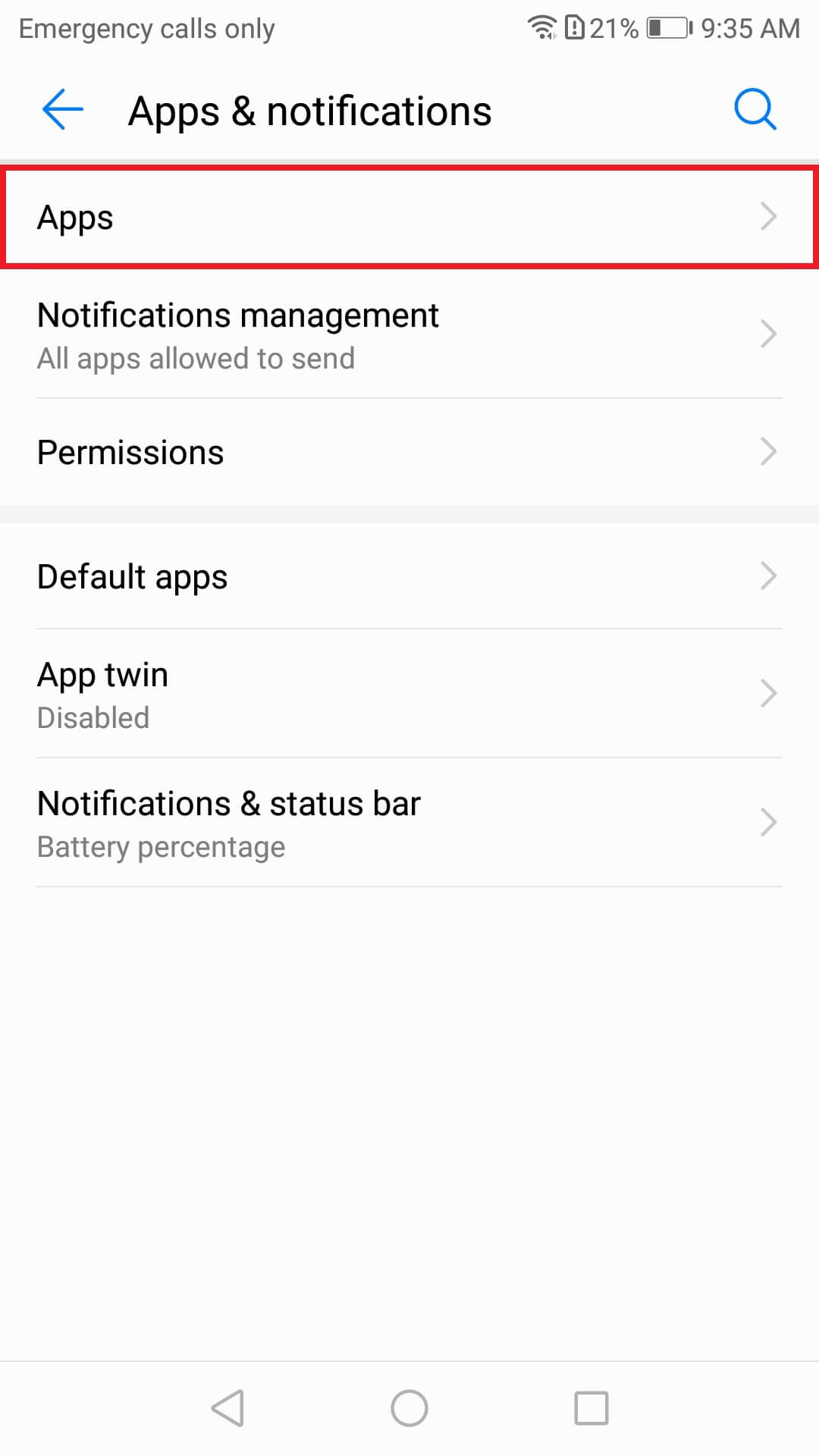
Image unavailable. Follow the written steps above or contact GPSPRO.
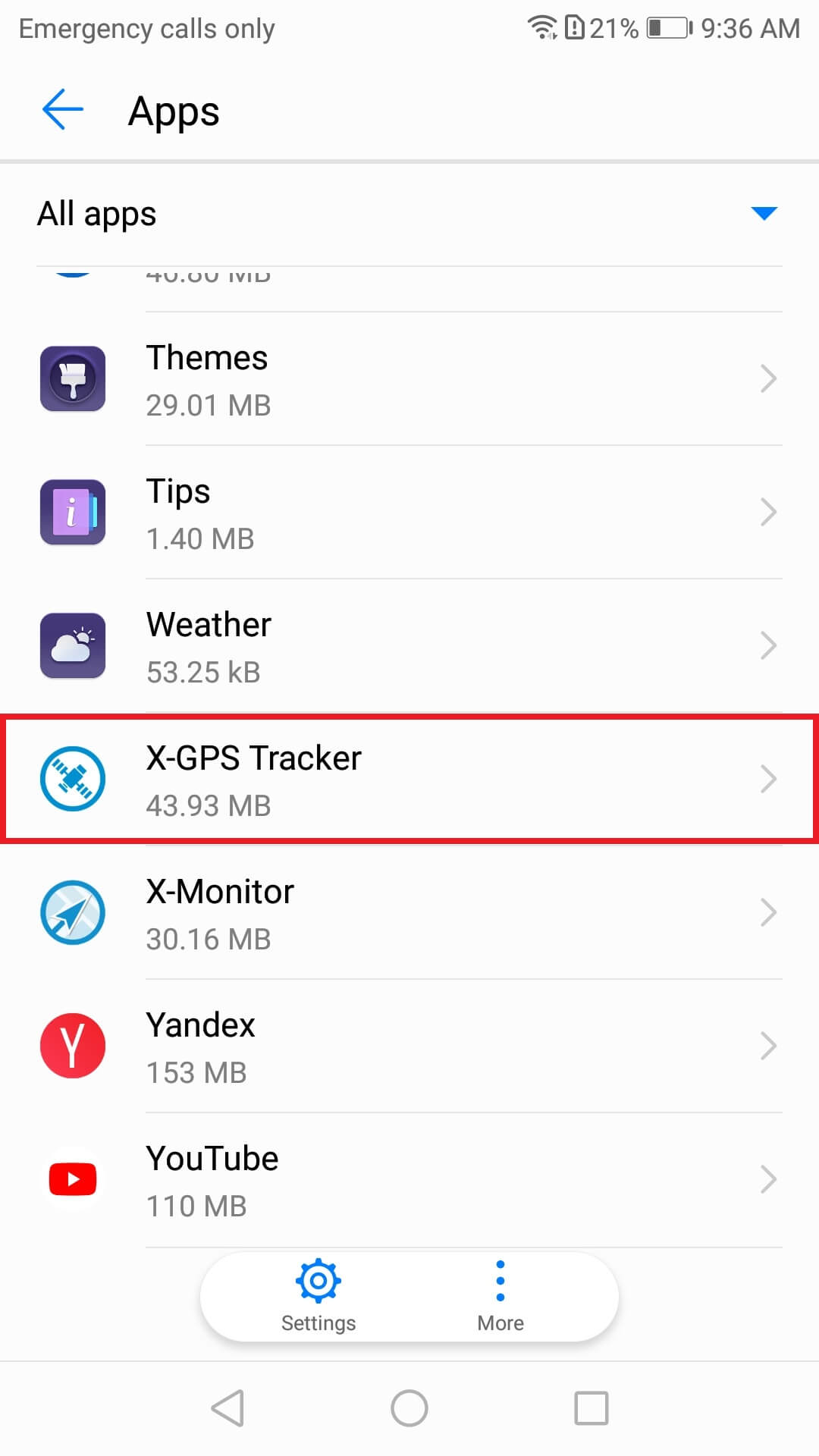
Image unavailable. Follow the written steps above or contact GPSPRO.
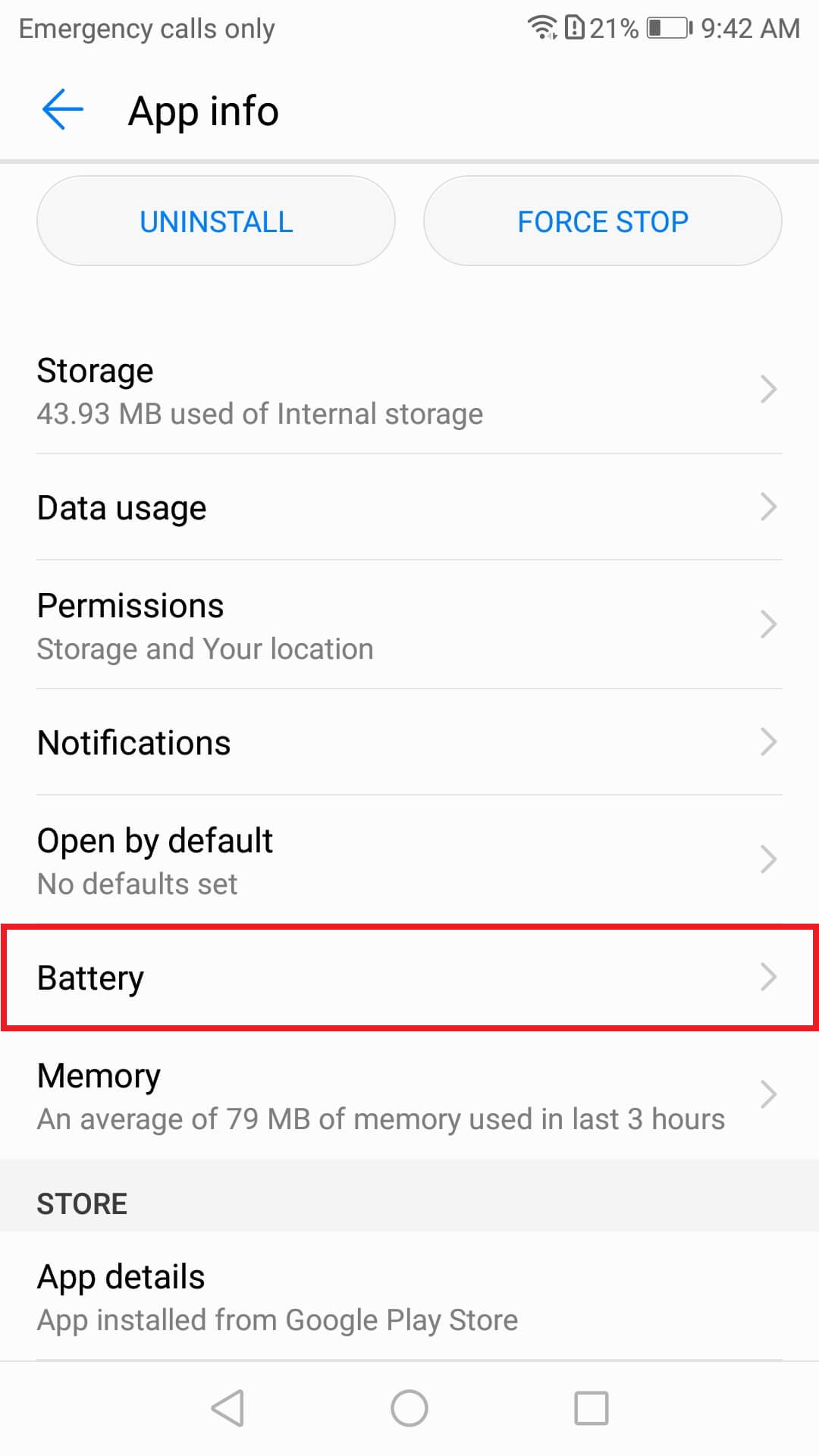
Image unavailable. Follow the written steps above or contact GPSPRO.
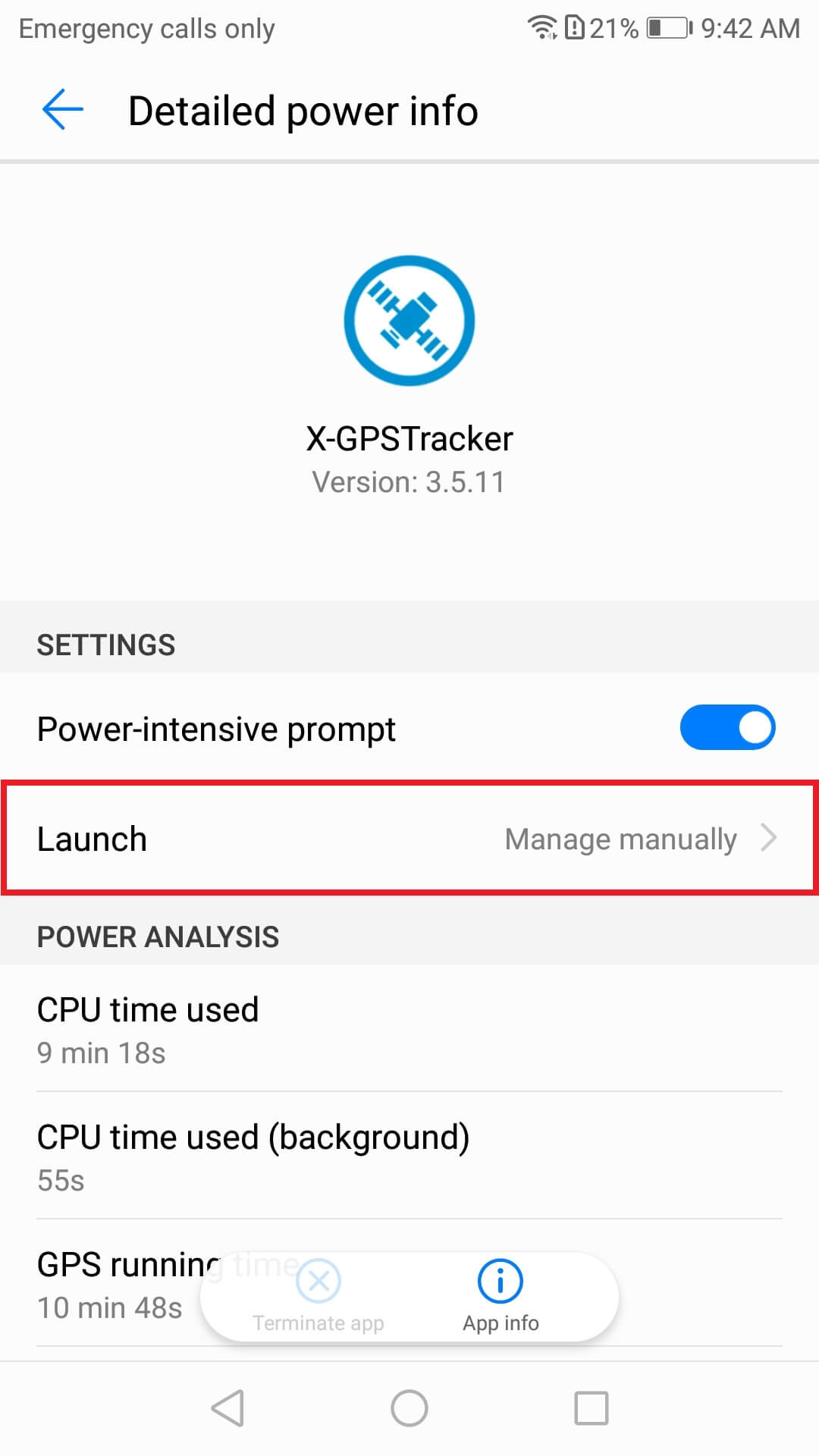
Image unavailable. Follow the written steps above or contact GPSPRO.
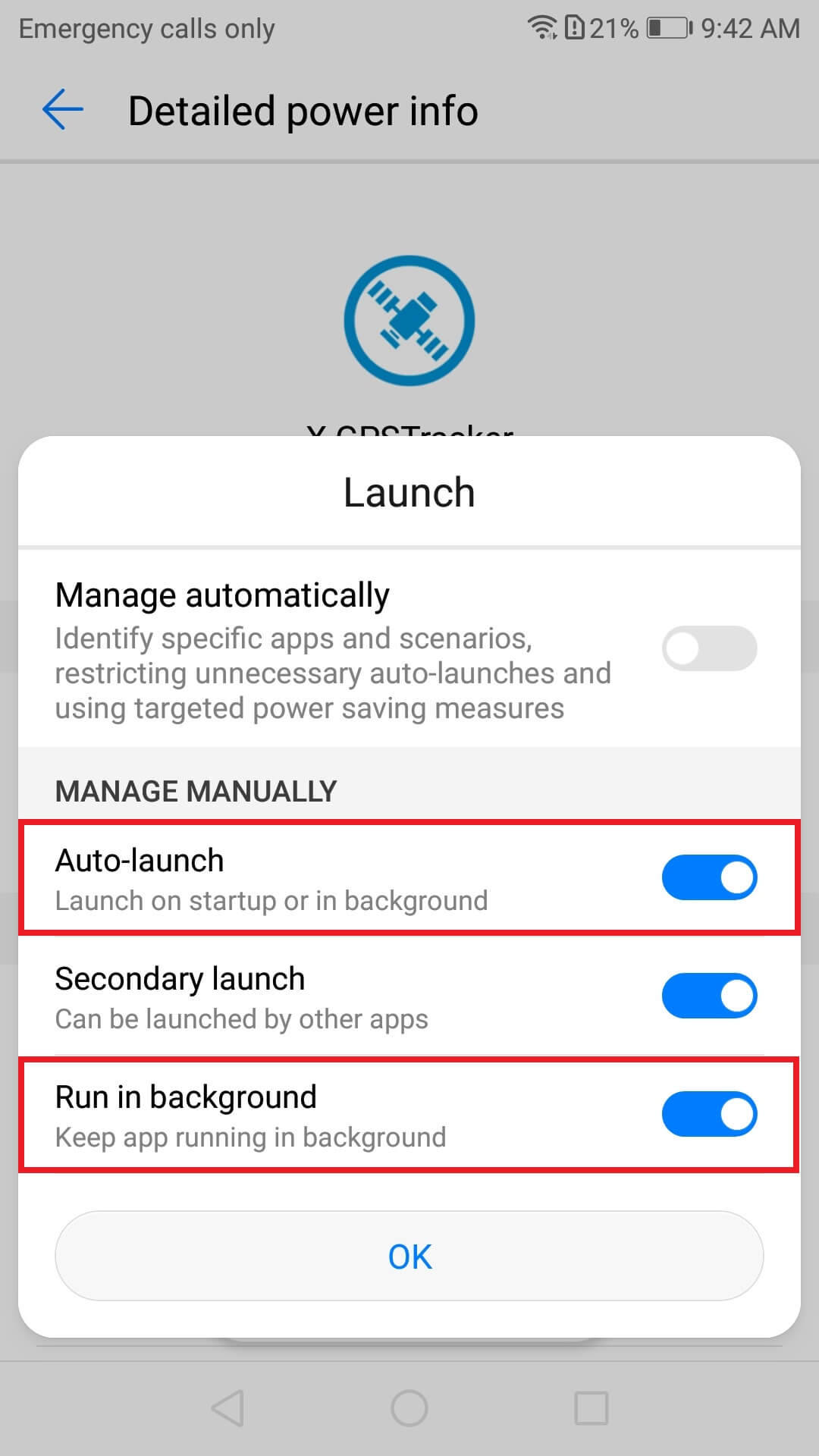
Image unavailable. Follow the written steps above or contact GPSPRO.
Allow mobile and background data for X-GPS Tracker App. If Data saver is on, add an app exception.
Phone settings → X-GPS Tracker App → Data usage / Network access
Menu names vary. GPSPRO can help if this setting is missing.
Allow notifications for app status, assigned tasks and chat messages when those features are in use.
Settings → Apps → X-GPS Tracker App → Notifications
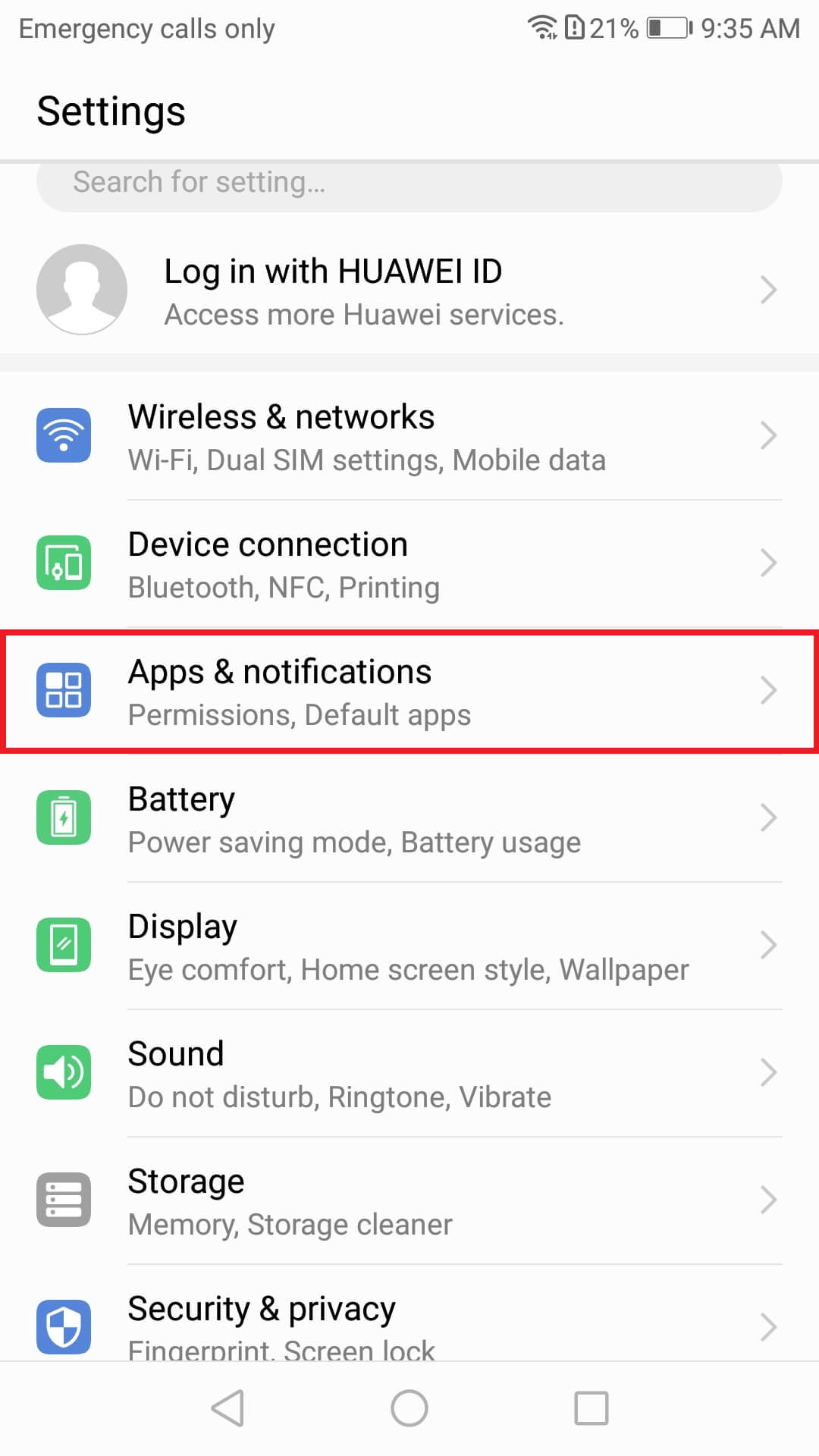
Image unavailable. Follow the written steps above or contact GPSPRO.
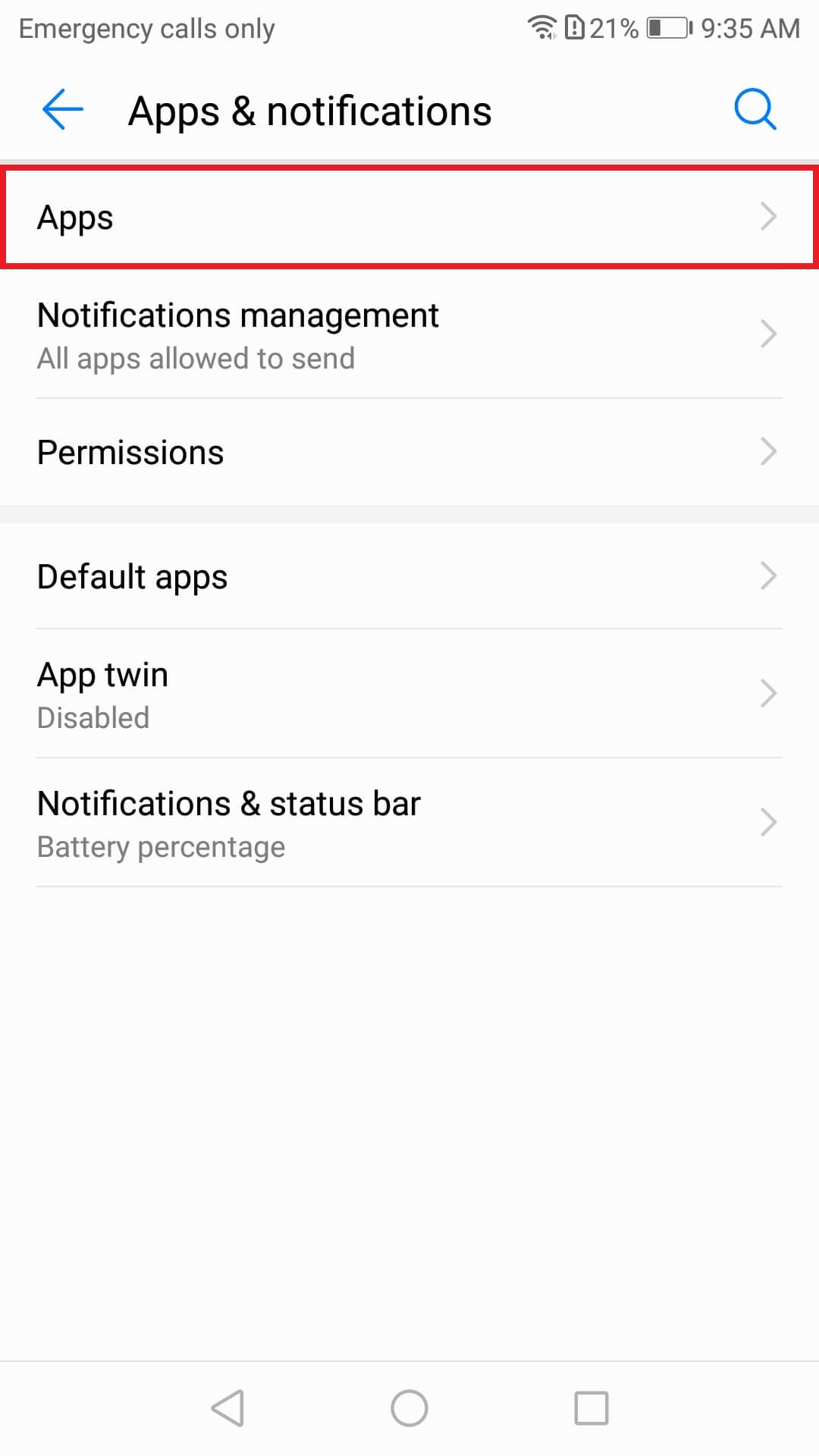
Image unavailable. Follow the written steps above or contact GPSPRO.
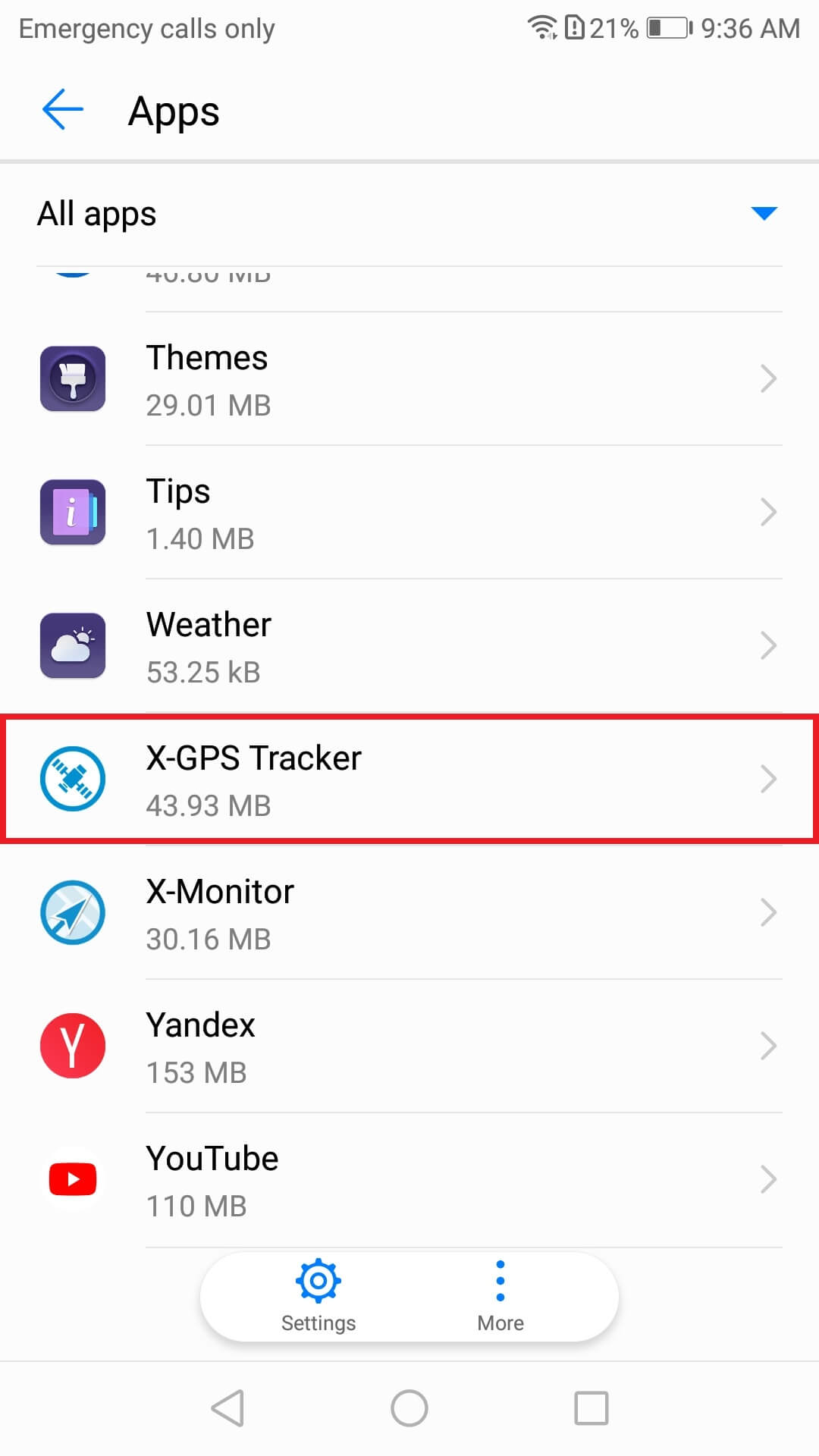
Image unavailable. Follow the written steps above or contact GPSPRO.
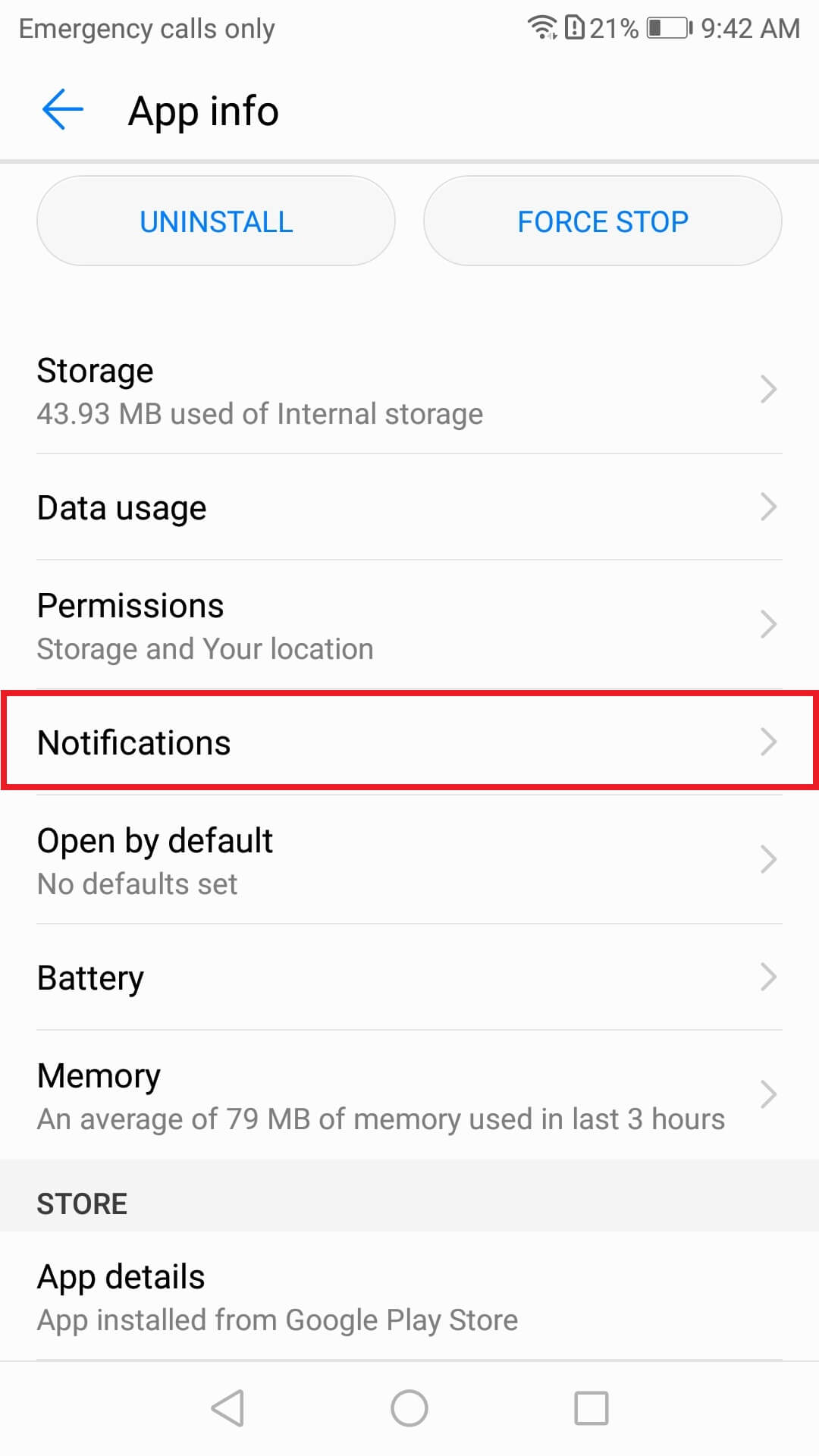
Image unavailable. Follow the written steps above or contact GPSPRO.
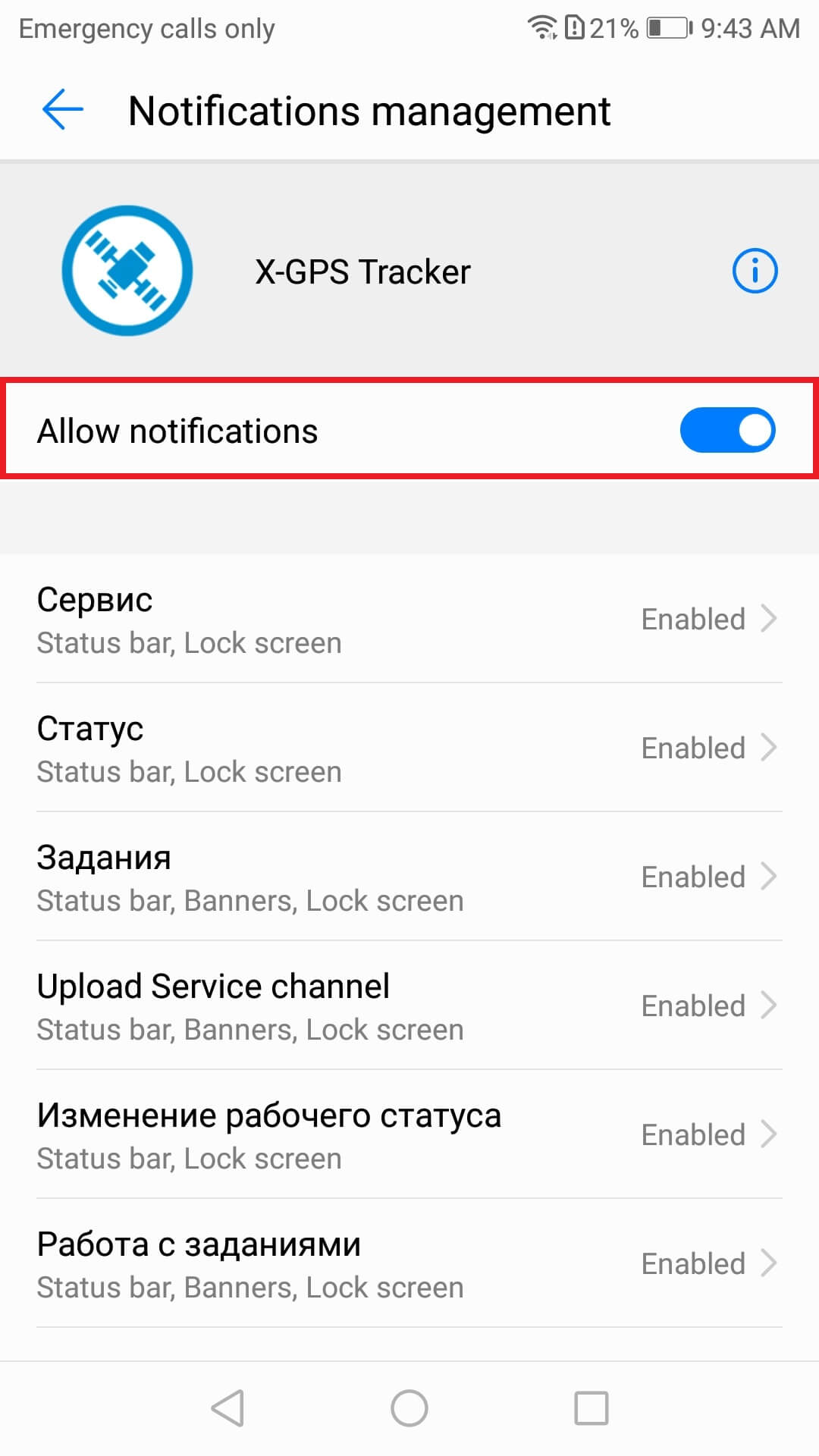
Image unavailable. Follow the written steps above or contact GPSPRO.
On affected models such as P9/P9 Plus, allow X-GPS Tracker App to ignore battery optimization.
EMUI example: Settings → Apps & notifications → Apps → Settings → Special access → Ignore battery optimization → All apps → X-GPS Tracker App → Allow
Check this if updates stop about 15–20 minutes after locking the phone.
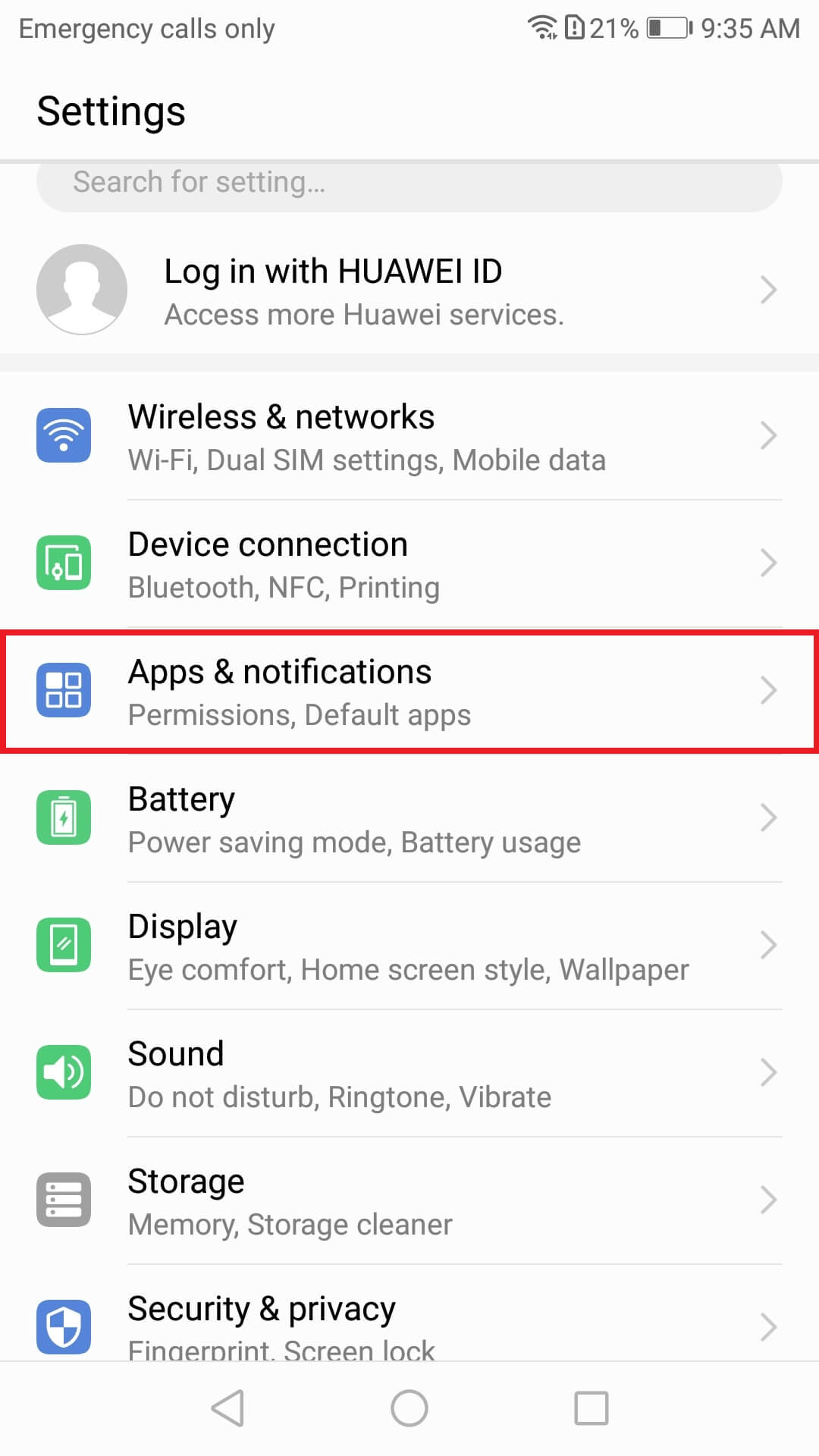
Image unavailable. Follow the written steps above or contact GPSPRO.
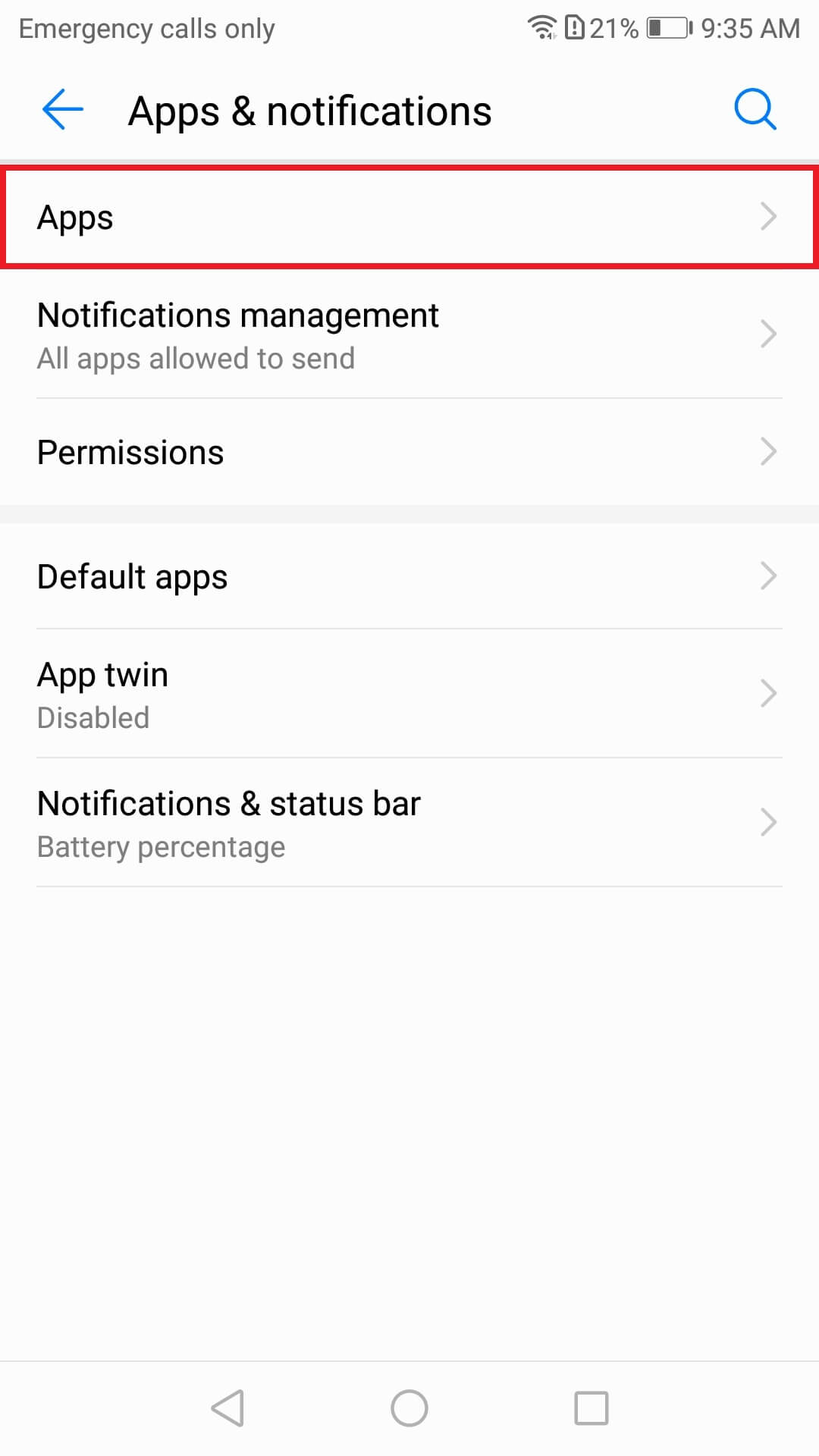
Image unavailable. Follow the written steps above or contact GPSPRO.
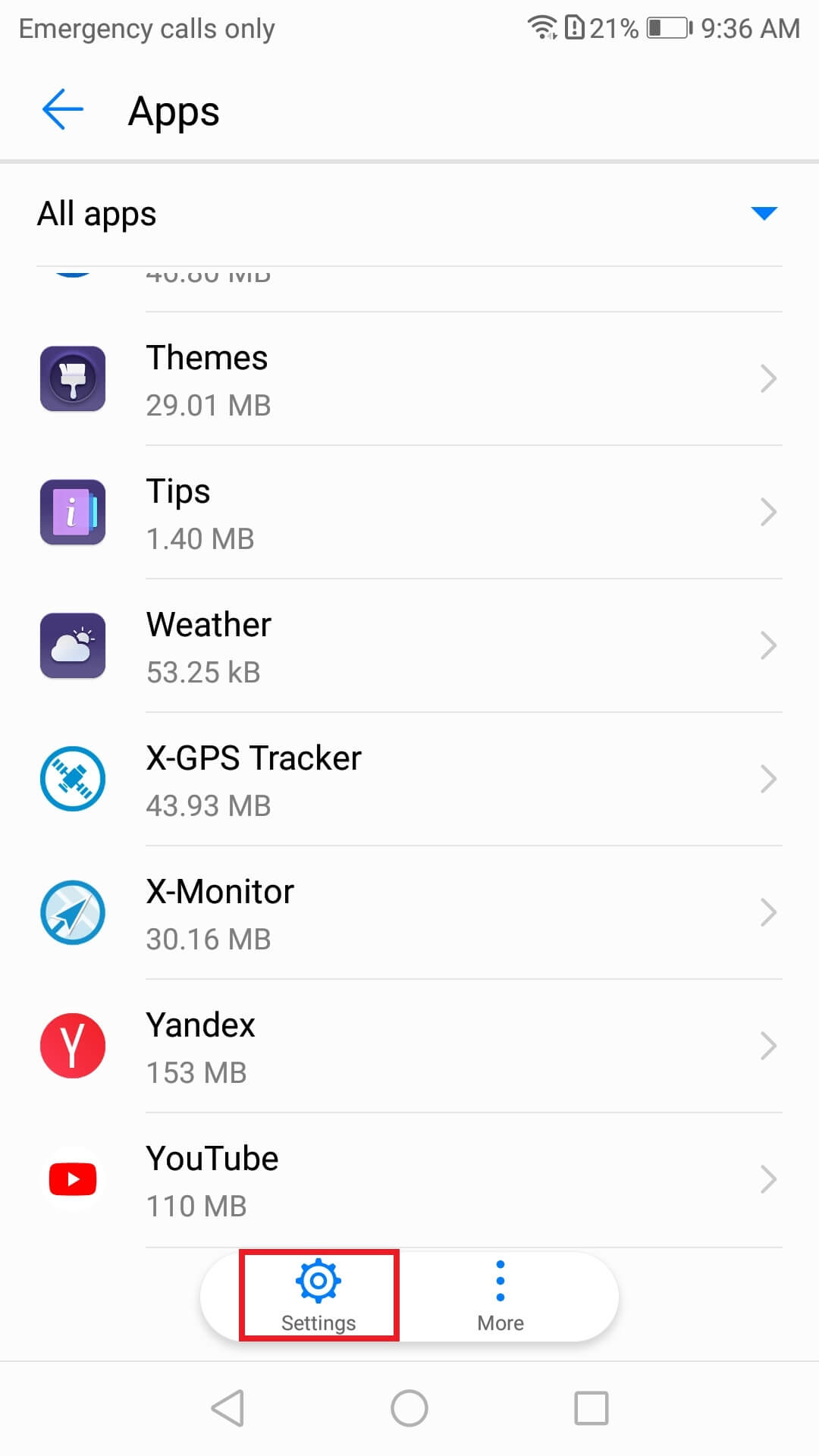
Image unavailable. Follow the written steps above or contact GPSPRO.
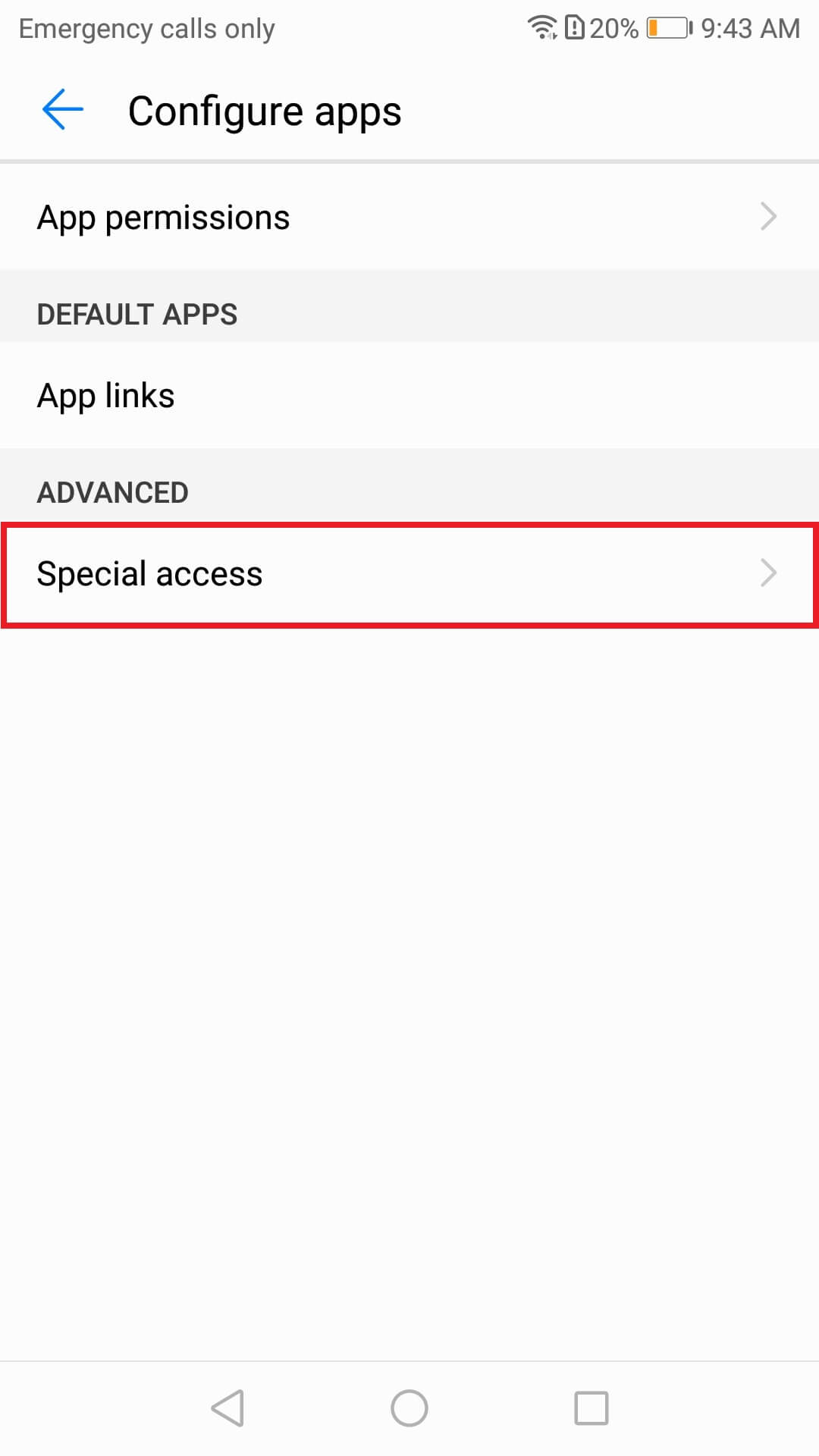
Image unavailable. Follow the written steps above or contact GPSPRO.
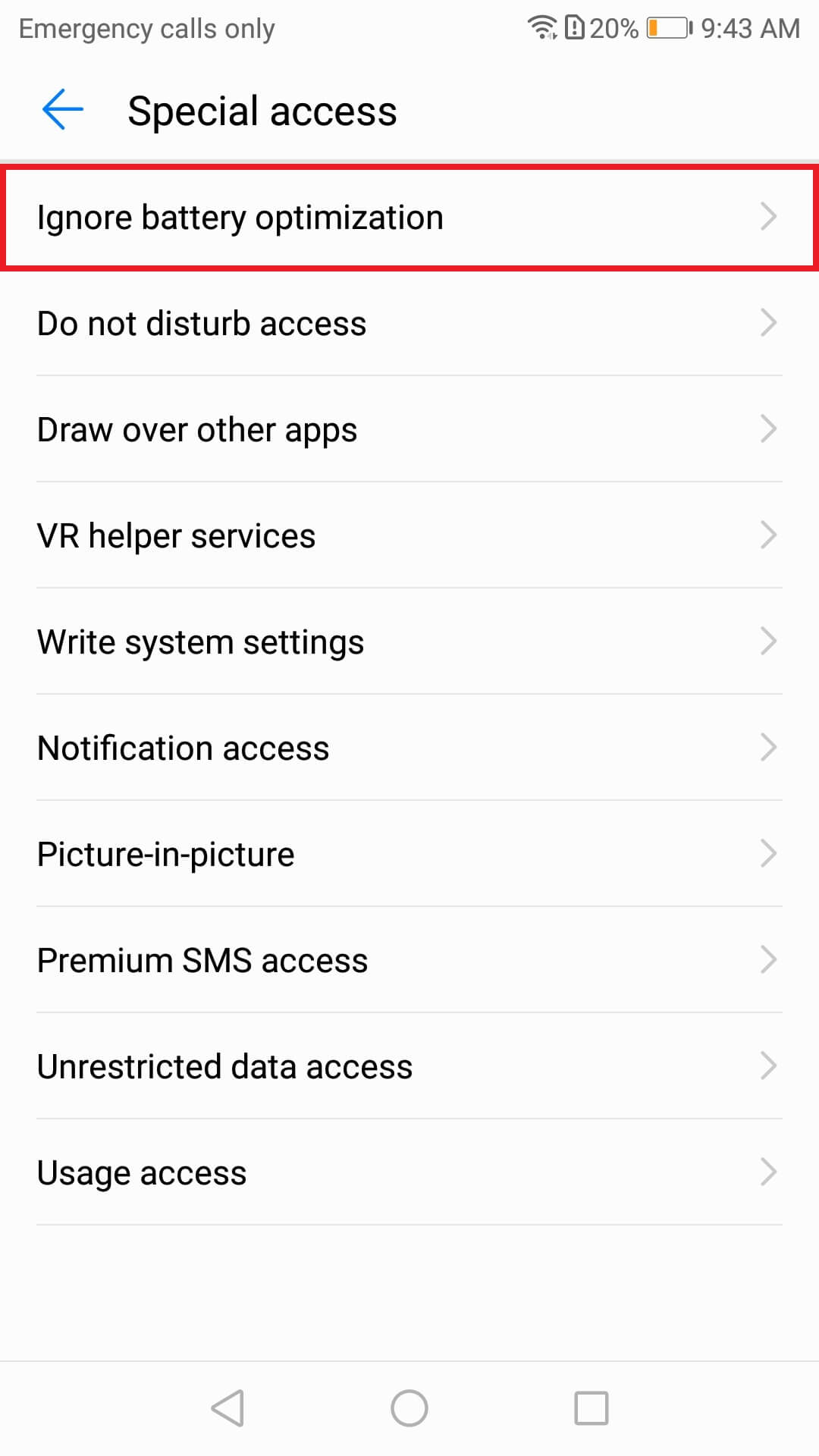
Image unavailable. Follow the written steps above or contact GPSPRO.
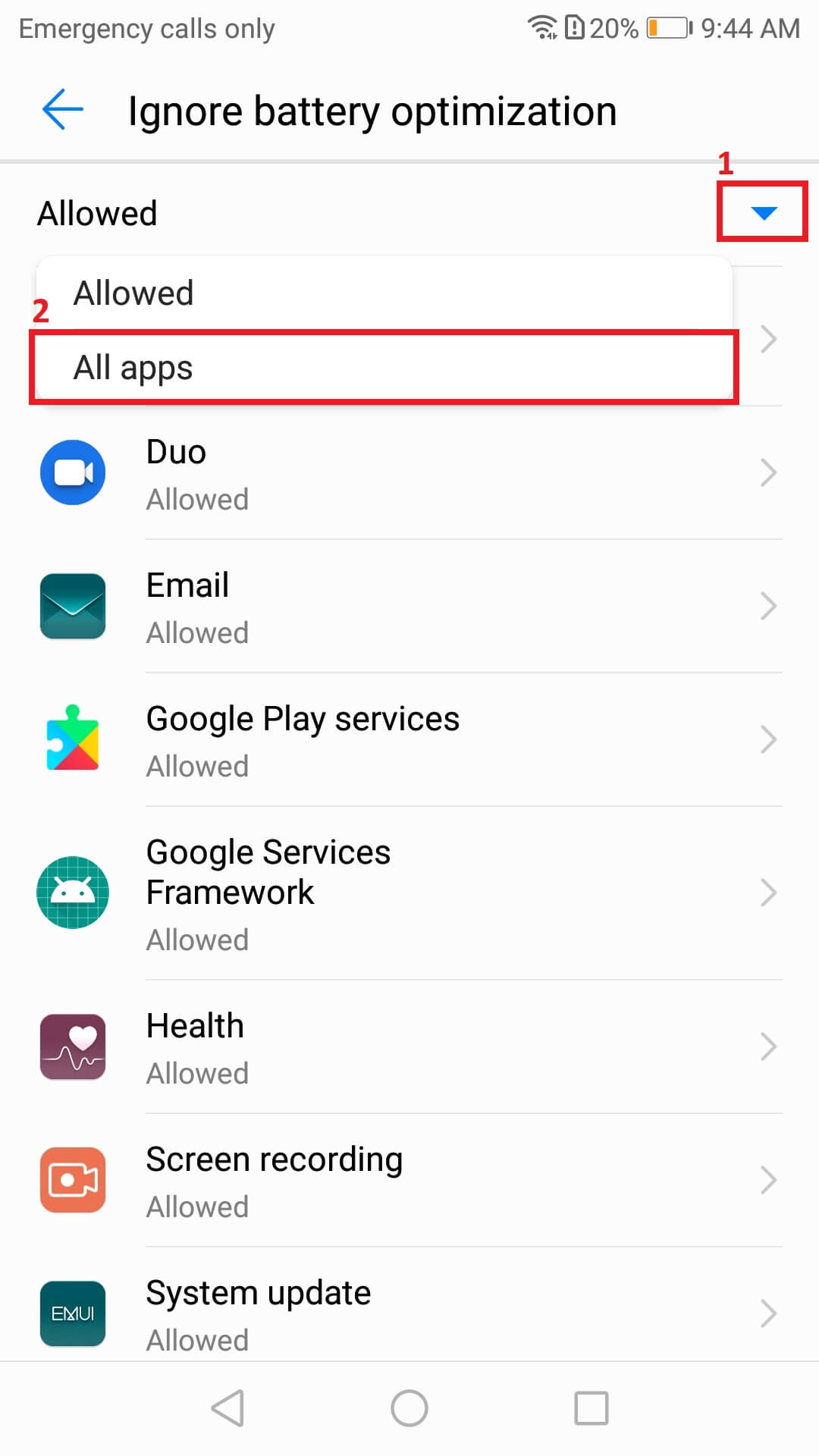
Image unavailable. Follow the written steps above or contact GPSPRO.
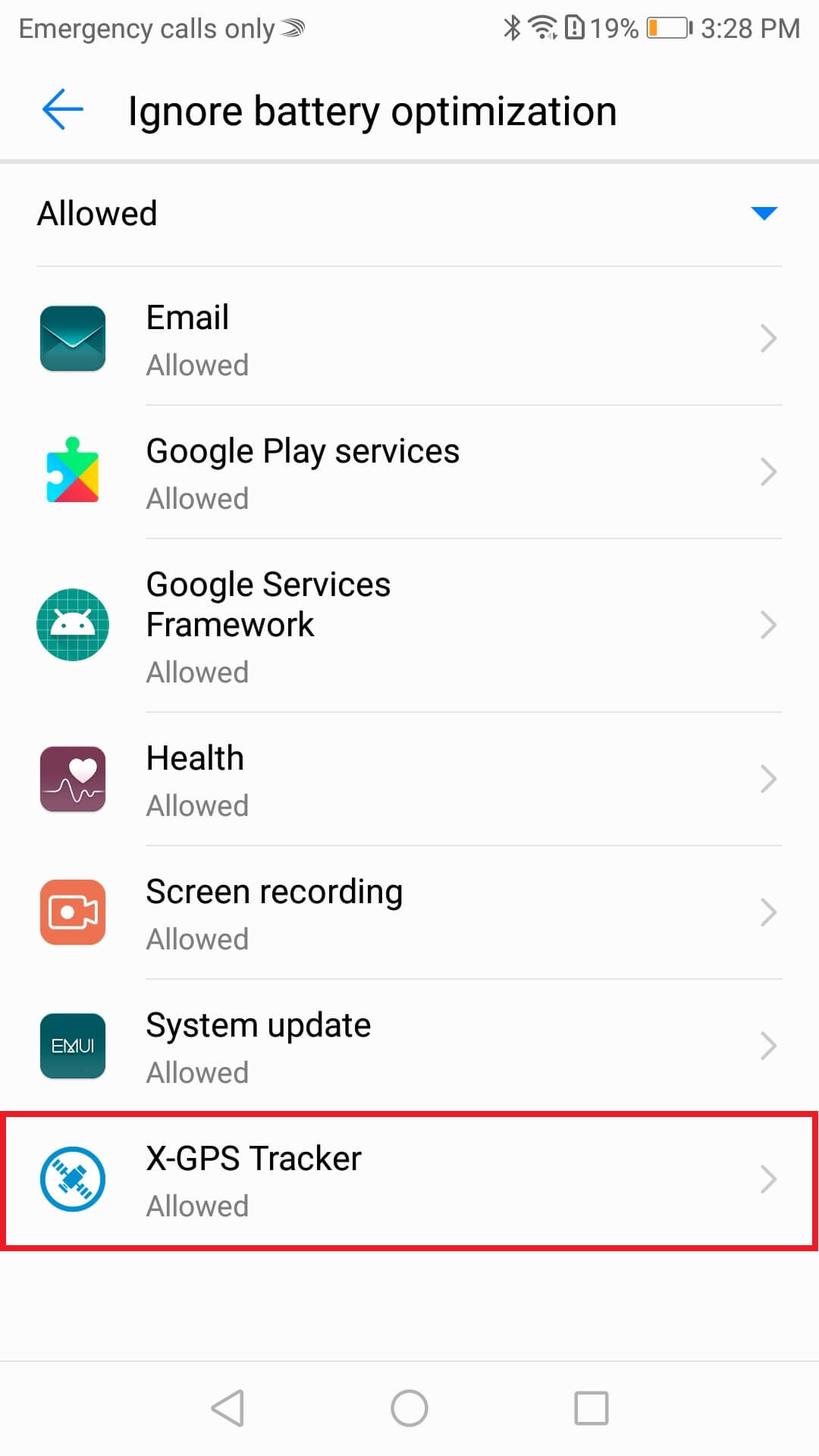
Image unavailable. Follow the written steps above or contact GPSPRO.
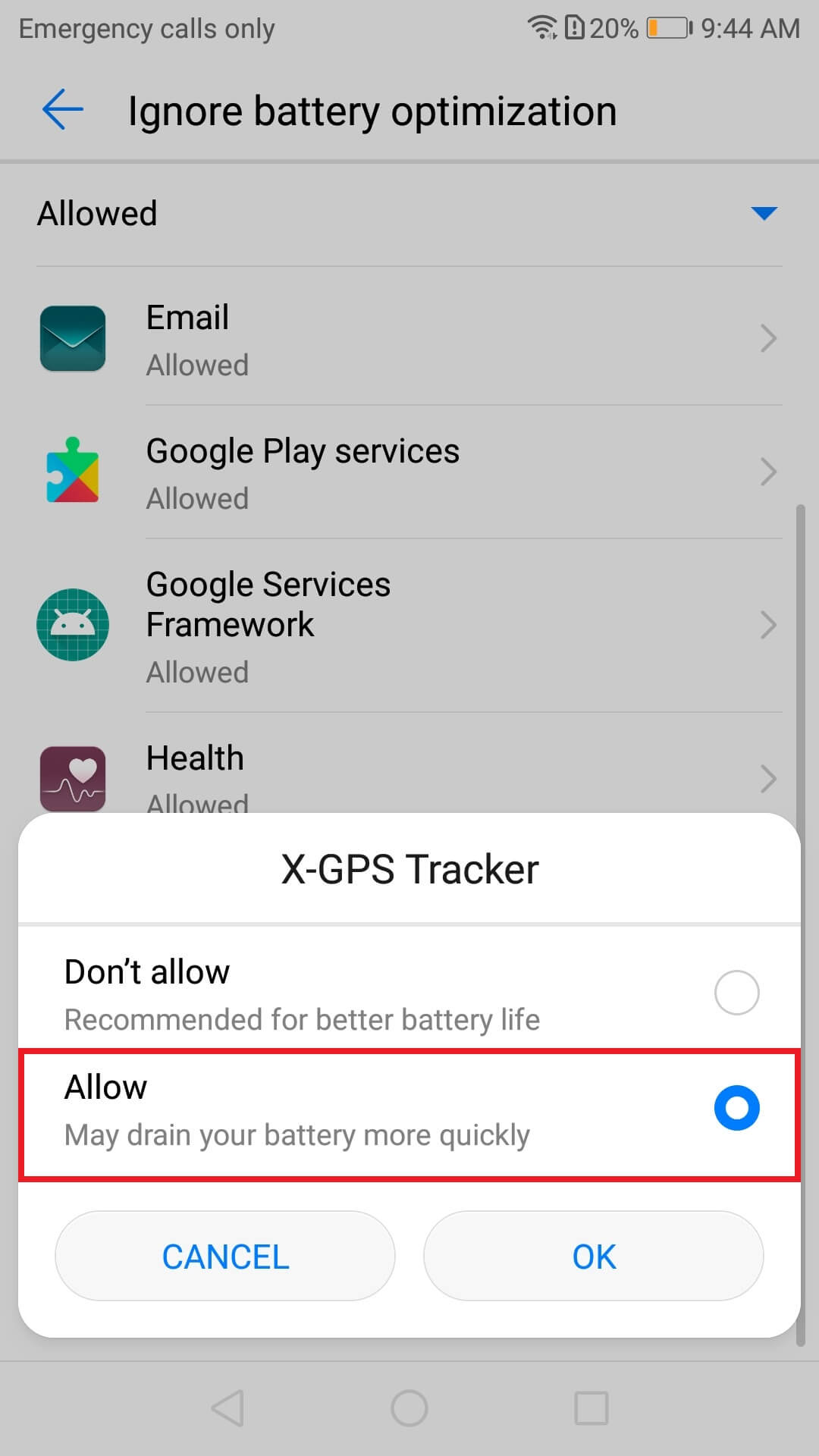
Image unavailable. Follow the written steps above or contact GPSPRO.
Swipe down from the top of the screen to open the quick settings panel.
Check these controls before tracking.

Needed to send updates over a cellular connection. Online syncing needs internet access.

Required for the phone to determine its location.

Leave it off while tracking; it can restrict internet and location services.

Helps with faster, more efficient location in cities and indoors.

Can also help location accuracy and efficiency in cities and indoors.
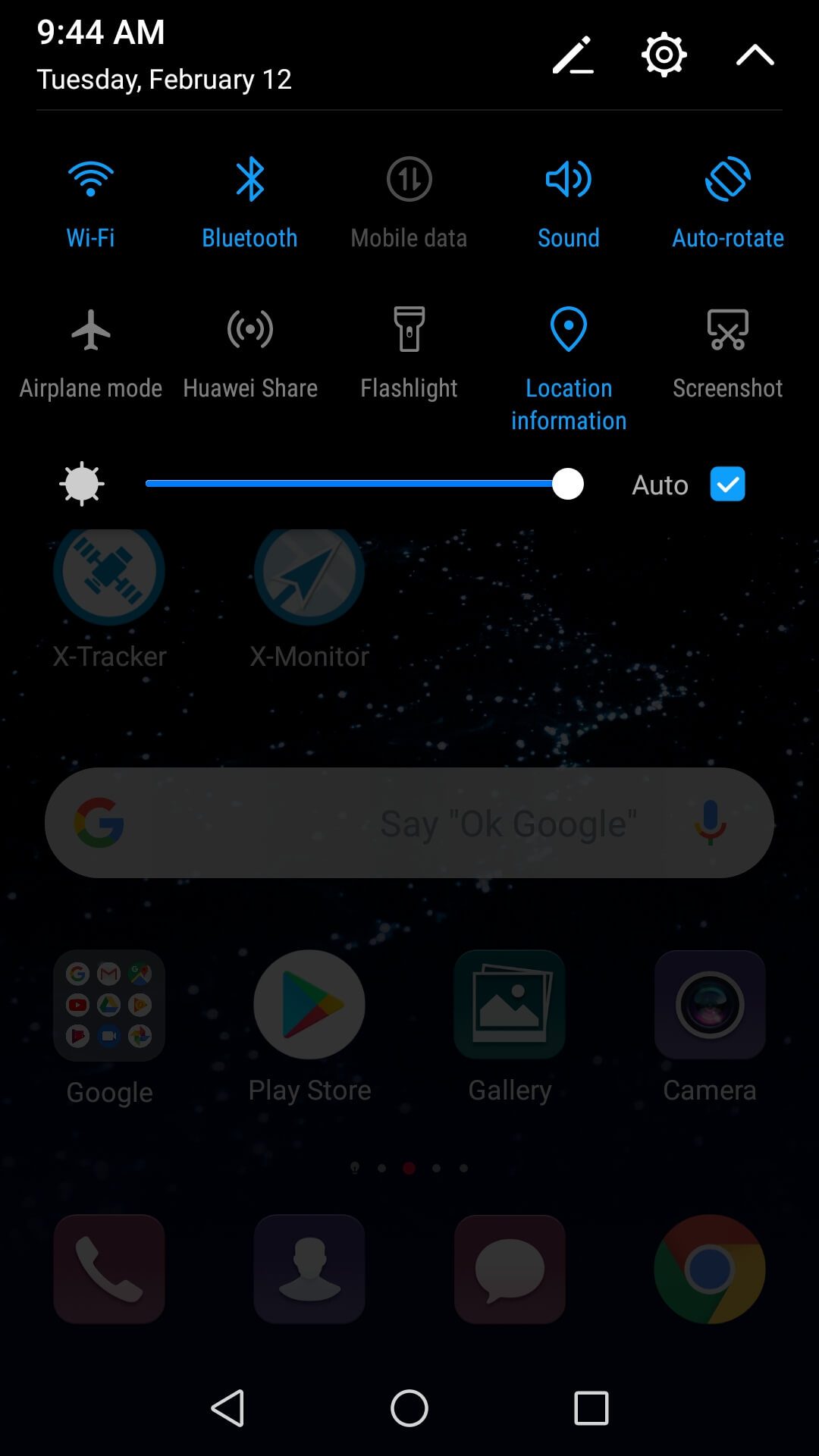
Image unavailable. Follow the written steps above or contact GPSPRO.
Enable location access and choose GPS, Wi-Fi and mobile networks when offered.
EMUI example: Settings → Security and privacy → Location access
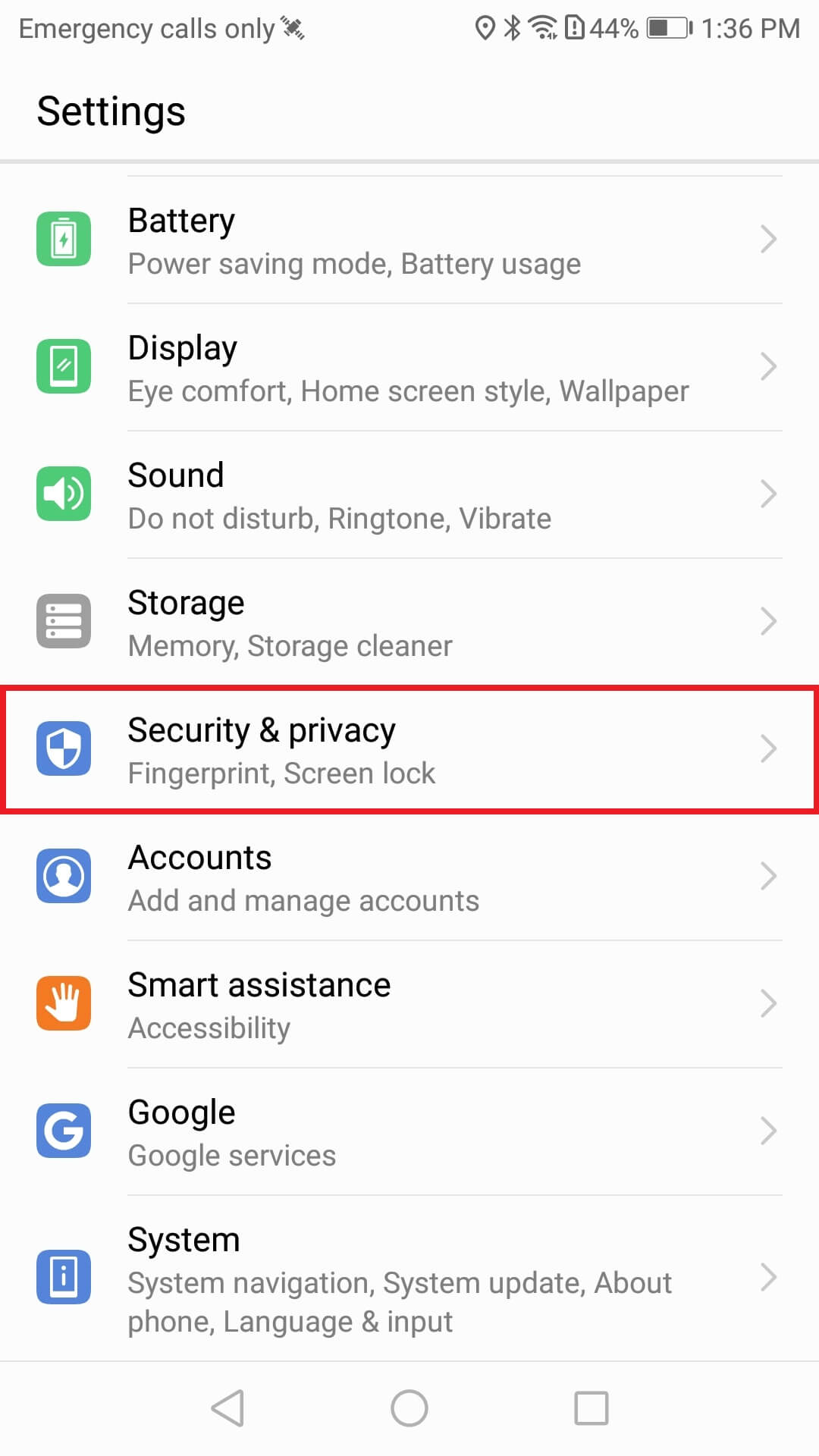
Image unavailable. Follow the written steps above or contact GPSPRO.
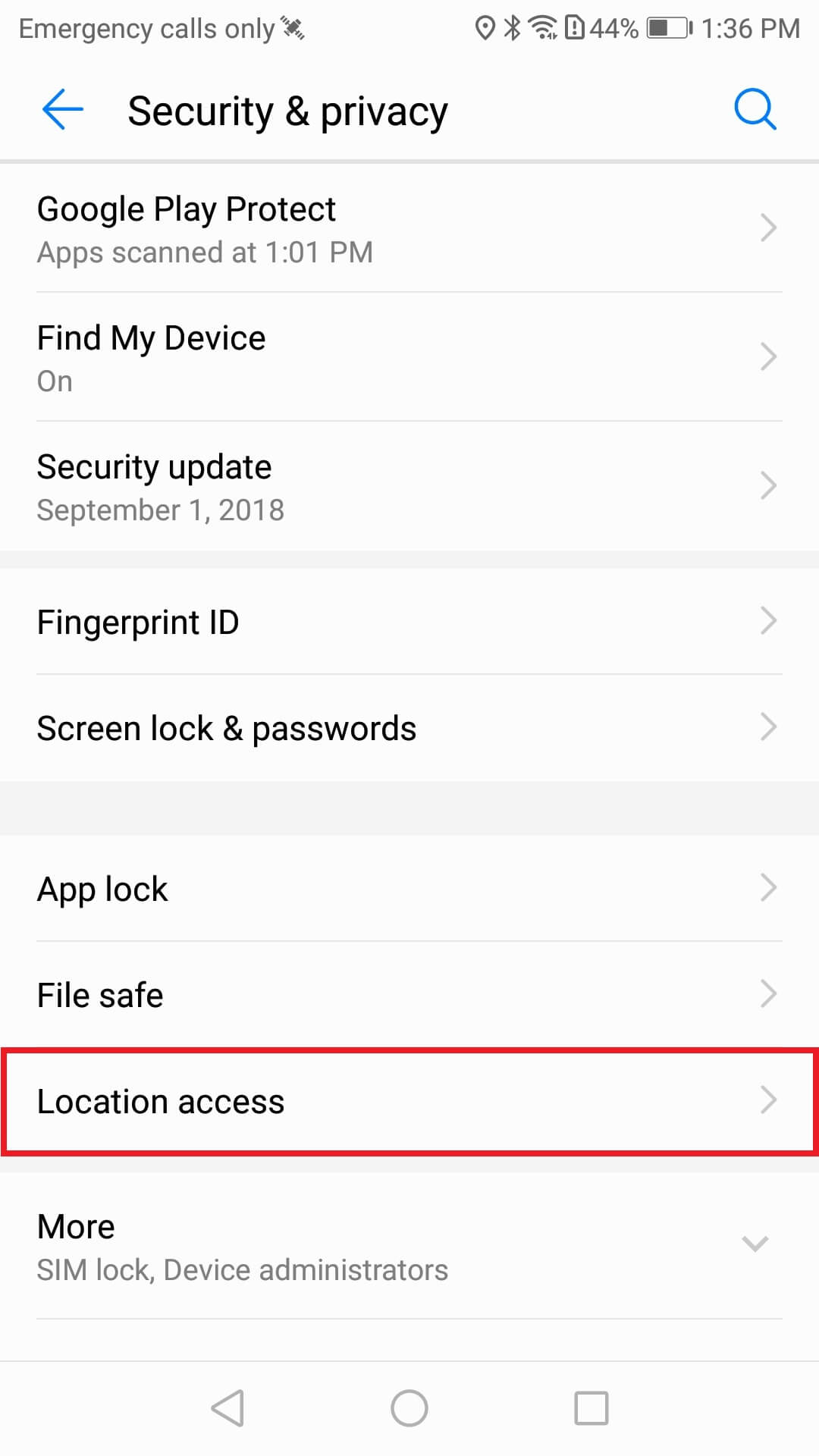
Image unavailable. Follow the written steps above or contact GPSPRO.
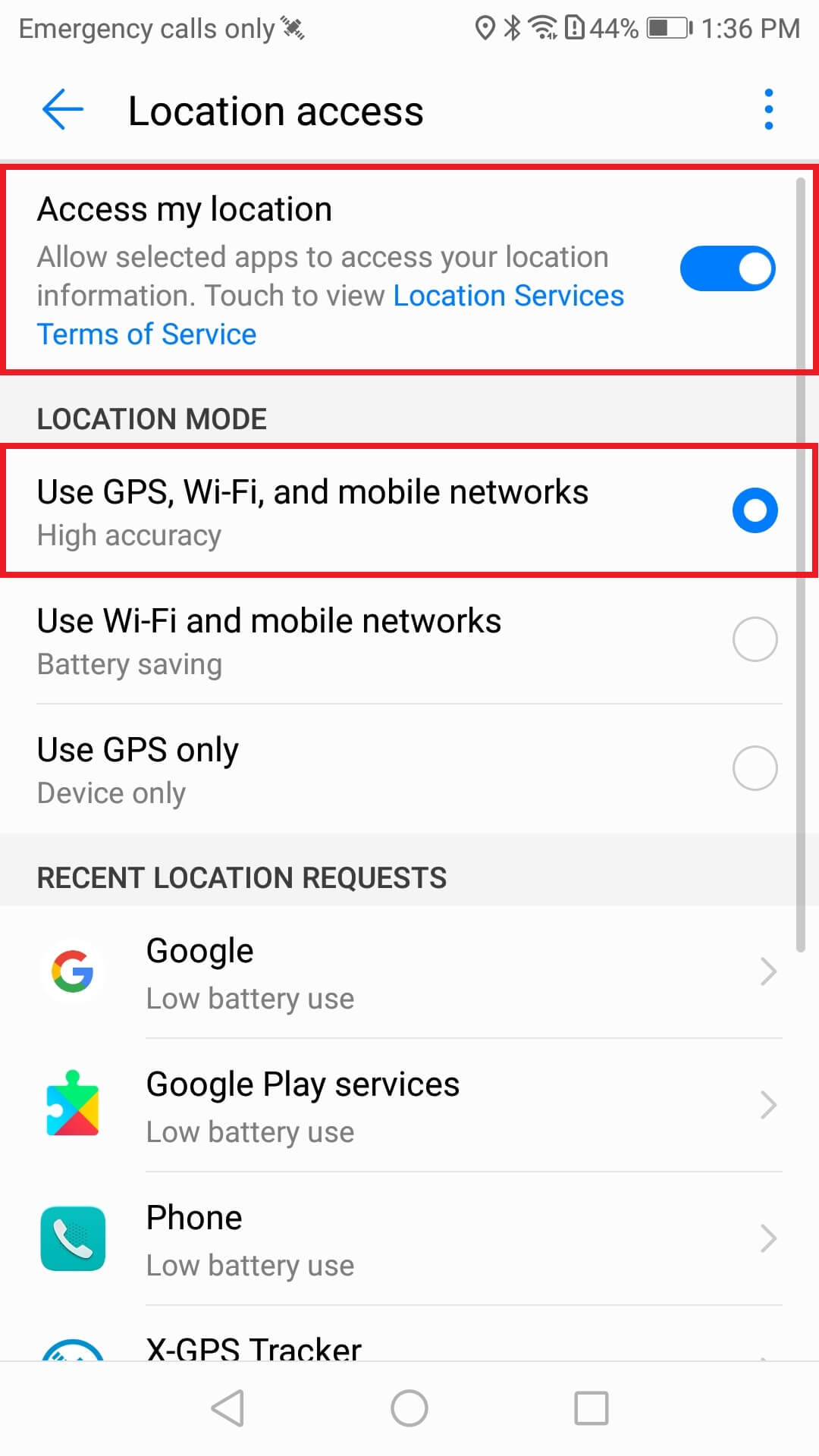
Image unavailable. Follow the written steps above or contact GPSPRO.
X-GPS Tracker App uses satellite location such as GPS/GLONASS, plus cell towers and Wi-Fi. Its tracking settings balance accuracy and battery use while walking or driving.
Available tracking modes depend on your GPSPRO setup.
Yes, if the required location, background and battery settings above allow X-GPS Tracker App to keep running.
No. X-GPS Tracker App does not offer that restriction; the phone and operating system keep the user in control.
On supported phones, it can resume if tracking was active before shutdown and background operation is allowed. Behavior varies by phone. Reopen X-GPS Tracker App and check for a fresh location if updates do not resume.
No. X-GPS Tracker App is visible in the app list and uses visible notifications. It is not designed for hidden monitoring.
The app can keep GPS routes and supported task notes or photos on the phone, then sync them when internet returns. Live updates need a connection. Allow Storage only if X-GPS Tracker App requests it; skip absent permissions.
Screens are examples; menus and app labels vary by phone model and software version. Follow the written steps for your phone.
Allow location for X-GPS Tracker App. Choose Allow all the time when offered.
Settings → Apps → All apps → X-GPS Tracker App → Permission management → Location access
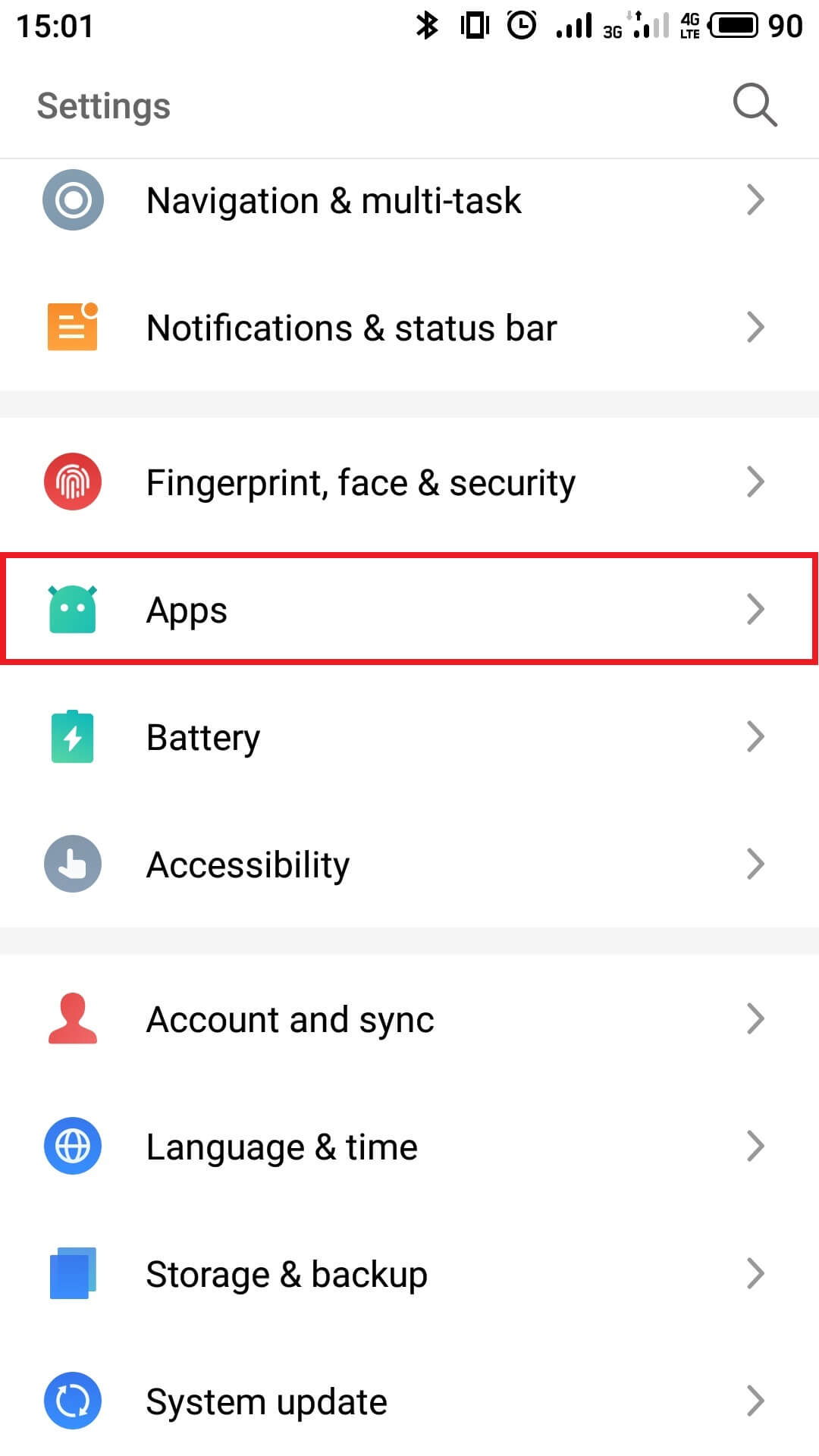
Image unavailable. Follow the written steps above or contact GPSPRO.
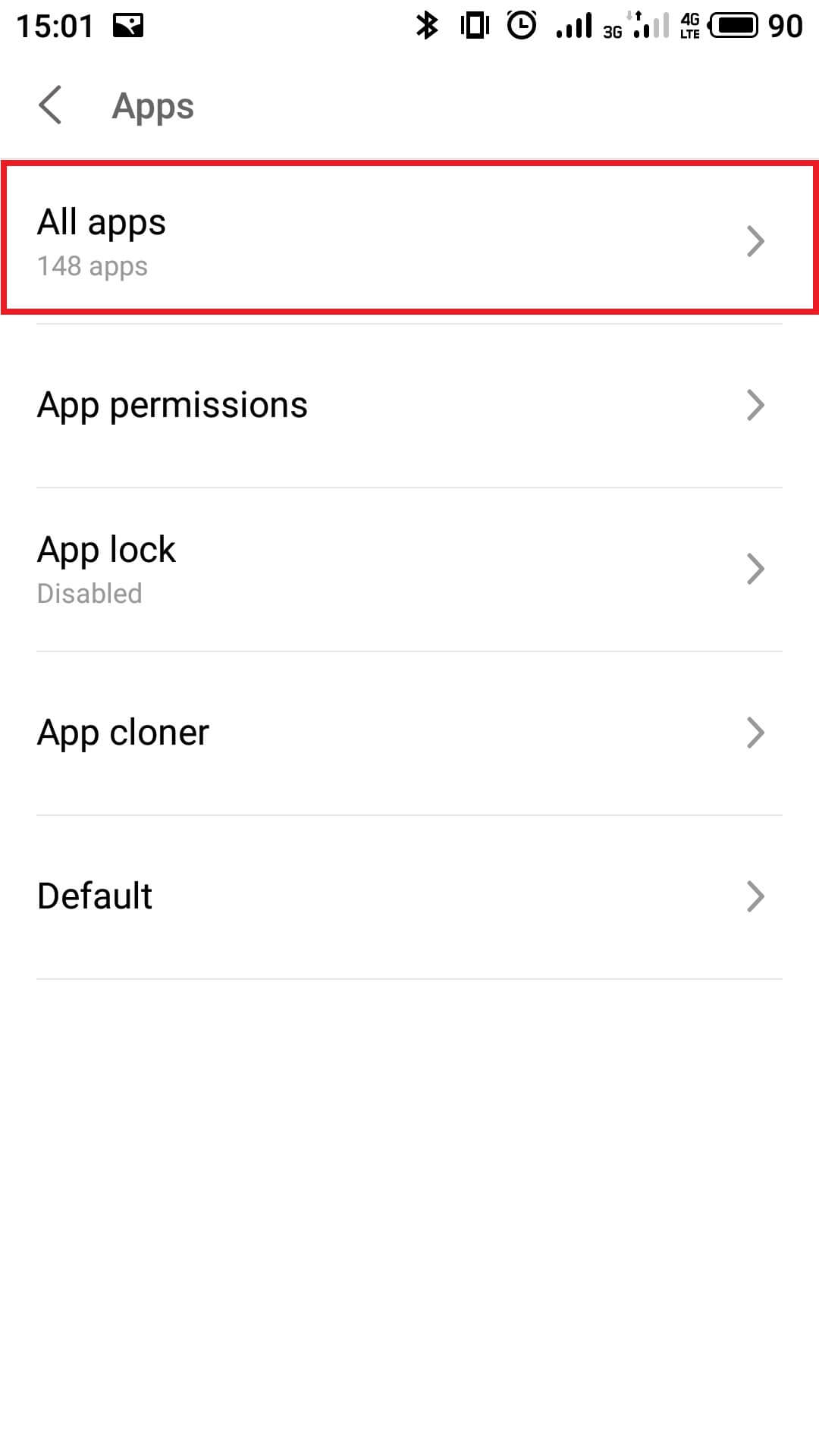
Image unavailable. Follow the written steps above or contact GPSPRO.
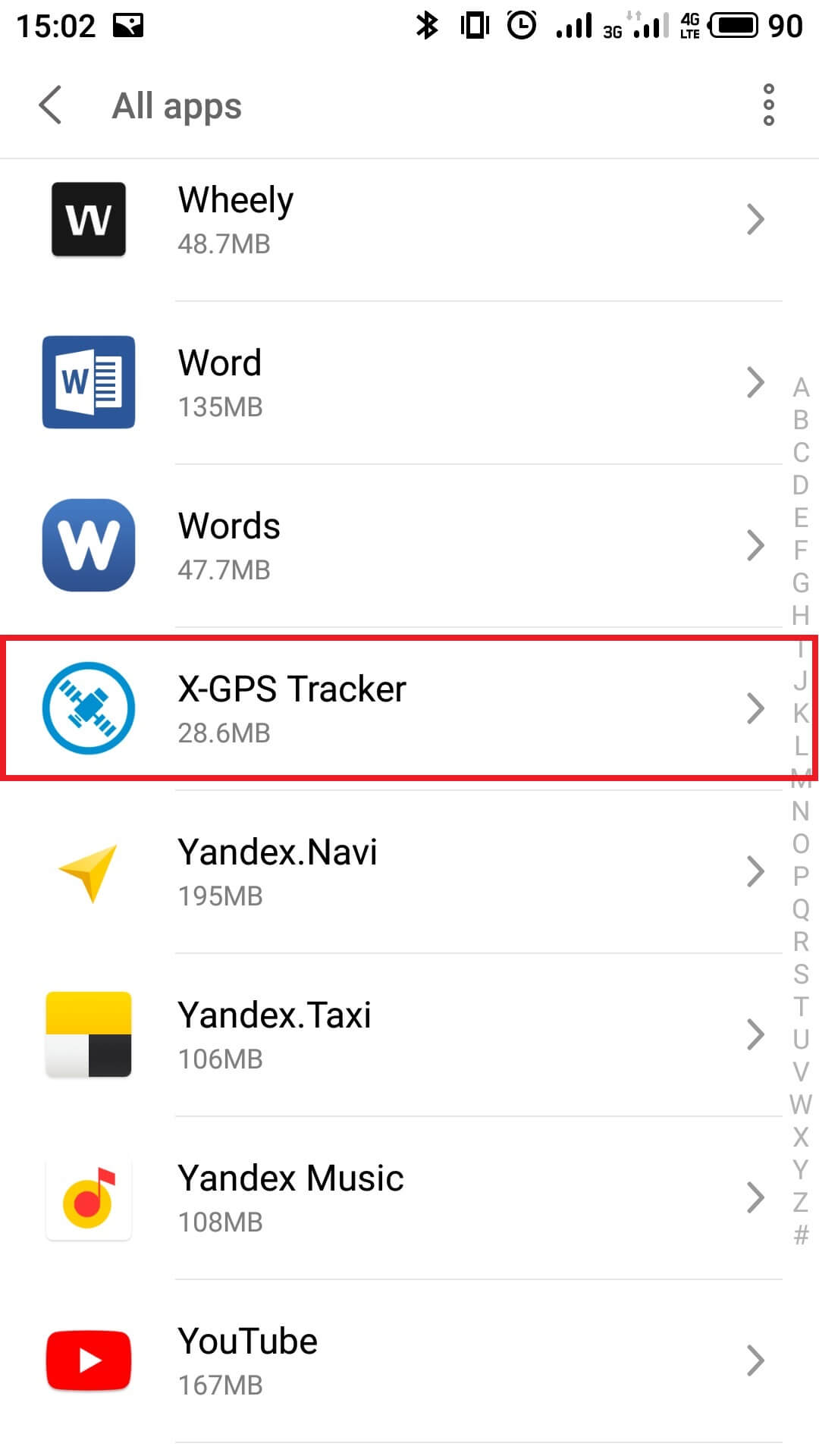
Image unavailable. Follow the written steps above or contact GPSPRO.
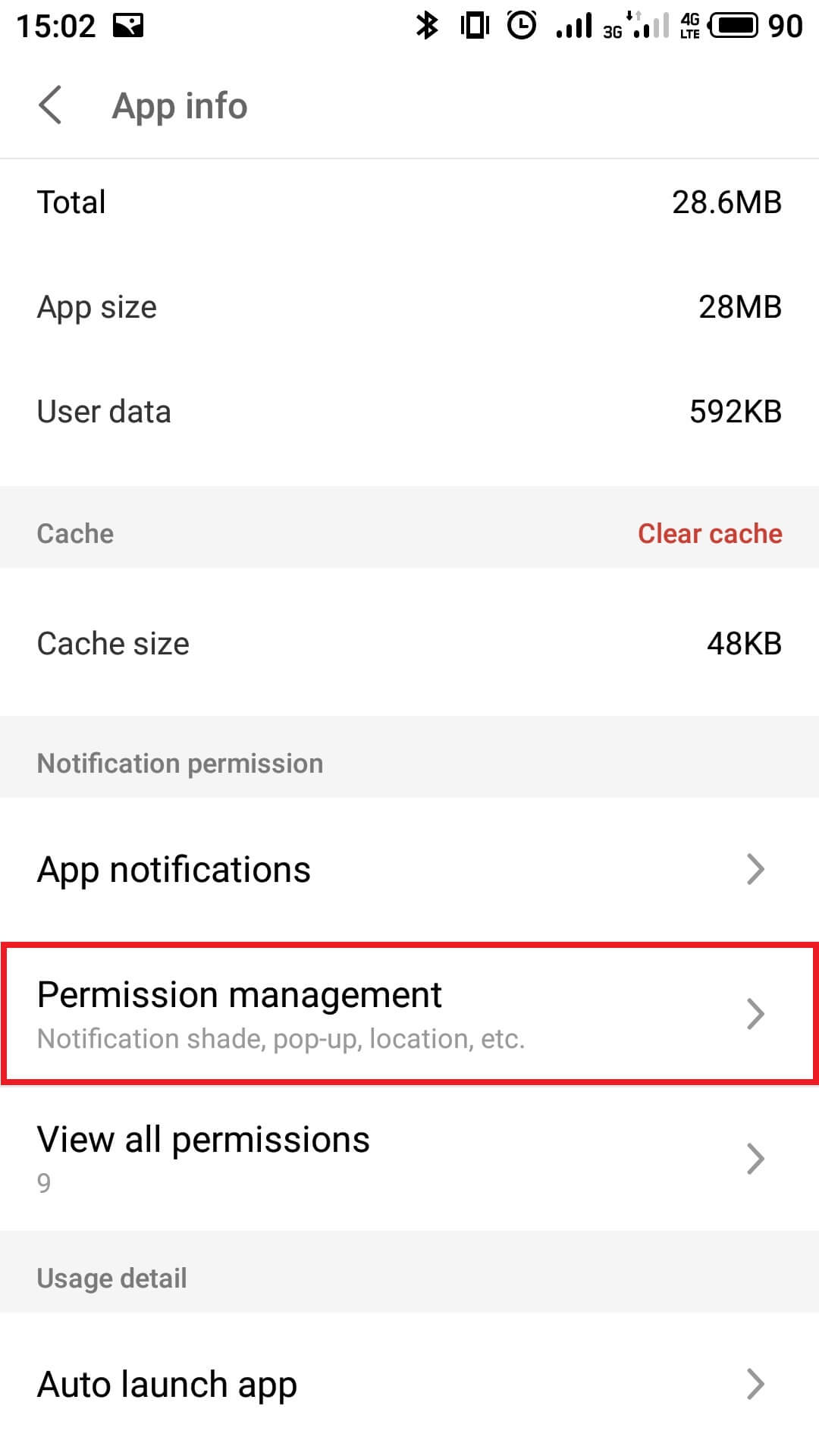
Image unavailable. Follow the written steps above or contact GPSPRO.
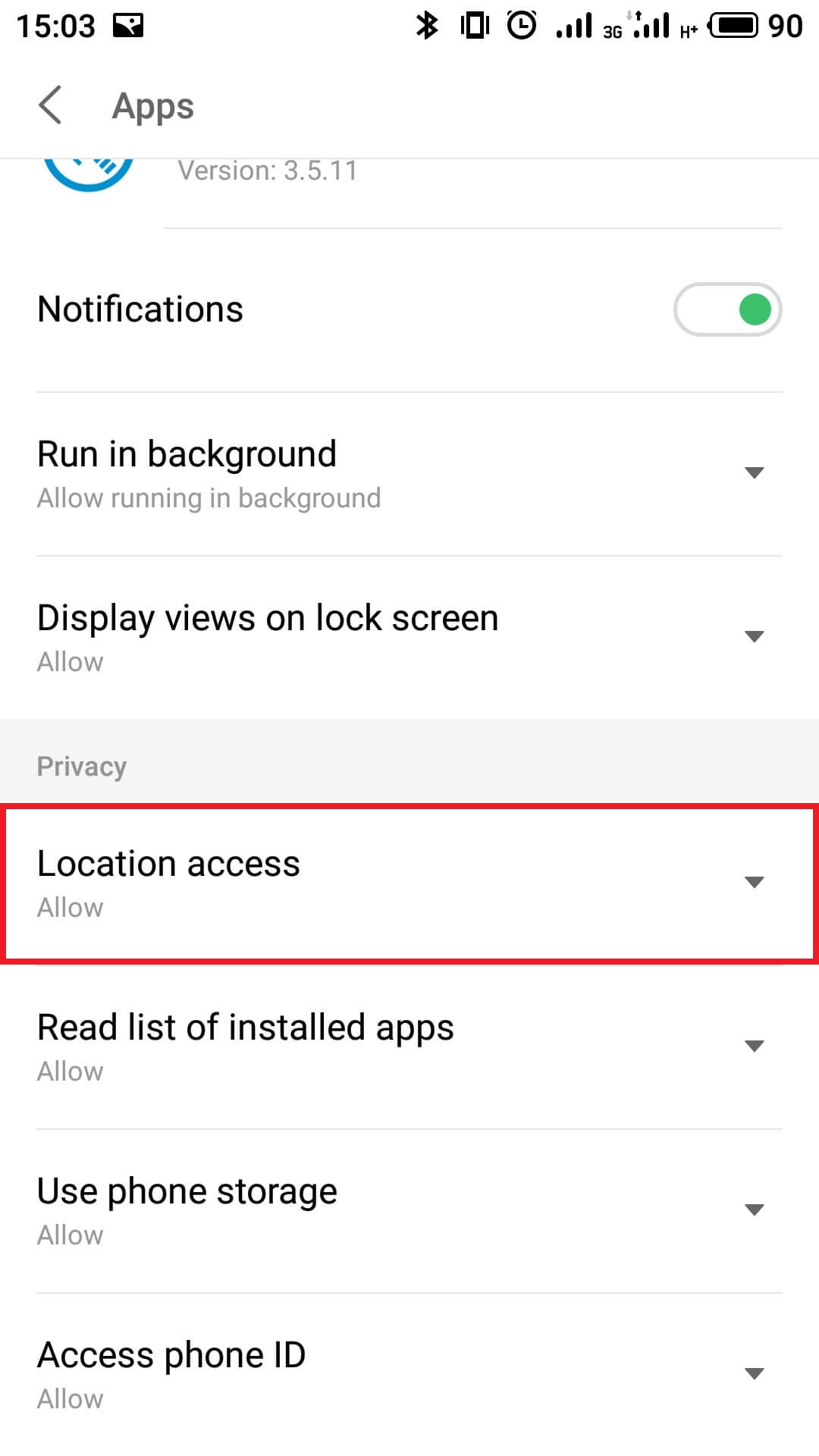
Image unavailable. Follow the written steps above or contact GPSPRO.
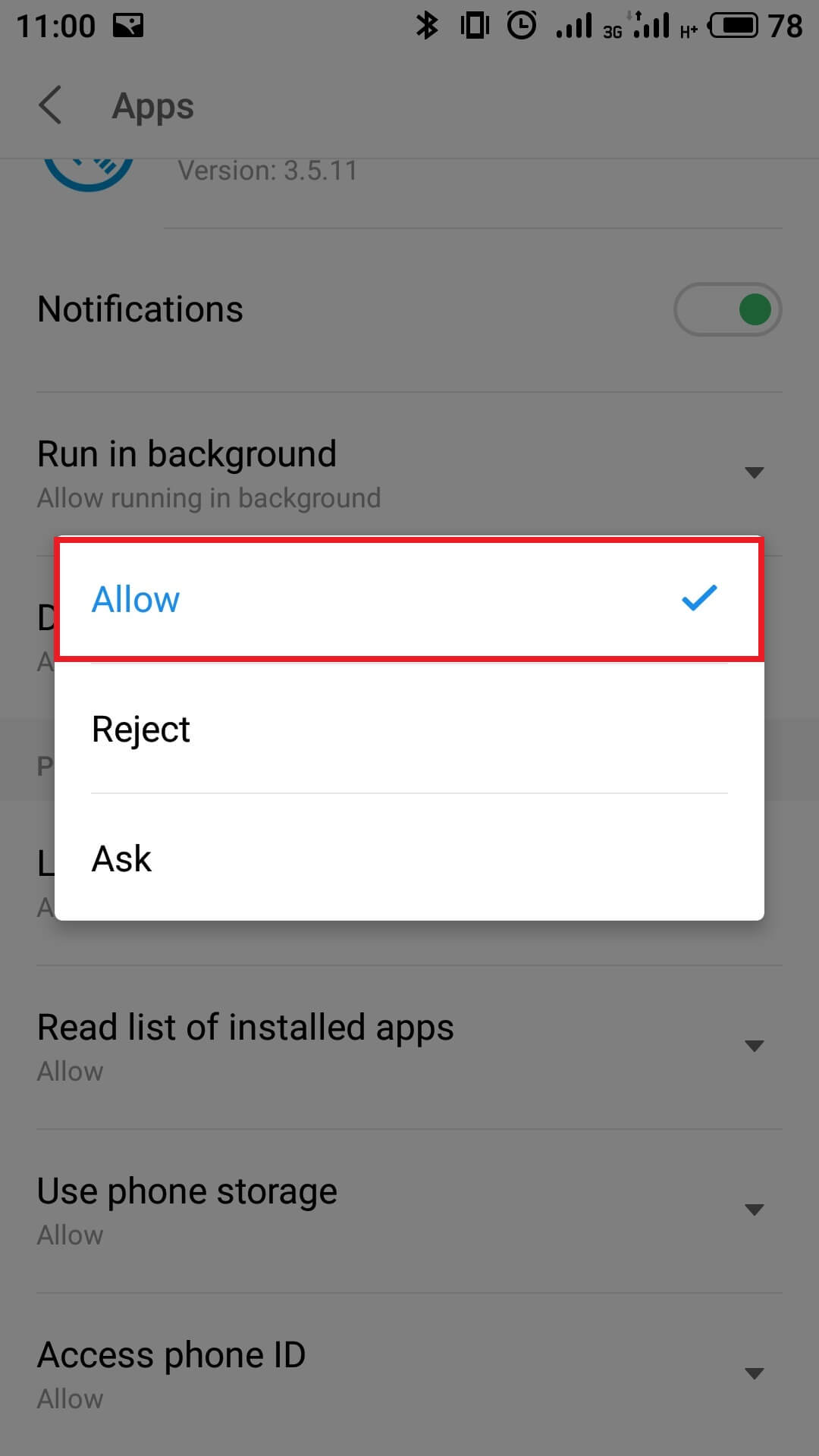
Image unavailable. Follow the written steps above or contact GPSPRO.
Choose Allow running in the background.
X-GPS Tracker App → Permission management → Run in background
Image unavailable. Follow the written steps above or contact GPSPRO.
Image unavailable. Follow the written steps above or contact GPSPRO.
Image unavailable. Follow the written steps above or contact GPSPRO.
Image unavailable. Follow the written steps above or contact GPSPRO.
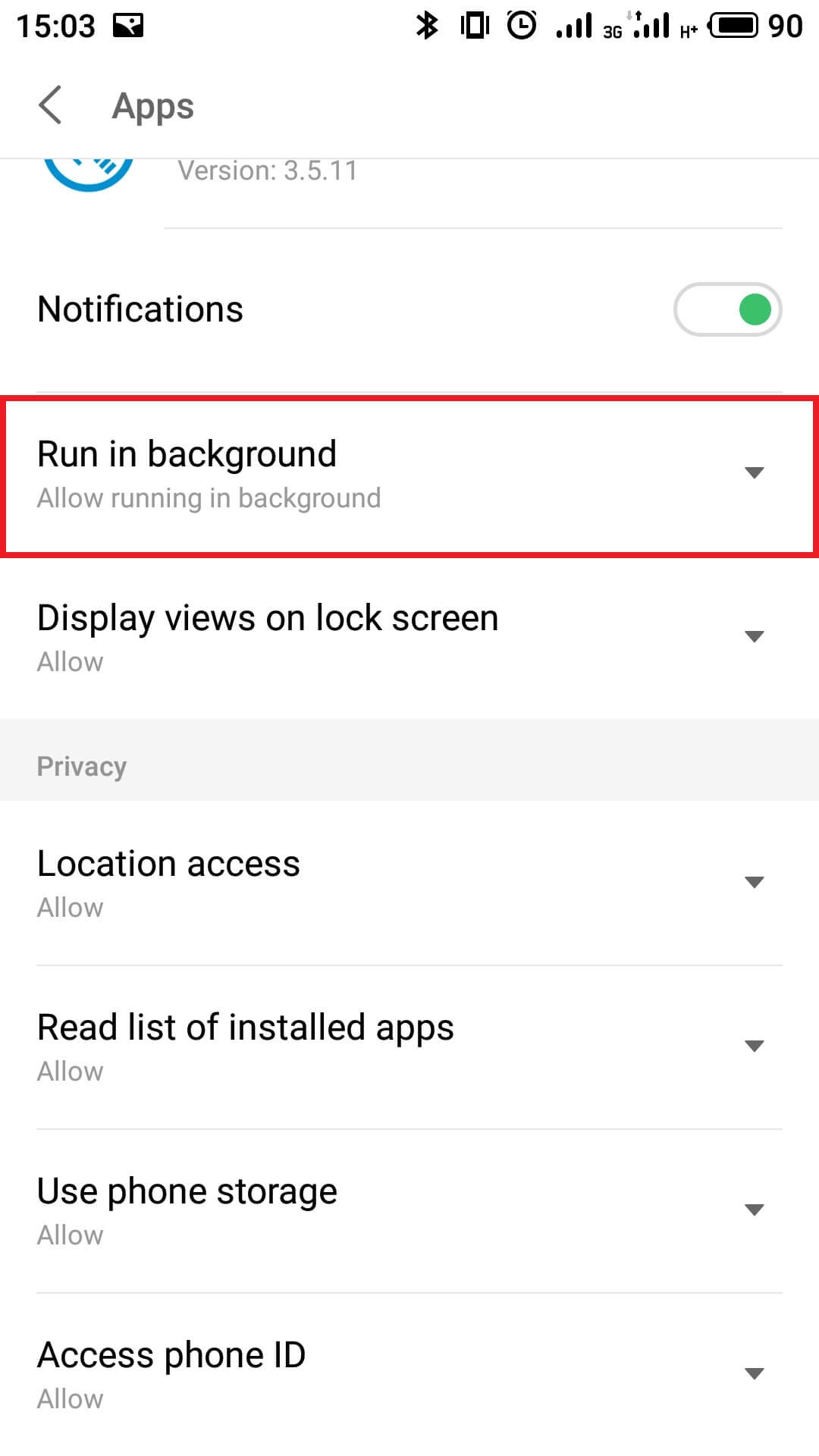
Image unavailable. Follow the written steps above or contact GPSPRO.
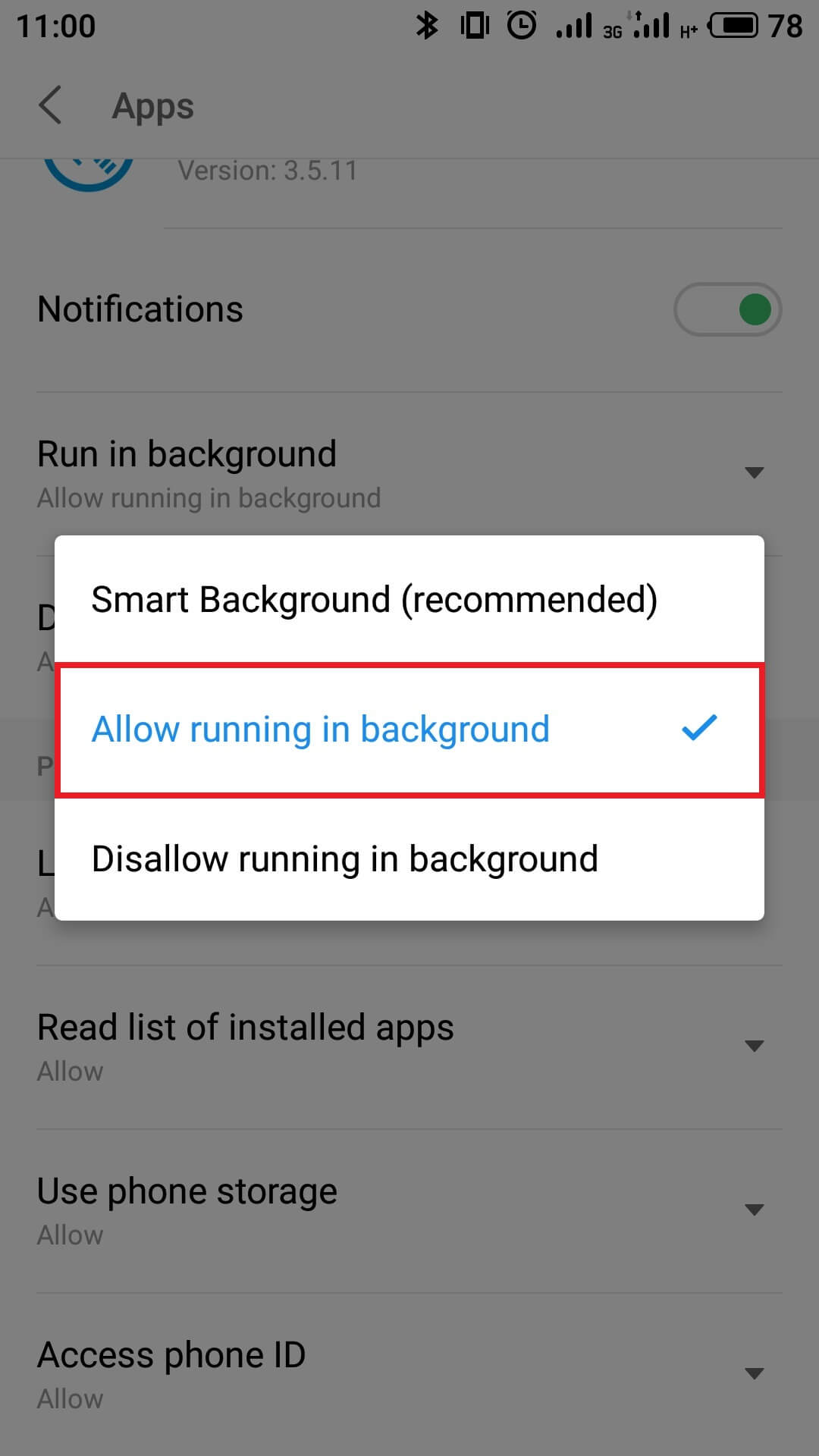
Image unavailable. Follow the written steps above or contact GPSPRO.
Allow X-GPS Tracker App to use mobile and background data.
Phone settings → X-GPS Tracker App → Data usage / Traffic control, if shown
Generic Android guidance; menu names vary by Flyme version.
If your phone offers app battery optimization, select X-GPS Tracker App and choose Don’t optimize.
Settings → Battery / Power → Battery optimization → All apps
Generic Android fallback; available controls vary by Flyme version.
Allow notifications for app status, assigned tasks and chat messages when those features are in use.
X-GPS Tracker App → Permission management → Notifications
Image unavailable. Follow the written steps above or contact GPSPRO.
Image unavailable. Follow the written steps above or contact GPSPRO.
Image unavailable. Follow the written steps above or contact GPSPRO.
Image unavailable. Follow the written steps above or contact GPSPRO.
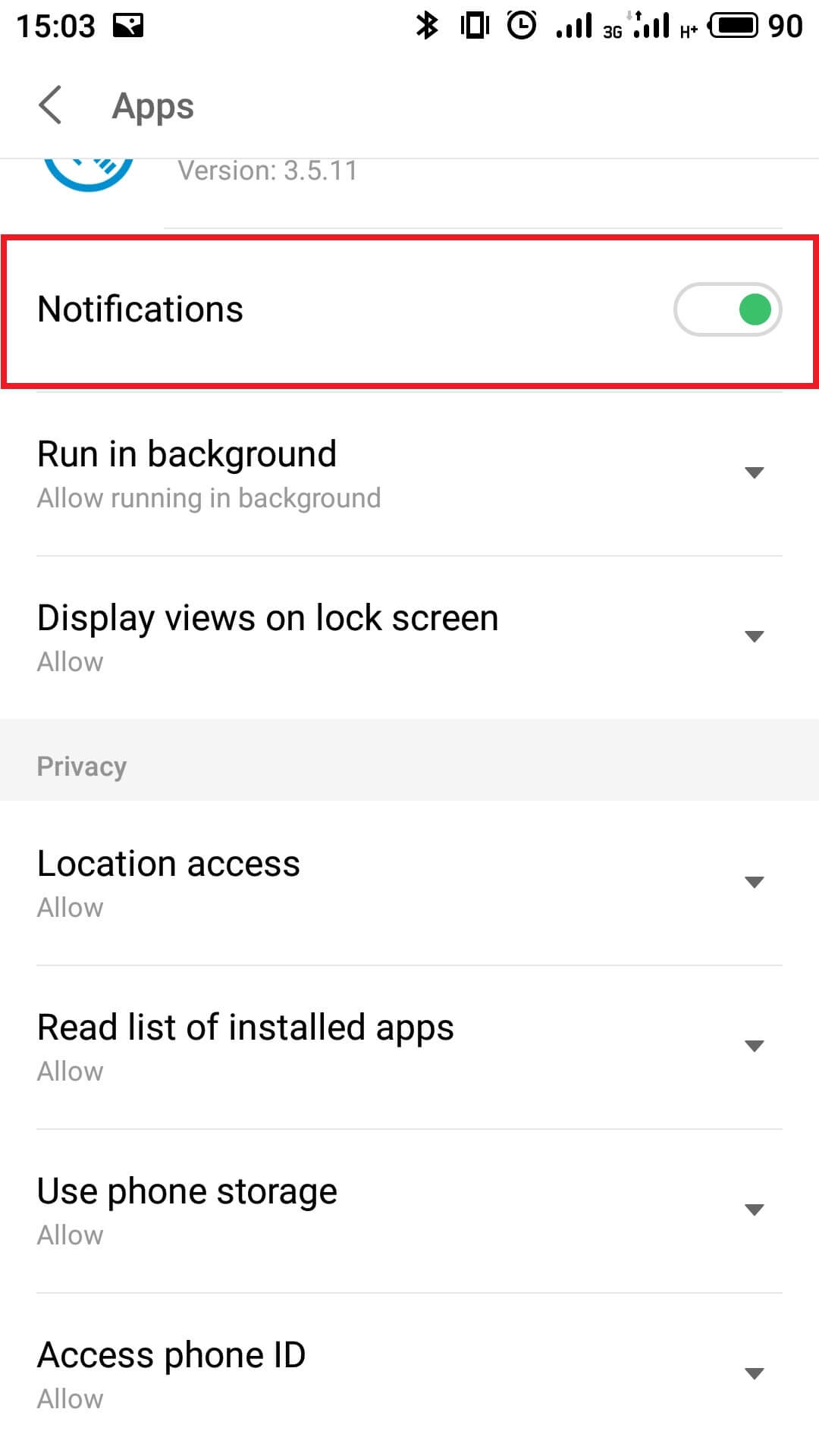
Image unavailable. Follow the written steps above or contact GPSPRO.
Allow the phone storage permission only if X-GPS Tracker App requests it.
X-GPS Tracker App → Permission management → Use phone memory → Allow
Skip if absent; this is not a request for All files access.
Image unavailable. Follow the written steps above or contact GPSPRO.
Image unavailable. Follow the written steps above or contact GPSPRO.
Image unavailable. Follow the written steps above or contact GPSPRO.
Image unavailable. Follow the written steps above or contact GPSPRO.
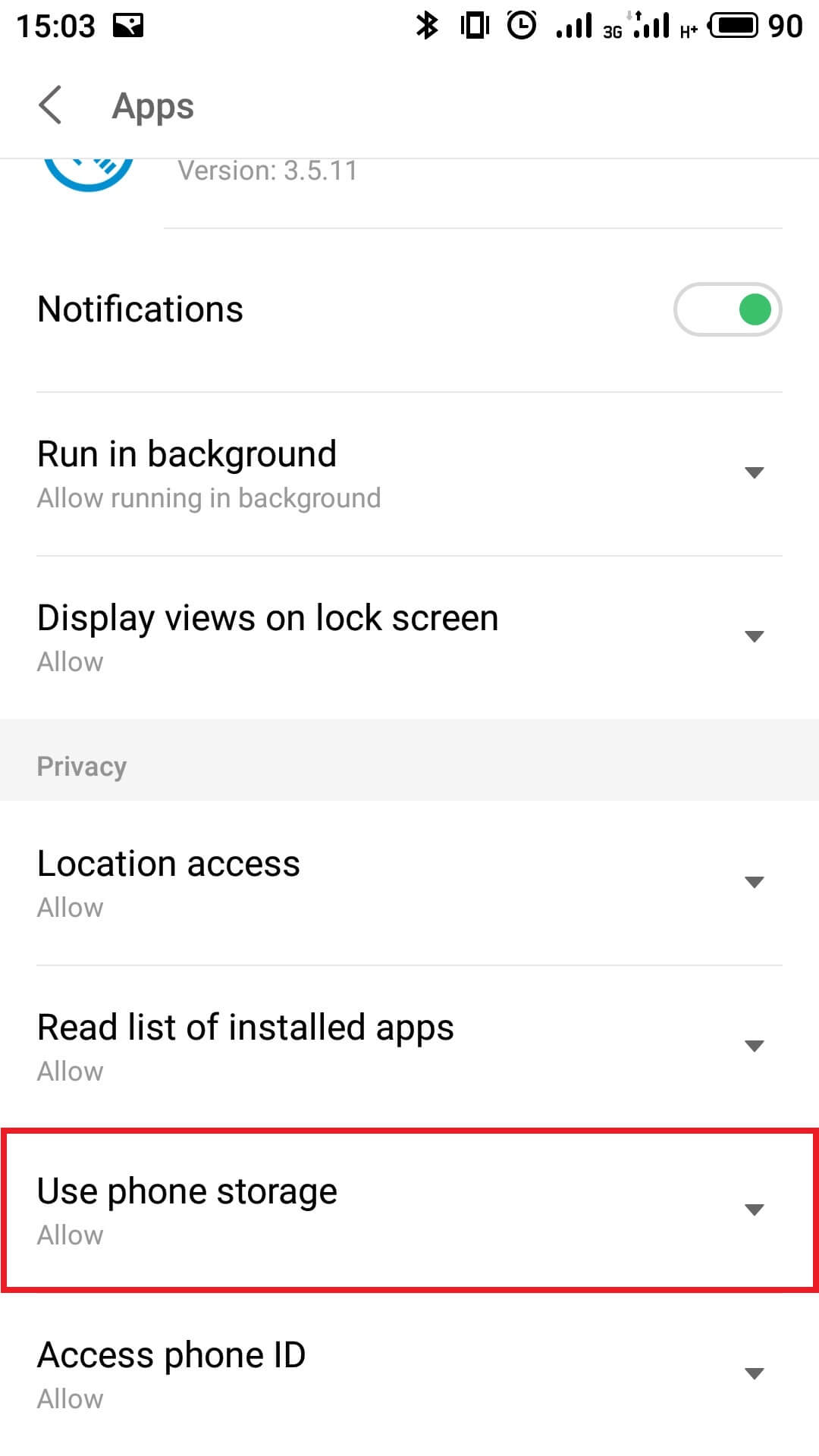
Image unavailable. Follow the written steps above or contact GPSPRO.
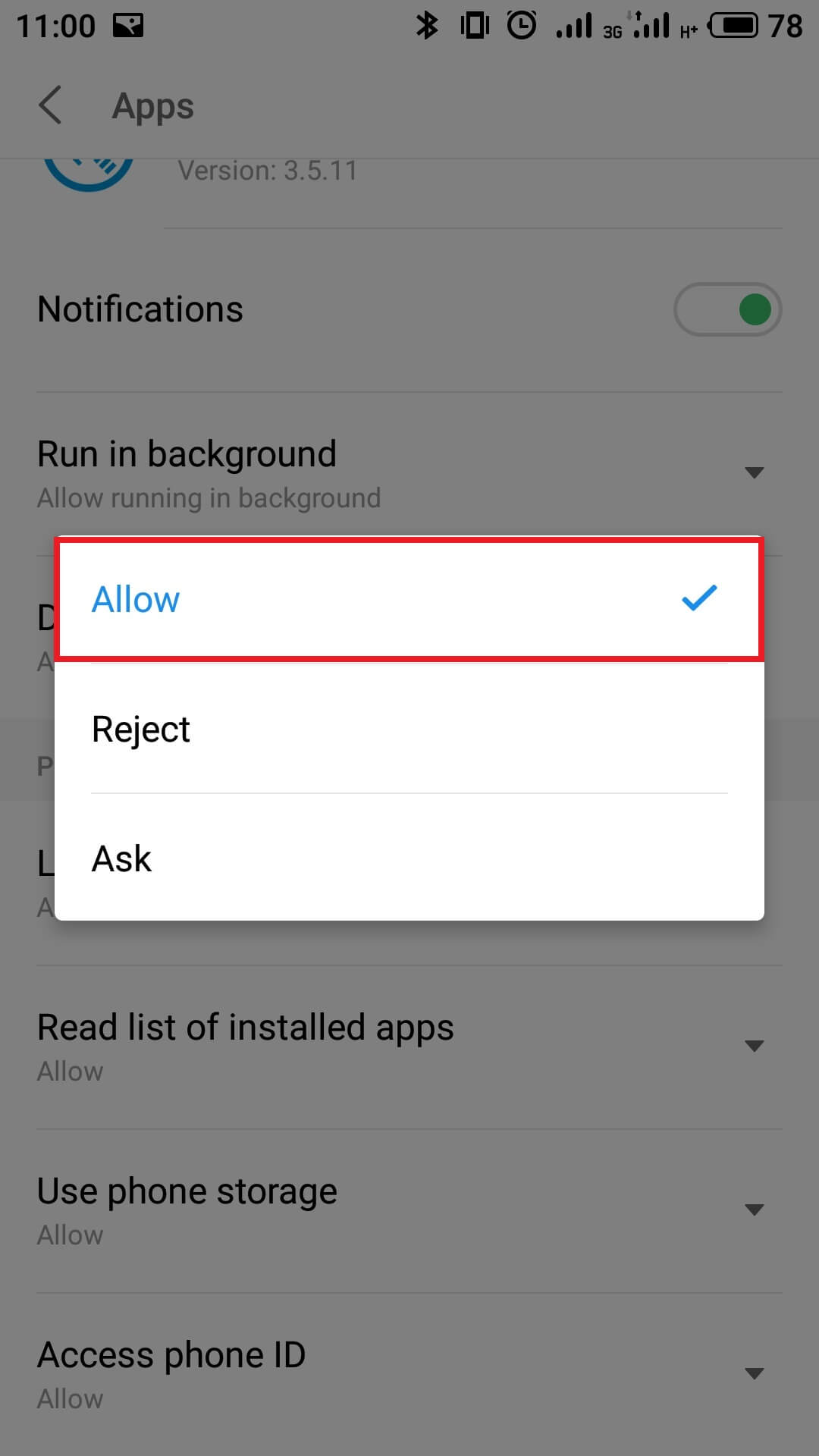
Image unavailable. Follow the written steps above or contact GPSPRO.
Swipe down from the top of the screen to open the quick settings panel.
Check these controls before tracking.

Needed to send updates over a cellular connection. Online syncing needs internet access.

Required for the phone to determine its location.

Leave it off while tracking; it can restrict internet and location services.

Helps with faster, more efficient location in cities and indoors.

Can also help location accuracy and efficiency in cities and indoors.
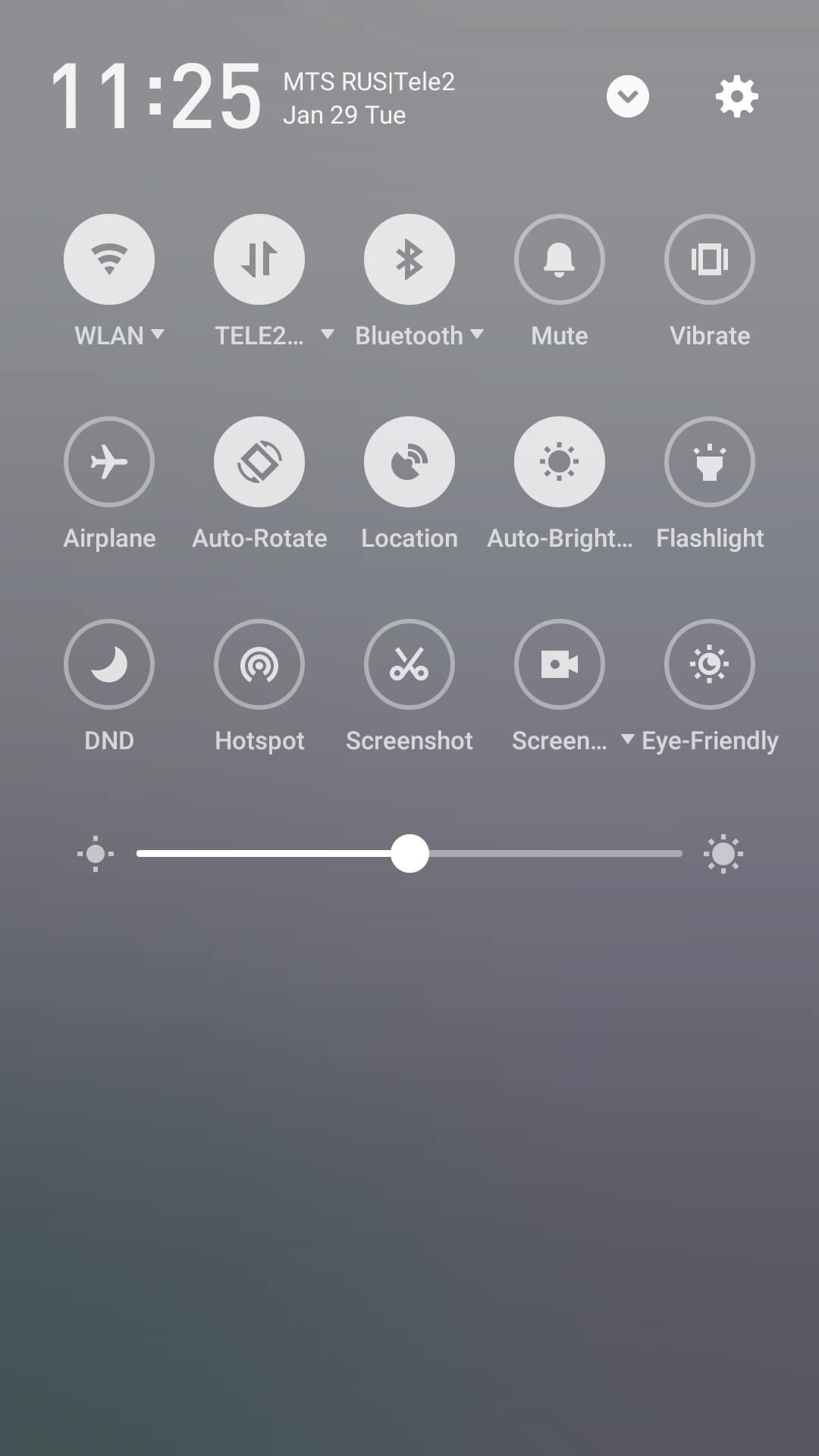
Image unavailable. Follow the written steps above or contact GPSPRO.
Turn on Location services and choose both networks and GPS when offered.
Flyme example: Settings → Fingerprints, Face & security → Location services
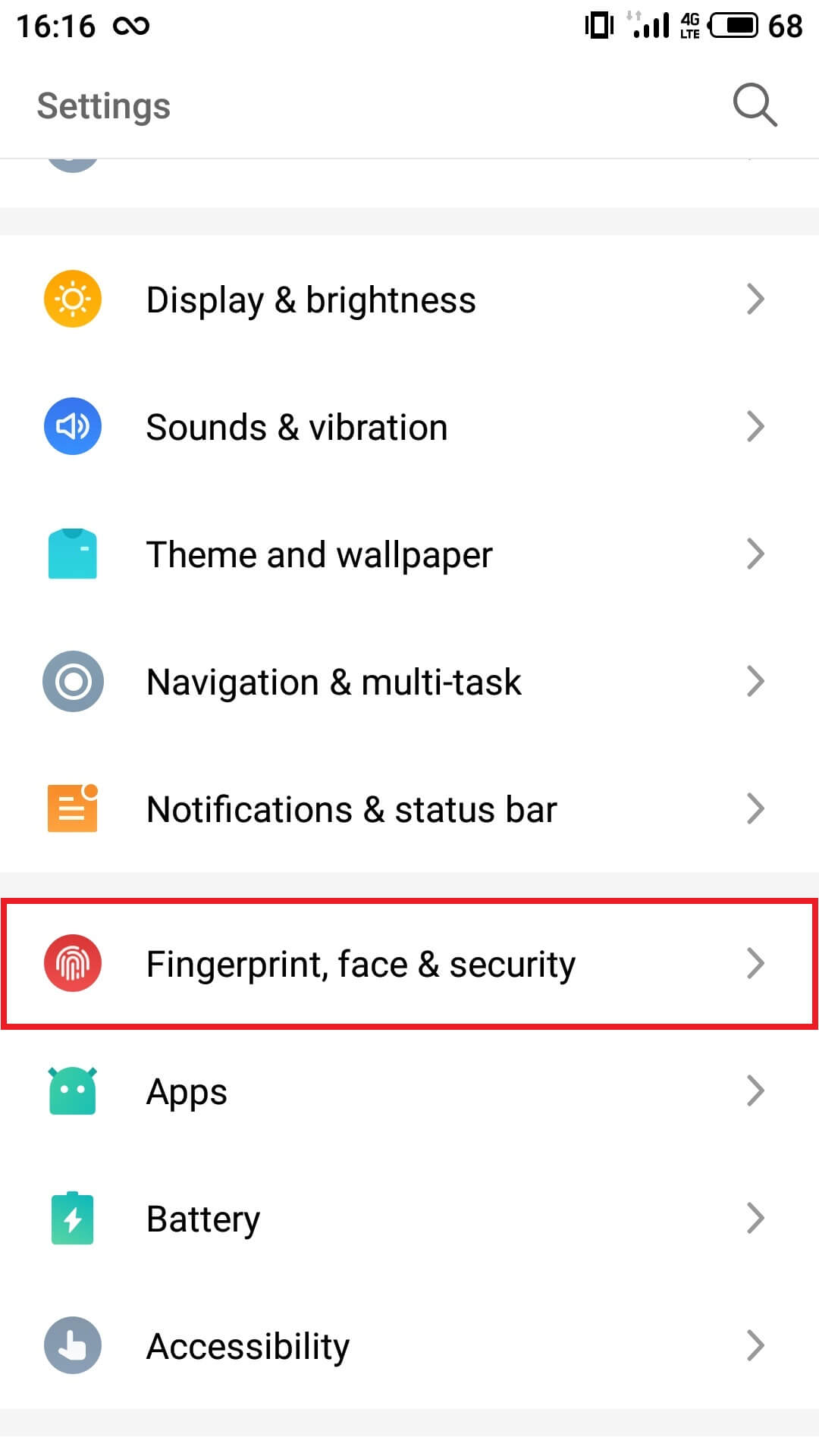
Image unavailable. Follow the written steps above or contact GPSPRO.
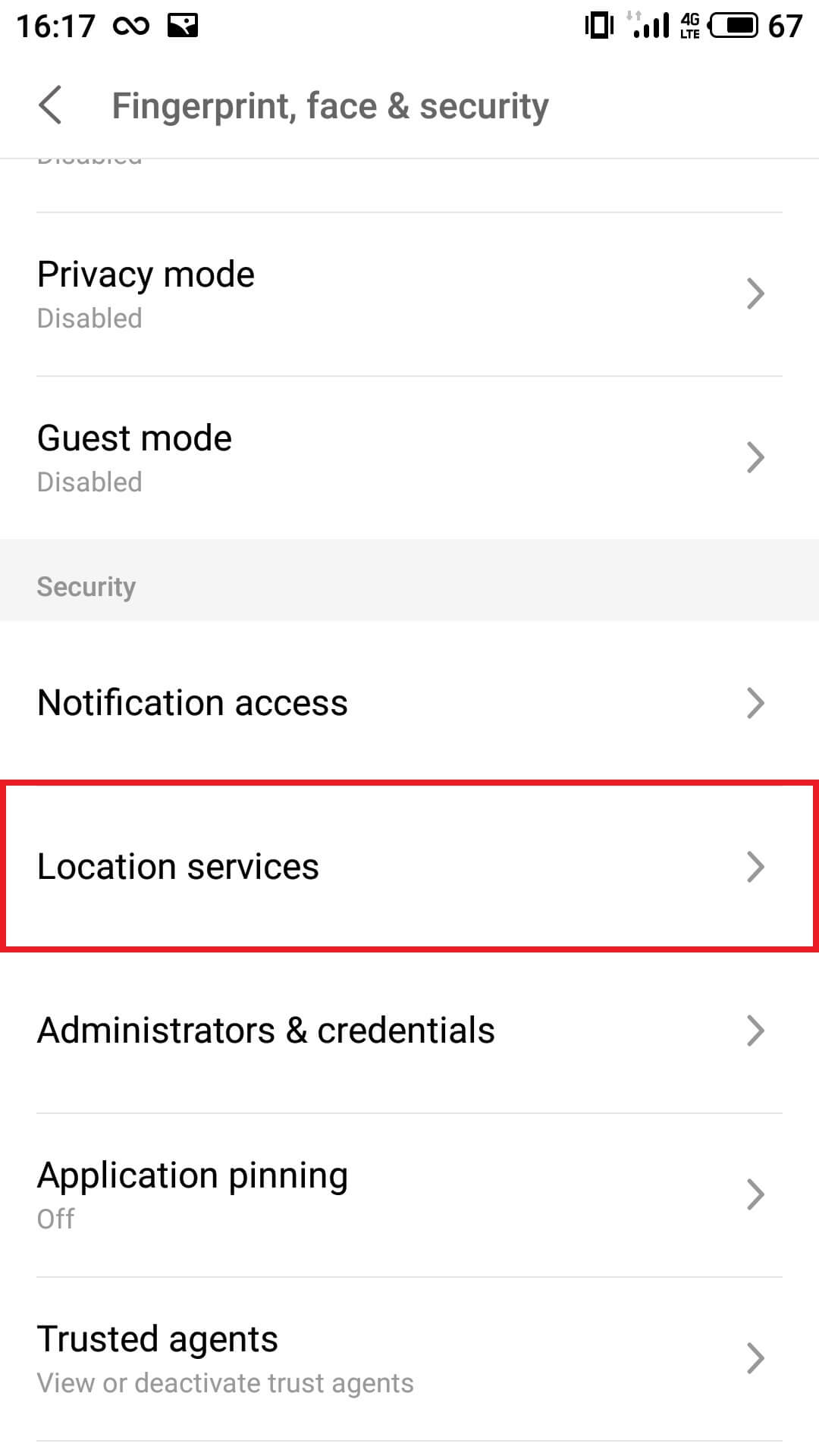
Image unavailable. Follow the written steps above or contact GPSPRO.
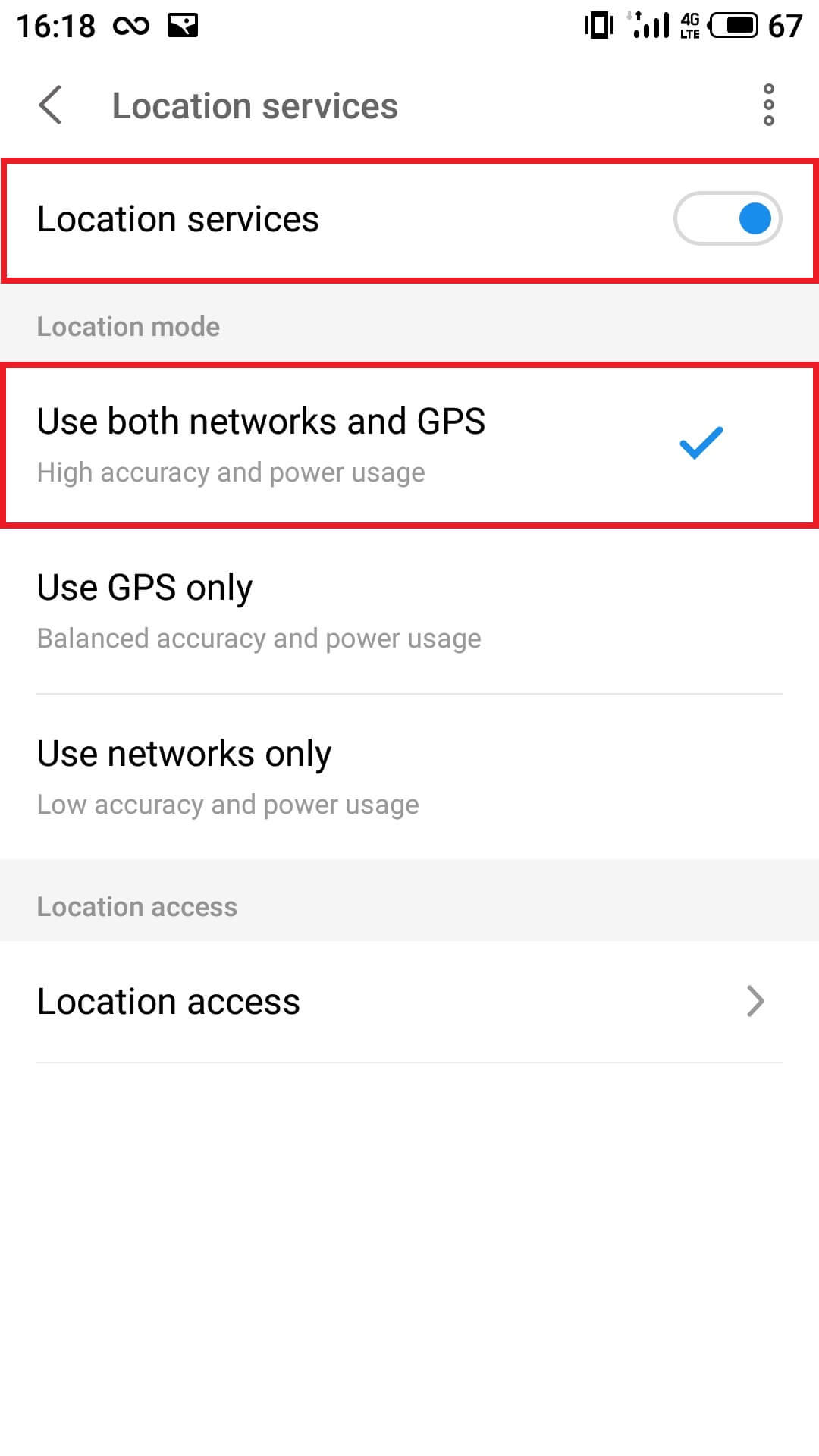
Image unavailable. Follow the written steps above or contact GPSPRO.
X-GPS Tracker App uses satellite location such as GPS/GLONASS, plus cell towers and Wi-Fi. Its tracking settings balance accuracy and battery use while walking or driving.
Available tracking modes depend on your GPSPRO setup.
Yes, if the required location, background and battery settings above allow X-GPS Tracker App to keep running.
No. X-GPS Tracker App does not offer that restriction; the phone and operating system keep the user in control.
On supported phones, it can resume if tracking was active before shutdown and background operation is allowed. Behavior varies by phone. Reopen X-GPS Tracker App and check for a fresh location if updates do not resume.
No. X-GPS Tracker App is visible in the app list and uses visible notifications. It is not designed for hidden monitoring.
The app can keep GPS routes and supported task notes or photos on the phone, then sync them when internet returns. Live updates need a connection. Allow Storage only if X-GPS Tracker App requests it; skip absent permissions.
Screens are examples; menus and app labels vary by phone model and software version. Follow the written steps for your phone.
Allow location for X-GPS Tracker App. Choose Allow all the time when offered.
Settings → Apps → X-GPS Tracker App → Permissions → Location
Allow Storage only if requested by X-GPS Tracker App. Skip absent permissions; no All files access is required here.
Allow mobile data and data transfer while X-GPS Tracker App is in the background.
Settings → Apps → X-GPS Tracker App → Data usage / Traffic control
Control names vary by phone.
Exclude X-GPS Tracker App from battery optimization. If your phone has a separate background-app list, allow it there too.
Settings → Battery / Power → Battery optimization → All apps → X-GPS Tracker App → Don’t optimize
Battery optimization may be under Advanced Settings or the 3-dot menu. Use the equivalent app-specific control. Battery saving can stop updates after inactivity; GPSPRO can help if you cannot find the control.
Swipe down from the top of the screen to open the quick settings panel.
Check these controls before tracking.

Needed to send updates over a cellular connection. Online syncing needs internet access.

Required for the phone to determine its location.

Leave it off while tracking; it can restrict internet and location services.

Helps with faster, more efficient location in cities and indoors.

Can also help location accuracy and efficiency in cities and indoors.
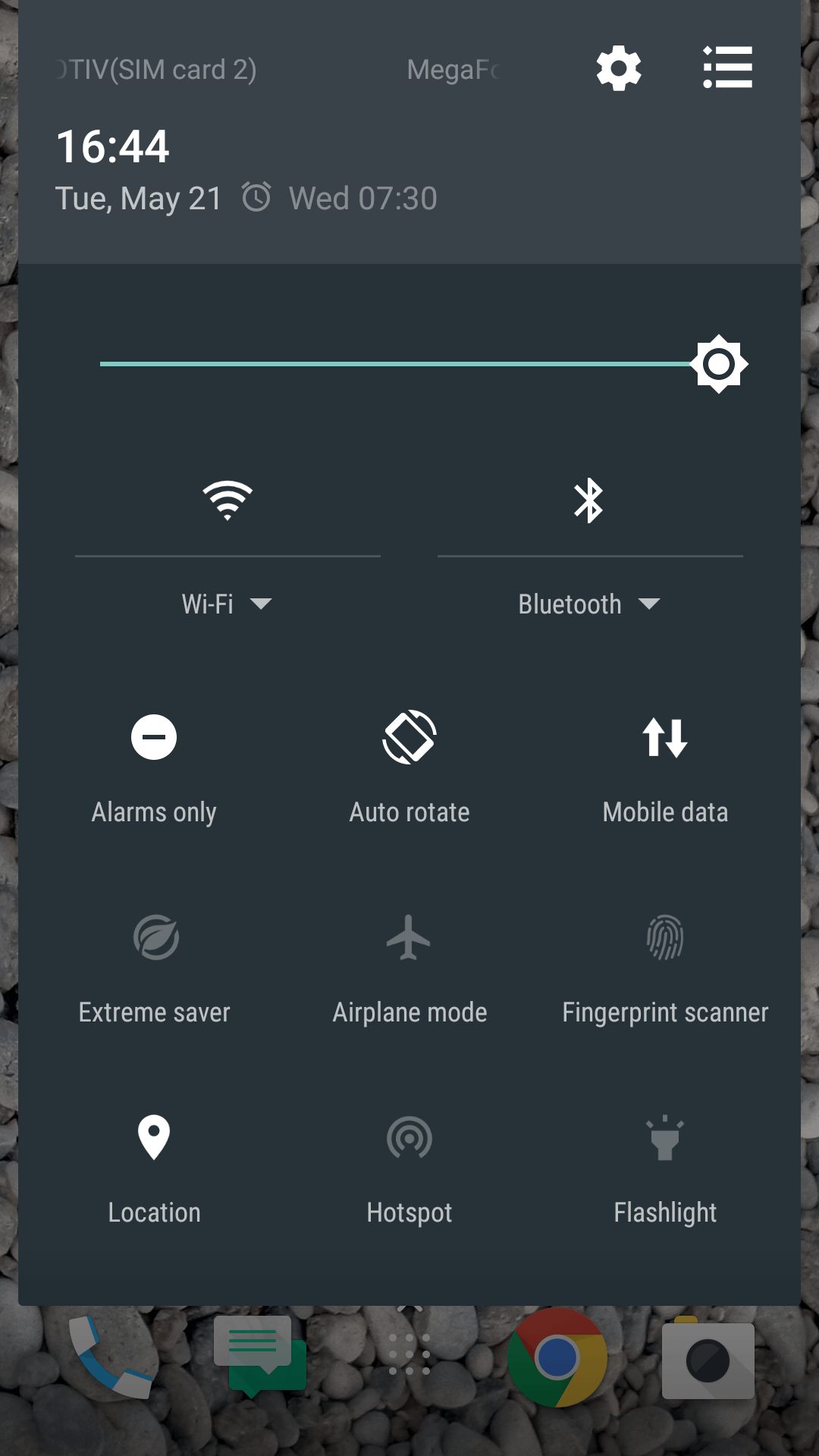
Image unavailable. Follow the written steps above or contact GPSPRO.
Enable Location and Improve Location Accuracy when these controls are offered.
Android 9 example: Settings → Security and Privacy → Location → Improve Location Accuracy
If the section is missing, check Advanced Settings.
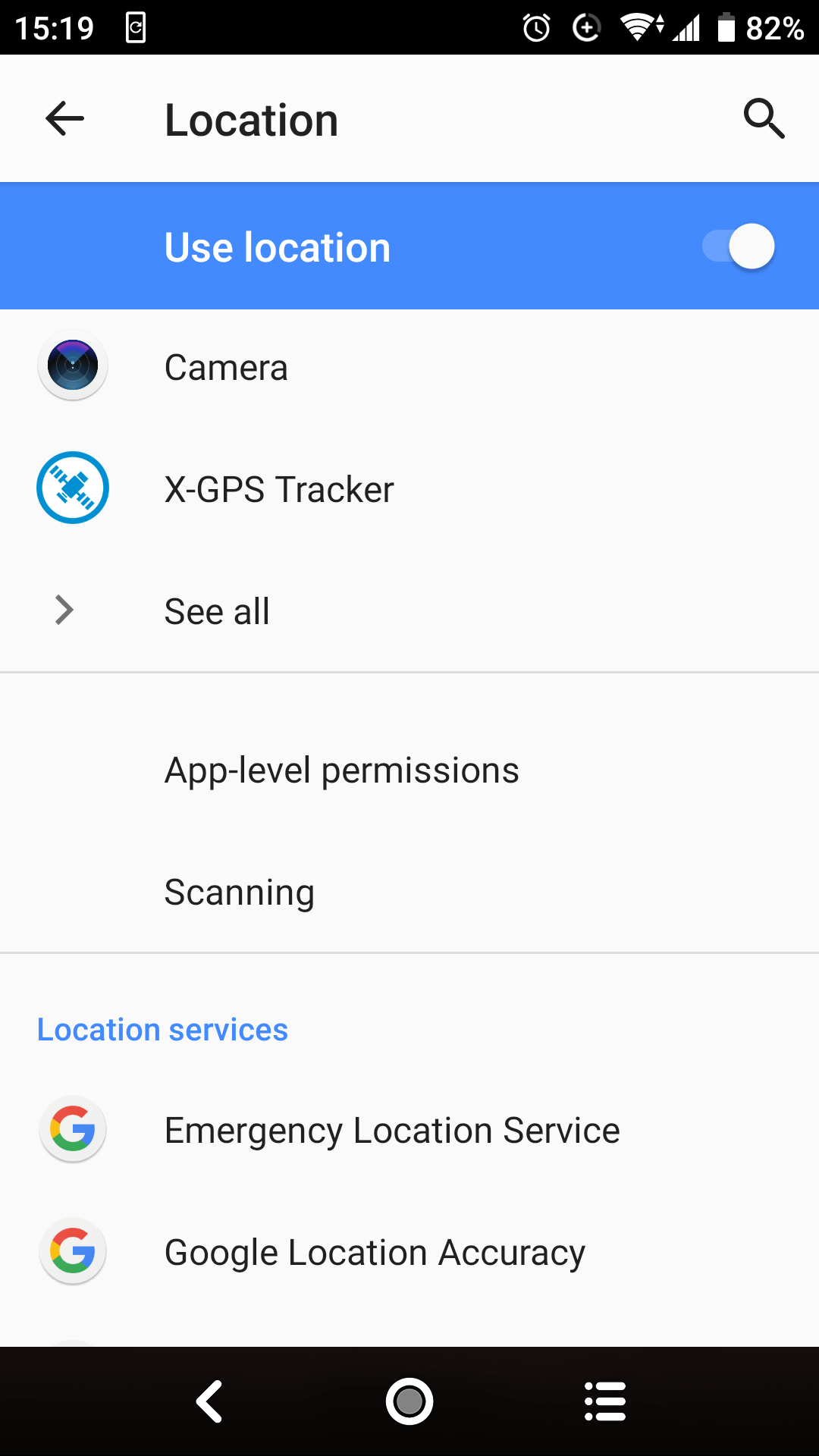
Image unavailable. Follow the written steps above or contact GPSPRO.
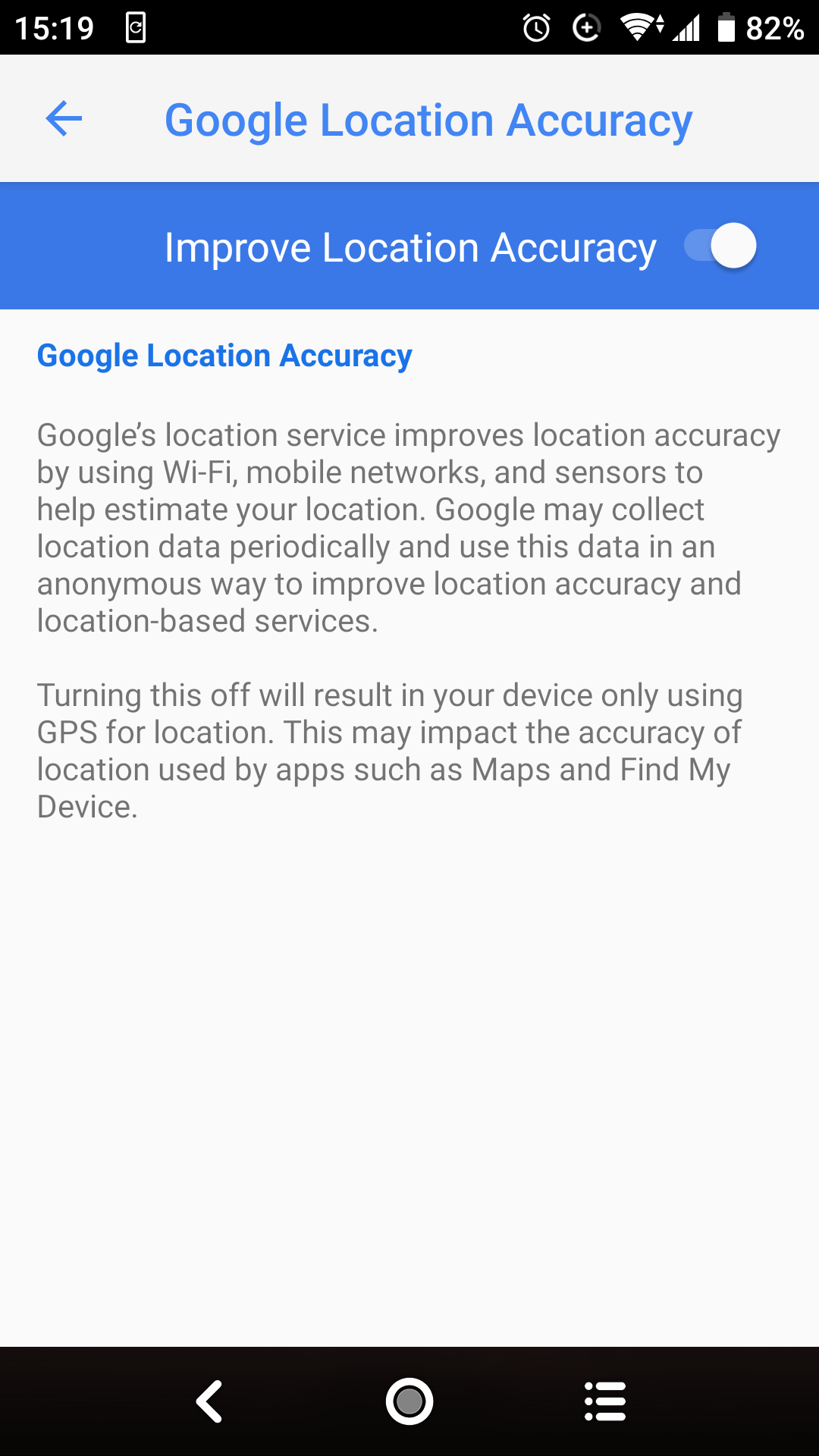
Image unavailable. Follow the written steps above or contact GPSPRO.
X-GPS Tracker App uses satellite location such as GPS/GLONASS, plus cell towers and Wi-Fi. Its tracking settings balance accuracy and battery use while walking or driving.
Available tracking modes depend on your GPSPRO setup.
Yes, if the required location, background and battery settings above allow X-GPS Tracker App to keep running.
No. X-GPS Tracker App does not offer that restriction; the phone and operating system keep the user in control.
On supported phones, it can resume if tracking was active before shutdown and background operation is allowed. Behavior varies by phone. Reopen X-GPS Tracker App and check for a fresh location if updates do not resume.
No. X-GPS Tracker App is visible in the app list and uses visible notifications. It is not designed for hidden monitoring.
The app can keep GPS routes and supported task notes or photos on the phone, then sync them when internet returns. Live updates need a connection. Allow Storage only if X-GPS Tracker App requests it; skip absent permissions.
Wi-Fi and Bluetooth can help improve location accuracy. Turn them on if available.
If your Android phone offers High accuracy or Wi-Fi / Bluetooth scanning under Location, you can enable them. These accuracy settings are optional.
After checking the settings, confirm with your GPSPRO account manager that a fresh location arrives, including with the phone locked.
This page cannot inspect phone permissions or verify live tracking.
Finish the steps for your phone and confirm a fresh location with GPSPRO.
Recheck Location, internet and the settings above. Open Tracker again after a restart. Indoors, satellite reception can be weaker. Ask GPSPRO for help if a location remains missing or outdated.
Get help from GPSPRO ↓Choose the way that works for you.